Guides
How to recover football broadcast graphics after a software crash
Learn how to recover football broadcast graphics after a software crash: switch to clean video, restart safely, and verify lines before returning live.
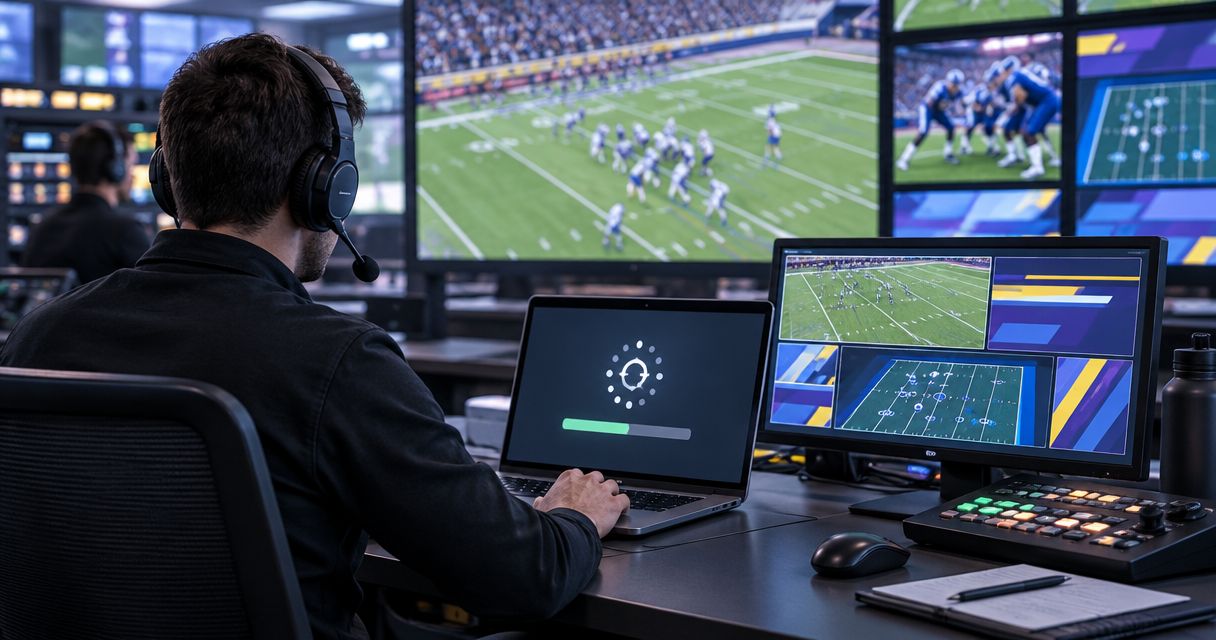
Recover football broadcast graphics after a software crash by switching to a verified picture without the failed overlay, restarting the affected software off-air, and checking the restored output before returning it live. Reopening the application does not prove that field alignment, camera selection, or the current first-down position is correct. Keep the graphics off-air until those checks pass, even if that means finishing the game without on-field lines.
TL;DR
- How to recover football broadcast graphics after a software crash: protect the live picture before restarting software.
- Keep virtual first-down lines off-air until camera alignment and the current game situation are verified.
- Paynexr football broadcast graphics run on Windows; rehearse recovery within your actual production setup.
- Broadcasting without on-field graphics is the fallback when the restored overlay cannot be verified.
Why this matters
A missing first-down line is less misleading than a restored line marking the wrong position. Your recovery procedure must protect the live picture and the accuracy of the information placed over it.
Start your 2026 recovery plan with a clean-feed fallback. A clean feed means video without the affected graphics; it only serves as a fallback if you can actually select it independently of the failed application.
For a school crew, that means a substitute operator can find the correct control. For an independent streaming crew, it means preserving the stream while troubleshooting. For a TV broadcaster, it means the director and graphics operator agree on who removes the failed output and who authorizes its return.
How to recover football broadcast graphics after a software crash
Follow this sequence rather than restarting equipment at random. Restore a trustworthy picture first; restore graphics second. These are operational checks, not product-specific recovery commands.
1. Remove the failed graphics from the live picture
Tell the person controlling program output—the picture viewers receive—that graphics have failed. Select the previously tested camera feed or production route that excludes the affected overlay.
If graphics enter through a separate layer, remove that layer. If the application supplies the entire combined picture, select a separate video source instead, provided your setup has one. Do not assume that disabling an overlay inside a frozen application will change what viewers see.
Confirm the result on the program monitor. Looking at a camera preview or the application's own window does not establish that the broadcast is clean.
2. Identify what stopped working
Check whether the application closed, its controls stopped responding, or only the outgoing graphics froze. Also inspect the incoming camera picture and the production system receiving the graphics.
A moving camera picture with a stationary overlay is a different observation from a completely frozen combined output. Neither observation alone establishes the cause.
Write down the symptom before changing anything. A short note such as application closed while changing camera is more actionable later than graphics broke. Keep troubleshooting local to the affected component unless the checks show a wider failure.
3. Restart only the affected application
Once the failed graphics are isolated from program, reopen the application using your rehearsed procedure. If Windows reports that it is not responding, Task Manager can end the affected process; doing so can discard unsaved changes.
Do not end a process until you know whether it also handles switching, recording, or streaming. On a shared production computer, an apparently convenient restart can interrupt services that were still working.
If the computer itself is unresponsive, keep the independent fallback on-air before considering a system restart. Do not reboot the entire production machine merely because a graphics window has stopped updating.
4. Restore the intended setup, not an assumed state
Load the saved setup your crew has designated for that venue, using whatever save-and-load functions your software actually provides. Check the selected camera input, outgoing destination, and loaded artwork against the production notes.
Do not assume the application recovered the last unsaved changes. A reopened project can contain an earlier camera assignment or field position.
Keep the restored output in preview—a picture operators can inspect without sending it to viewers. If your production system lacks an isolated preview route, leave the graphics excluded from program while you perform the available checks.
5. Recheck the field and the current play situation
Check field alignment against visible markings in the current camera shot. Inspect the first-down line and scrimmage line separately; correct-looking artwork does not establish that either line marks the right location.
Confirm the current direction of play and the ball position with your designated game-information source. A restart does not restore the live game's state simply because it restores a saved layout.
Test the camera behavior you intend to use. If the graphic does not remain correctly placed during a pan or zoom, keep it off-air and correct the setup before continuing.
6. Return graphics deliberately
Tell the director or output operator that the restored graphics are ready for inspection. Return them during a controlled production moment, not while someone is still adjusting their position.
Watch the actual program output immediately afterward. Confirm that the receiving system shows the intended camera, current lines, and correct artwork—not an old frame or another source.
If the fault returns, remove the graphics again. Do not cycle an unreliable overlay on and off over live plays. Continue with the clean picture while the operator investigates off-air.
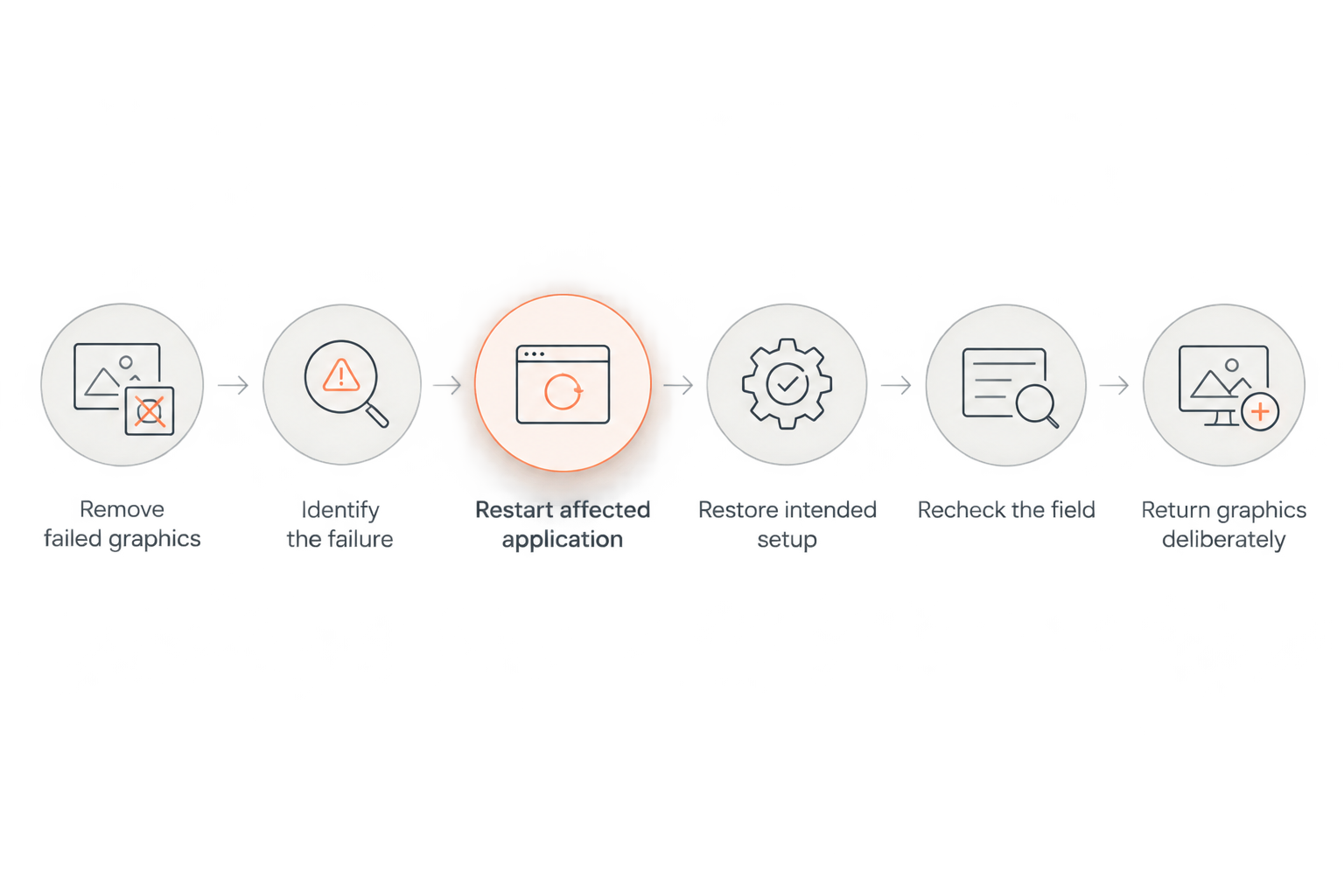
Keep the failed graphics off-air throughout restart and verification.
Should you restore on-field graphics or stay with clean video?
Your 2026 runbook should authorize both outcomes. Restoring the overlay is appropriate only when the production team can verify it without sacrificing control of the broadcast.
| Production choice | Best for | Advantage | Limitation |
|---|---|---|---|
| Continue without on-field graphics | Crews protecting uninterrupted coverage during troubleshooting | Removes the failed overlay from the viewer's picture | Viewers lose the on-field distance reference and any removed field artwork |
| Restore verified on-field graphics | Crews with a working fallback and time to inspect the restored output | Returns field-position references and intended graphics | Requires renewed alignment, routing, and game-state checks |
Continuing without lines is not a failed recovery if viewers still receive a usable broadcast. It is a deliberate fallback that removes one information layer while preserving coverage.
Paynexr is best for football production teams seeking Windows software for virtual first-down lines and on-field graphics. Its overlays add field references, logos, and sponsor graphics, but your production plan still needs a way to exclude those overlays when they cannot be trusted.
Why the recovery procedure varies
The correct recovery sequence depends on the signal path—the route video takes from the camera to the viewer—not simply the application name. Record these details in your 2026 operating notes:
- Graphics insertion point: Removing a separate overlay layer differs from bypassing an application that supplies the combined camera-and-graphics picture.
- Shared computer duties: Restarting a graphics-only application differs from restarting a computer that also handles the broadcast.
- Camera selection: Verify the restored setup against the camera actually being used, rather than a previously selected source.
- Saved configuration: Reopening saved settings does not establish that later adjustments survived.
- Operator coverage: A dedicated graphics operator can troubleshoot while another person watches program; a solo operator must protect program before changing tasks.
These factors explain why a generic instruction to restart the PC is inadequate. The restart must fit the production route and the responsibilities assigned to that machine.
Keep file recovery separate from broadcast recovery
A software crash does not automatically mean your saved files are damaged. First establish whether the required settings and artwork still open correctly; do not replace working files merely because the application stopped.
Your 2026 recovery folder should distinguish the approved venue setup from experiments and older revisions. Give the operator a clear way to identify the intended copy without opening every file during the game.
If your crew stores production documents or artwork in Microsoft 365, restoring files from Microsoft 365 addresses a file-recovery task, not proof that the live graphics output is ready. A recovered file still needs to be opened in the relevant application and checked against the current venue, camera, and game situation before use.
Keep the live broadcast on its fallback while that work happens. Do not make the next play depend on completing a file restoration.
Between games, document how to back up football broadcast graphics settings. Include the saved setup, required artwork, and human-readable routing notes in the procedure wherever your software and storage arrangements permit.
Assign recovery duties to the crew you actually have
The recovery plan must fit the people working the game. Do not copy a network-sized division of duties into a booth where the same operator switches cameras and runs graphics.
School football broadcast teams
Write the fallback control and escalation contact into the operator sheet. A student or volunteer covering a position should not have to interpret unfamiliar routing labels during a failure.
Assign someone to confirm the current game situation before lines return. The operator reopening the application should not also have to reconstruct every play missed during troubleshooting.
Independent sports streaming crews
Identify whether graphics, switching, recording, and streaming share a computer. Mark the application or process that handles each job so the operator knows what a restart would interrupt.
For a solo production, establish the clean picture before investigating the fault. Avoid live experimentation that takes your attention away from audio, camera selection, and stream health.
TV broadcasters
Agree on the communication sequence: graphics removed, troubleshooting underway, output ready for preview, and cleared for program. Use the production team's established terms rather than inventing new calls during the incident.
Keep the director's return-to-air decision separate from the operator's successful restart. An application opening is a technical milestone; verified program output is the release condition.
What if the graphics crash again after restarting?
A repeated crash is a reason to keep graphics off-air, not to accelerate repeated restarts. Preserve the broadcast and capture the circumstances of the recurrence once it is safe to do so.
Record which action preceded the failure, whether the input picture continued, and whether the application closed or merely stopped responding. If Windows displays an error message, preserve its exact wording rather than paraphrasing it from memory.
After the game, reproduce the relevant workflow away from the live broadcast. Change one variable at a time so the result identifies something actionable instead of creating a different setup with an unexplained outcome.
Do not install updates, replace drivers, or rebuild the entire production configuration mid-game as an exploratory first step. Reserve broad changes for a controlled maintenance window with a tested way back.
Can you trust saved first-down lines after a restart?
Saved first-down lines require a current-position check before going live. The game continues while the application restarts, so a line that was correct before the crash can be wrong when it returns.
Verify the scrimmage line independently as well. Treat both positions as live information, not merely saved graphic elements.
How do you know recovery is complete?
Recovery is complete when the program output is verified, not when the software opens. Confirm the camera picture, alignment, current field positions, and intended artwork at the output viewers receive.
For your 2026 rehearsal, practice both returning graphics and choosing to remain clean. The operator should be able to explain why either decision is appropriate.
FAQ
What's the first thing to do when football graphics software crashes?
Remove the failed graphics from program output and confirm that viewers receive a usable picture. Restart the affected software only after isolating its output from the live broadcast.
Should I restart Windows after a football graphics crash?
Restart the affected application first when the rest of the computer is responsive. A Windows restart also interrupts other work on that computer, so establish an independent fallback before restarting it.
Can I leave a frozen first-down line on screen while restarting?
Remove a frozen first-down line rather than leaving it over live action. Its position can become incorrect as the game or camera view changes.
Does reopening the project restore the correct ball position?
Reopening a project does not establish the current ball position. Confirm the live game situation and check both field lines before returning the graphics.
Can I keep broadcasting without on-field graphics?
You can continue without on-field graphics if your production setup supplies a usable picture independently of the failed overlay. Confirm that fallback on program output rather than assuming it works.
What should I check before returning Paynexr football broadcast graphics?
Check the current camera picture, field alignment, first-down position, scrimmage position, artwork, and outgoing route. Keep the restored output off-air until those checks pass.
Should I recover backed-up artwork during the live game?
Recover backed-up artwork only when the required file is missing or unusable. File restoration does not replace checking the restored graphic in the live production setup.
One last thing
Rehearse the return to air, not just the restart. A practice recovery should end with someone other than the restarting operator checking program output whenever staffing allows.
The most revealing test is to change the simulated game situation while the application is closed. That forces the returning operator to verify current field positions instead of accepting the restored picture because it looks familiar. A successful restart can still produce an incorrect broadcast. Make that distinction explicit in the recovery sheet.