
Guides
How to back up football broadcast graphics settings between games
Learn how to back up football broadcast graphics settings: save files, collect artwork, document connections, and test restores before your next game.
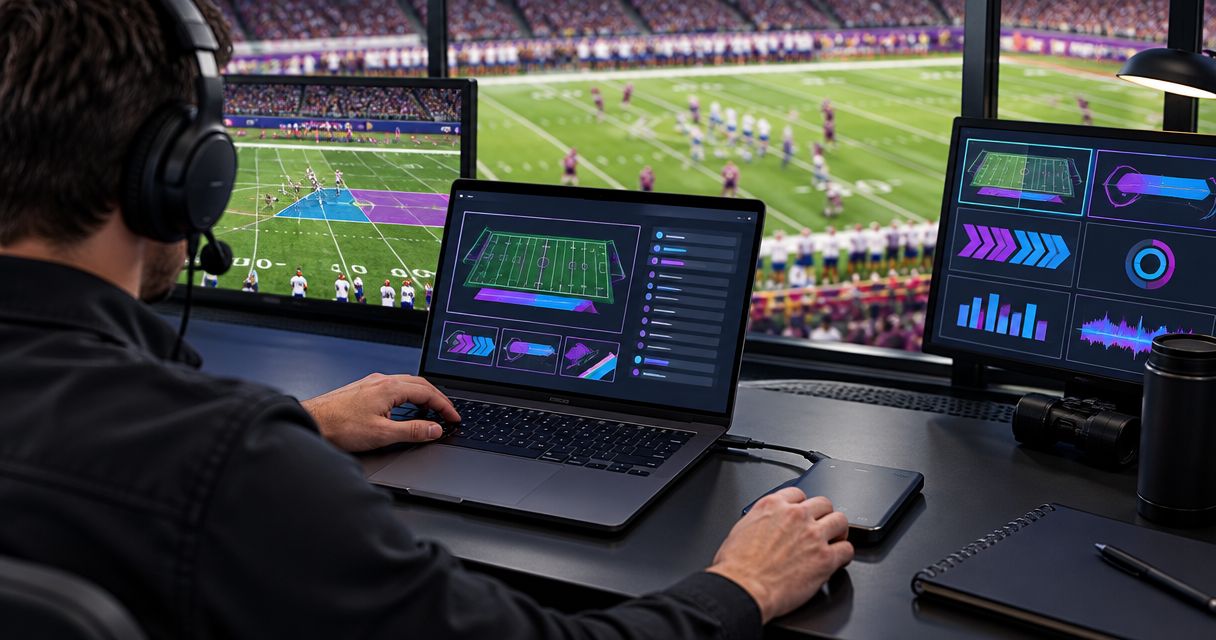
Back up football broadcast graphics settings by saving the application’s configuration through its documented method, collecting the artwork and setup notes it depends on, and copying that package somewhere separate from the production computer. Then restore it into a separate test setup and check the resulting video before the next game. A saved configuration is not a complete recovery plan unless the required files, connections, and operator instructions come with it.
TL;DR
- How to back up football broadcast graphics settings: save configurations, collect artwork, copy separately, and test restoration.
- Paynexr football graphics teams should document the Windows setup alongside their saved settings.
- Keep reusable graphics separate from game-specific information and camera alignment notes.
- A restored configuration still needs an output check before you put graphics on air.
How do you back up football broadcast graphics settings?
Build a recoverable production package, not just a folder of screenshots. Save the settings using the method documented for your application, include its supporting assets, and prove that the package restores correctly before treating it as your backup.
For crews using Paynexr, the backup plan should cover the Windows graphics workstation as well as the football artwork and operating notes. Keep application-specific save and restore instructions with the package; do not substitute guessed file locations or undocumented configuration changes.
1. Preserve the last working setup
After the broadcast, save the configuration that actually worked before making changes for the next opponent or venue. Identify it as the last verified setup, and keep next-game edits in a separate working copy wherever the application’s documented workflow supports that separation.
Use a descriptive label such as 2026_HomeField_Verified for your backup folder. Add the game date, venue, operator, and verification status in a short text document so another crew member can distinguish a tested setup from an unfinished experiment.
Record unresolved problems honestly. A configuration that produced misaligned lines should not become the default merely because it was the most recently saved file.
2. Save settings through the documented method
Use the application’s documented configuration backup or save procedure. If the documentation identifies files that require the application to be closed before copying, close it first rather than copying files while they are changing.
Write down how you created the backup and how to restore it. Include the application version shown on the production machine and the Windows version, because the receiving operator needs to know which environment produced the working result.
Screenshots belong beside the saved configuration as reference material. They help explain choices, but they do not recreate settings automatically or replace the actual files required for restoration.
3. Collect the supporting artwork
Include the logo and sponsor artwork used in the broadcast, along with any other external files the saved setup references. Preserve the folder arrangement when the application depends on file paths, meaning the locations where those assets are stored.
Give the package a simple asset list. Note which artwork belongs to the home team, visiting team, and individual sponsors so an operator does not restore the right settings with the wrong graphics.
Keep original supplied artwork separate from edited broadcast versions. That distinction gives the next operator a clear starting point when a sponsor sends a replacement rather than encouraging edits to the only usable copy.
4. Document the video connections
Describe the actual signal path: where the camera video enters the graphics workflow, where the processed video leaves, and which production input receives it. Record the device and connection names that your crew uses, not just their positions on a desk.
Document the video format, including frame size and frame rate, as displayed by the equipment. Also record any relevant input or output selections using their actual labels.
Settings alone do not explain a cable move. Include a plain connection sketch or labeled reference photos in the backup package, keeping passwords and other credentials out of shared production notes.
5. Copy the package away from the production computer
Use the established 3-2-1 backup approach: 3 copies, on 2 different media types, with 1 copy off-site. Those are backup-planning targets, not a claim about your application’s storage requirements.
A second folder on the same Windows drive is a working duplicate, not protection against that drive failing. Keep a separate recovery copy and make sure the authorized operator knows how to access it.
For a 2026 season archive, separate verified backups from folders that are still changing. If your storage service synchronizes deletions, confirm that you also have a recoverable version rather than assuming synchronization preserves everything.
6. Restore and inspect the result
Restore into a separate test setup using the documented procedure. Do not overwrite the only working production configuration to discover whether a backup is usable.
Open the required artwork, confirm the intended video connections, and inspect the graphics on the receiving production output. A successful file copy proves that files moved; it does not prove that a broadcast setup works.
Finish by recording what you restored, where you tested it, and whether the output passed inspection. Keep the previous verified package until the replacement has passed the same checks.
The recovery sequence is simple: preserve the configuration, collect its dependencies, document the connections, copy the package separately, and test the restore. Do not mark a backup verified until the restored output has been checked.
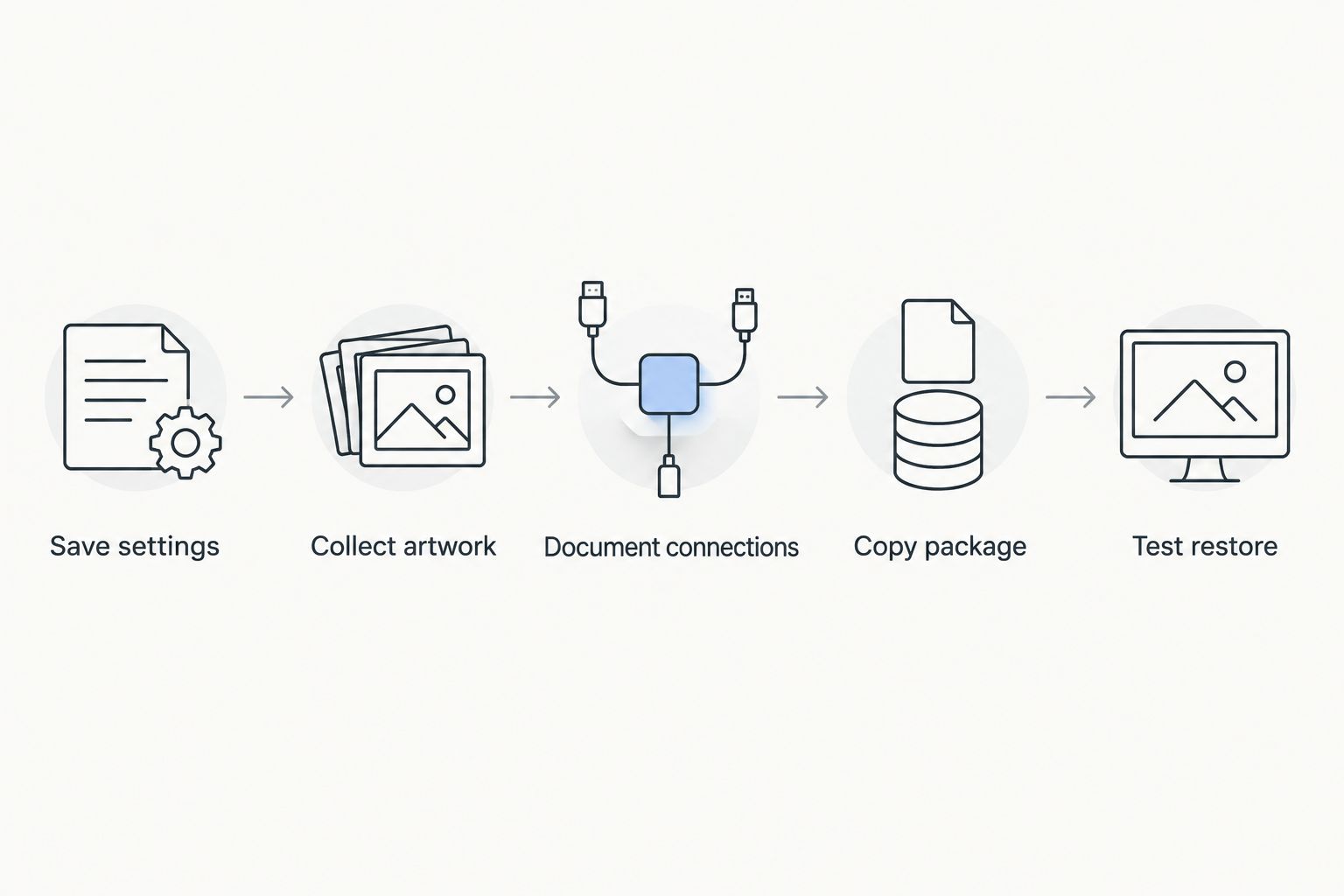
A usable backup includes the files, connection notes, and a successful restore test.
Why this matters between football games
Football productions carry reusable graphics alongside information that changes every game. Restoring everything without reviewing it risks bringing back an old sponsor graphic, an incorrect opponent logo, or camera alignment that no longer matches the shot.
For your 2026 production plan, separate recovery from readiness. Recovery means you can retrieve the saved setup; readiness means that setup matches the current field, camera, artwork, and production connections.
Paynexr is best for school football crews, independent streaming teams, and TV broadcasters that need Windows-based on-field graphics. Its stated role is overlaying virtual first-down lines, scrimmage lines, logos, and sponsor graphics onto live football video; your backup procedure must preserve the surrounding production information as well.
Adding those graphics gives viewers visual references on the field, but it also adds settings and artwork that need verification. Broadcasting without on-field graphics avoids those particular recovery tasks, while leaving viewers without those overlays.
| Production approach | Best for | Benefit | Limitation |
|---|---|---|---|
| Add on-field graphics | Crews ready to operate and verify field overlays | Shows virtual lines, logos, and sponsor graphics on live video | Requires graphics settings, artwork, and alignment checks |
| Broadcast without on-field graphics | Crews choosing a simpler video workflow | Removes the on-field graphics layer from the recovery checklist | Does not show virtual field lines or field-placed sponsor graphics |
What belongs in the reusable backup?
Keep the reusable package focused on the setup you intend to carry between games. Include the documented settings backup, approved reusable artwork, connection notes, and a short restore instruction sheet.
A useful folder structure separates these responsibilities:
- Settings: configuration files or exports created through the documented application workflow.
- Artwork: the external graphics required by the saved setup.
- Connections: notes describing video inputs, outputs, and the receiving production equipment.
- Restore notes: instructions, software versions, verification status, and unresolved issues.
These are organizational labels, not required application folders. Do not move files out of locations the software requires merely to make the archive look tidy.
Keep a readable copy of the restore instructions outside any application-specific file format. The replacement operator needs to find the instructions before successfully opening the graphics setup.
What should you review for every game?
Treat opponent details, sponsor selections, and field alignment as review items rather than permanent truths. A saved configuration reflects a previous production state, not a guarantee that the next game matches it.
For example, a folder labeled 2026_NextGame_Working should remain clearly distinct from the verified archive until you finish checking it. Promote the working version to verified only after inspecting its output.
Before the next kickoff, confirm:
- The correct team and sponsor artwork is selected.
- The intended camera shot reaches the graphics workflow.
- The receiving production input shows the expected processed video.
- Virtual field graphics align with the current view.
- The operator knows how to remove the graphics from the broadcast.
Keep current play information separate from the reusable setup. A restored first-down or scrimmage-line position still needs to match the actual game situation before it appears on air.
Why backup requirements vary
The right backup contents follow your actual production setup. Use these factors to decide what belongs in the package rather than copying another crew’s folder blindly:
- Camera position: a different viewpoint requires a fresh check of field alignment.
- Artwork dependencies: externally stored logos and sponsor files must travel with the configuration that references them.
- Video connections: changing the receiving production input makes old routing notes unreliable.
- Computer changes: another Windows workstation requires verification of the installed software and available connections.
- Operator changes: a substitute needs written restore steps, not knowledge held by the regular operator.
- Venue changes: a new location requires checking the current camera view and production connections against the saved notes.
For school teams, name the person responsible for maintaining the archive when student or volunteer operators rotate. For independent crews, organize backups by the actual event and venue so similar jobs do not become interchangeable folders.
TV broadcasters should connect the graphics restore instructions to the production’s existing routing and operating documentation. The goal is the same across all three audiences: another authorized operator can identify the right package and verify it without guessing.
Can you use last week’s camera settings again?
You can use last week’s saved settings as a starting point, but you still need to inspect the current camera view and graphics alignment. Reusing a file is not evidence that the camera occupies the same position or produces the same framing.
Check alignment on the actual video you plan to broadcast. Include the camera movements used during coverage, rather than approving a configuration after inspecting only a stationary wide shot.
Keep venue-specific notes in your 2026 archive, but label them as reference material. The current output decides whether a saved setup is ready.
Is copying the entire Windows computer enough?
A whole-computer backup serves a different recovery purpose from a portable graphics package. It preserves a broader system state, while a clearly documented application backup helps operators locate the settings and assets needed for the graphics workflow.
Neither approach removes the need for a restore test. When moving to another machine, verify the documented installation, authorization requirements, device connections, and output instead of assuming a copied system will reproduce the original production environment.
FAQ
What's the safest way to back up football broadcast graphics settings?
Save settings through the application's documented method, include the required artwork and connection notes, and keep a separate recovery copy. Test restoration before relying on the package for a live game.
Can I back up football graphics with screenshots alone?
Screenshots alone are not a complete football graphics backup. They document visible choices but do not replace saved configuration files, referenced artwork, or restore instructions.
Should I make a new graphics backup after every game?
Preserve a verified setup after a game when settings, artwork, or production connections have changed. Keep next-game edits separate until you have checked their output.
Can I restore football graphics settings on another Windows PC?
Restoration on another Windows PC depends on the application's documented procedure and the receiving setup. Verify installation requirements, authorization, file locations, connections, and output before treating the replacement as ready.
Do I need to back up sponsor logos separately?
Include sponsor logos with the backup whenever the graphics setup depends on external artwork files. Preserve the required file locations and identify which artwork belongs to each sponsor.
Does restoring a backup mean first-down lines are ready for air?
Restoring a backup does not establish that first-down lines match the current camera view or game situation. Check field alignment and the current line position on the actual production output.
What should a Paynexr football graphics backup include?
A Paynexr football graphics backup plan should cover the documented settings backup, required artwork, Windows workstation details, and video connection notes. Follow the application's documented save and restore procedure rather than assuming an export feature or file location.
One last thing
The most useful backup test is an operator handoff. Ask another authorized crew member to locate the verified package and explain the restore sequence using only the included notes.
Any step that requires the original operator’s memory belongs in the instructions. Fix those gaps before the next game, while the working setup is still available for reference.