Guides
How to rehearse football graphics with a recorded video file
Sports broadcast graphics package testing works best with recorded football. Check line placement, operator recovery, and finished output before game day.
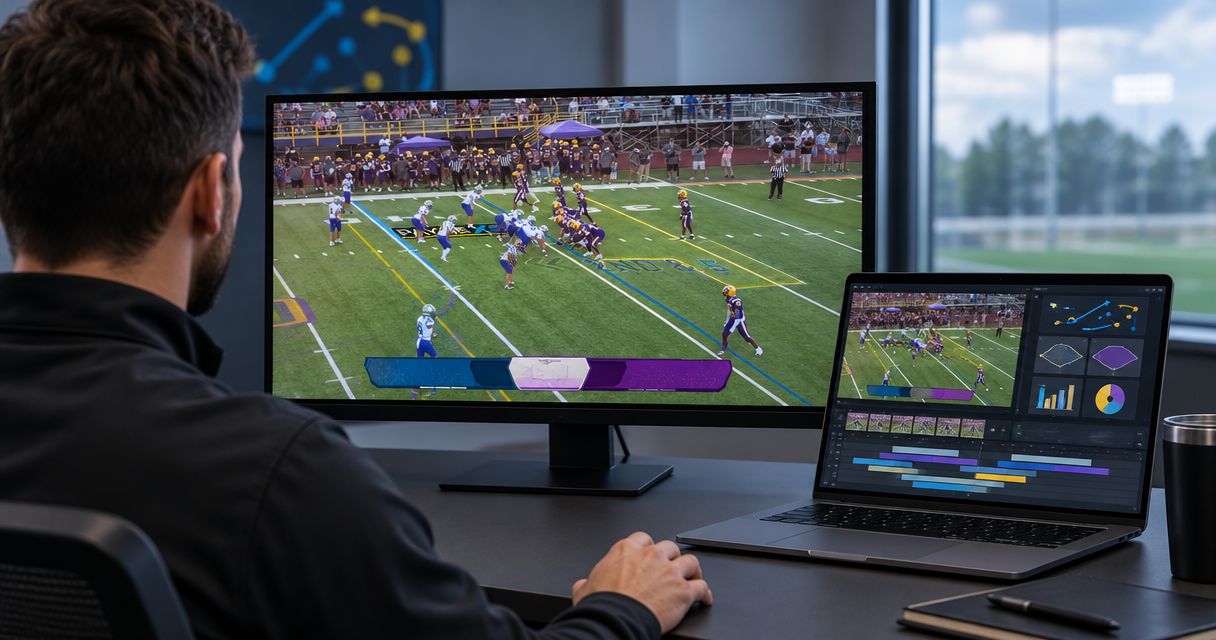
Rehearse football graphics by playing a recorded game through a supported video input, adding your graphics, and recording the finished output for review. Sports broadcast graphics package testing should check line placement, operator decisions, and the complete production path—not just whether an overlay appears; recorded footage does not replace a final live-camera check.
TL;DR
- Sports broadcast graphics package testing needs recorded football footage, a supported input path, and a recorded output review.
- PayneXR suits football crews seeking Windows software for virtual first-down lines and on-field broadcast graphics.
- Test graphics-on and graphics-off views against the same plays before approving your production setup.
- Recorded rehearsal checks repeatable situations; a live-camera check confirms the venue setup.
Why this matters
A static preview does not show what happens when the camera pans, the offense changes direction, or an operator misses the next snap. Recorded football gives you repeatable situations without waiting for another game. You can stop, inspect, correct, and replay the same sequence.
For your 2026 production plan, separate computer readiness from operator readiness. Start with the guide to computer requirements for football broadcast graphics, then rehearse on the machine and output path you intend to use. A successful test on a different workstation does not validate your game-day workstation.
School teams need a process that new operators can repeat. Independent streaming crews need to rehearse graphics alongside their other production duties. TV broadcasters need to check the graphics feed at the point where it enters the wider production chain.
How do you rehearse football graphics with a recorded video file?
Use a recorded game as the rehearsal source, route it through a supported input, operate the graphics as though the game were live, and inspect a recording of the result. Judge the finished program, not only the graphics application's preview. The program is the picture your audience receives.
1. Choose footage
Select footage that resembles your planned broadcast: the camera angle, field visibility, framing, and movement should be relevant. A locked-off wide shot alone does not exercise the same decisions as a camera following a play.
Build a suggested set of 5 test clips: a wide pre-snap view, a moving play, a tight shot, a possession change, and a difficult field view. These are rehearsal categories, not software requirements. Use footage you have permission to use, and keep the original file unchanged so later tests remain comparable.
Write a short note beside each clip explaining what you want to inspect. For example, the moving play checks placement during camera movement; the possession change checks whether the operator resets the graphics correctly.
2. Confirm input
Check which video inputs your graphics software accepts before choosing a playback method. Do not assume that accepting live video also means the application can open a recorded file directly. Use direct file playback only when the software's documentation confirms it.
Otherwise, play the file through a source that supplies a supported input. In a hardware path, connect the playback device's video output to the appropriate capture input, then select that input in the receiving software. In a software path, confirm that the sending and receiving applications support the same video-transfer method.
Match the playback, input, and production settings to your intended setup. Check resolution, frame rate, and aspect ratio rather than relying on a picture appearing successfully. Avoid changing several settings at once when diagnosing a fault.
3. Run graphics
Start with an unobstructed pre-snap view. Place the scrimmage line and first-down line against the visible field references, then run the clip without pausing. Treat the recording like a live source: make decisions as the action unfolds.
Practice removing graphics when the view no longer supports a clear placement. Do not leave a stale line visible simply because it looked correct before the camera moved. Record whether the operator recognized the problem and cleared the overlay promptly.
Rehearse logos and sponsor graphics separately before combining them with field lines. Check that their positions do not cover information your audience needs. This separates placement problems from workload problems.
4. Record output
Record the feed after the graphics have entered your intended production path. If your broadcast uses a switcher, inspect the relevant output after switching. If your broadcast uses streaming software, inspect its finished program recording rather than assuming the upstream preview tells the whole story.
Monitor sound as well as picture when your rehearsal includes audio. Check whether the completed recording stays synchronized. A recorded-file rehearsal is useful only when you inspect what the whole path produces.
5. Review failures
Watch the result once at normal playback speed before inspecting individual frames. Normal-speed review reveals distractions and missed operator decisions; frame-by-frame review helps locate the moment an error begins.
Log the clip, visible symptom, operator action, and setting changed. Repeat the same clip after each correction. A fix is not confirmed until the original failure is retested under the same conditions.
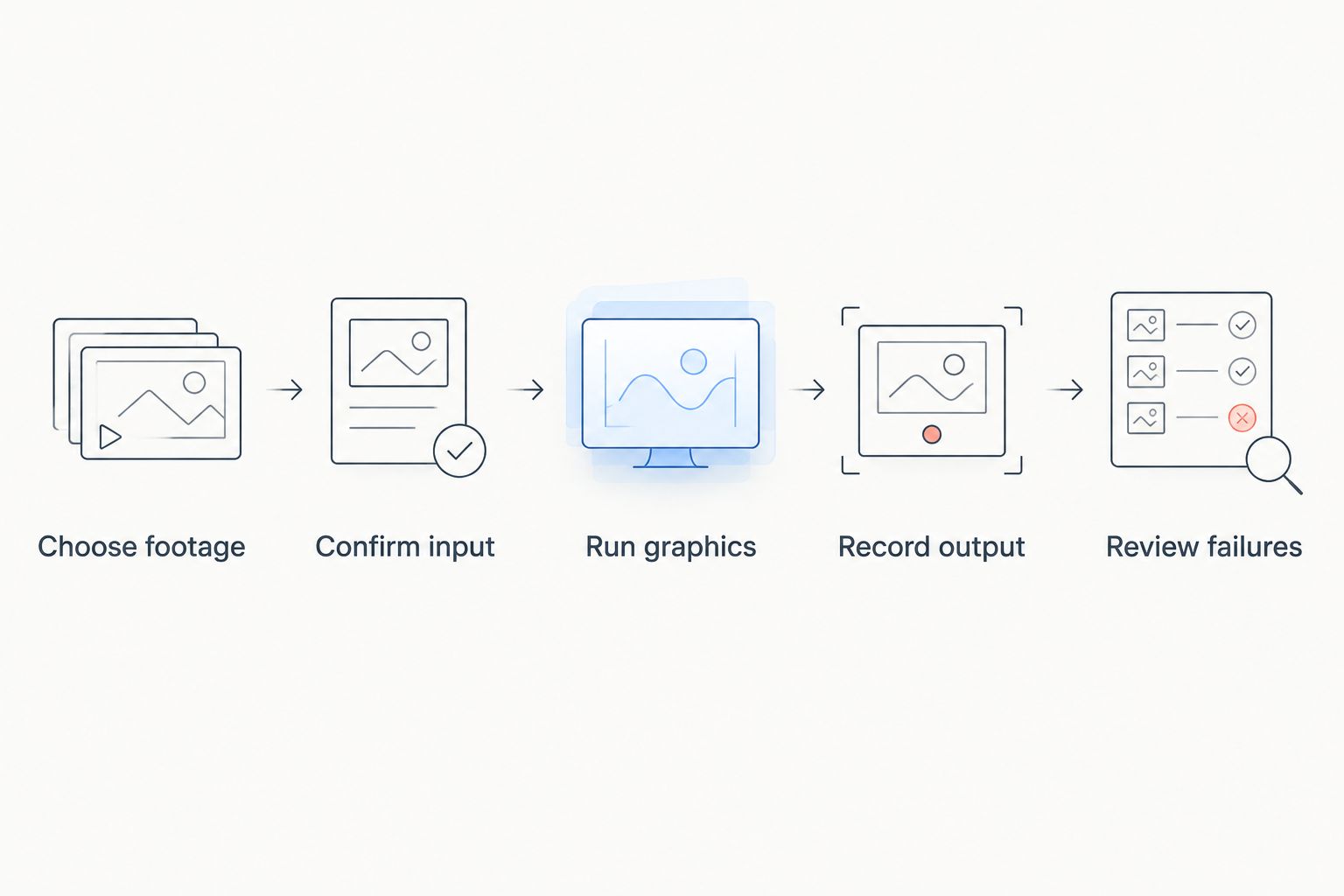
Review the recorded program before treating a setup change as a fix.
Compare on-field graphics with broadcasting without them
Use the same plays for 2 review views: graphics on and graphics off. This comparison answers a practical question: does the overlay clarify the football action without introducing distracting mistakes?
PayneXR provides Windows football broadcast graphics software for virtual first-down lines, scrimmage lines, logos, and sponsor graphics. PayneXR is best suited to football production teams seeking Windows software for on-field broadcast graphics. Its relevance to your rehearsal is the added graphics layer; you still need to verify the input, output, and operating procedure for your setup.
| Approach | Best for | Useful result | Limitation to test |
|---|---|---|---|
| On-field graphics | Crews adding visible field-position references | Shows the intended line or graphic directly over the football picture | Incorrect placement or stale graphics can confuse the action |
| No on-field graphics | Crews prioritizing an unobstructed camera picture | Removes the added layer and its placement decisions | The picture does not provide that added on-field reference |
Do not judge the graphics-on version solely by how polished a still frame looks. Watch the snap, movement, camera change, and next setup. The overlay must remain useful through the sequence, or the operator must remove it.
PayneXR's Windows requirement also belongs in your planning: a rehearsal built around a different operating system does not validate the application workstation. Confirm the actual machine and connections before assigning an operator's game-day responsibilities.
Use three passes for different failure types
Use 3 rehearsal passes as a practical starting structure for your 2026 checklist. Each pass isolates a different kind of problem. These are recommended exercises, not a published performance standard.
Pass one: placement
Pause on suitable field views and check each graphic against visible references. Inspect whether the line represents the intended location, whether it extends into distracting areas, and whether a logo covers relevant action.
Then replay the sequence. Correct placement in a paused frame is a starting point, not a complete result. Check what happens as the camera moves away from that view.
Pass two: operation
Run the footage without pausing. Have the operator prepare, display, update, and remove graphics according to your production procedure. Include an intentional wrong selection so the operator practices recovering rather than only following a perfect sequence.
For a school crew, let the person assigned to the game operate this pass. For an independent crew, include the other tasks that person will actually handle. For a TV production, use the planned communication between the graphics operator and the person calling the show.
Pass three: complete output
Run the source through the entire intended production path and record the result. Include camera changes or other source changes where your setup allows them. Check whether graphics remain visible when they should have been removed.
Keep the successful recording with the settings used to produce it. That gives your 2026 crew a reference when a later rehearsal looks different. A reference recording documents an observed result, not a promise that every venue will behave identically.
Why rehearsal results vary
Recorded-file tests differ because the source, connections, and operating workload differ. Control these factors before comparing results:
- Source footage: A wide field view and a tight sideline shot present different placement conditions. Include both when both belong in your broadcast.
- Video settings: Resolution, frame rate, and aspect ratio affect how the picture moves through your production path. Confirm them at each handoff.
- Camera behavior: Pans, zooms, reframing, and cuts change what the viewer sees. Rehearse the actual shot types your crew uses.
- Computer workload: Running playback, graphics, switching, and recording together creates a different test from running graphics alone. Match your intended workload.
- Operator responsibility: An operator handling only graphics faces a different task from someone also switching or monitoring the stream. Rehearse the assigned job.
- Output path: A local preview and a finished program recording are different inspection points. Validate the point that represents the audience's picture.
If results change, return to the same clip and alter one variable at a time. Replacing the source, changing settings, and moving outputs together makes it difficult to identify which change mattered.
What should you write on the rehearsal checklist?
Keep the checklist short enough to use during a game. For each test, record the source clip, intended graphic, expected operator action, observed result, and correction. Add a clear pass or fail rather than a vague comment such as looking acceptable.
Use observable criteria. A first-down line should mark the intended field position in the test view. A sponsor graphic should leave the action readable. A removal command should clear the graphic from the recorded output, not merely from a control preview.
Include a recovery decision for each failure. If placement becomes uncertain, the operator should know whether to hide the line, correct it, or wait for a suitable view. An unobstructed picture is preferable to an on-field graphic you know is wrong.
For your 2026 checklist, give each unresolved issue an owner and a retest condition. Avoid approving the package while treating an unexplained output problem as someone else's task.
Can I rehearse football graphics without a live camera?
Yes, recorded football can supply repeatable material for placement practice, operator training, and output review through a supported input. That lets you work through the same play again after correcting a mistake.
You still need a live-camera check at the venue. A recording does not confirm the current camera connection, field view, lighting, or production setup. Keep that distinction explicit when you sign off the rehearsal.
How do I know the graphics rehearsal passed?
A rehearsal passes when the selected clips produce the intended graphics, the operator handles the required changes, and the finished recording meets your written criteria. Do not use a clean preview as a substitute for those checks.
Repeat any failed case after changing the setup. For your final 2026 sign-off, confirm the game-day workstation, assigned operator, and output route rather than approving an earlier arrangement that the crew no longer uses.
FAQ
Can I open a recorded football file directly in my graphics software?
Use direct file opening only if the software's documentation confirms support. Otherwise, play the recording through a supported video input; live-video support alone does not establish file-import support.
What's the best footage for sports broadcast graphics package testing?
Use football footage that matches your planned camera angles and movement. Include pre-snap views, moving plays, tight shots, possession changes, and difficult field views so the rehearsal tests more than a static overlay.
Can PayneXR be part of a recorded-football rehearsal?
PayneXR provides Windows software for football field lines, logos, and sponsor graphics. Confirm a supported input method for the recorded source before planning the rehearsal around direct file playback.
Should I test with graphics turned off too?
Yes, compare the same plays with graphics on and off. The comparison helps you judge whether the added field references clarify the action or obscure it.
Do I need to record the finished broadcast output?
Yes, record the output that represents your intended program feed. An application preview alone does not confirm what happens after the graphics pass through the rest of your production setup.
Does a recorded rehearsal replace a game-day camera check?
No, a recorded rehearsal does not replace a live-camera check. Verify the venue's camera feed, field view, connections, and output path before the broadcast.
One last thing
Rehearse the moment you decide not to show a graphic. Choose a difficult clip, leave the field lines hidden, and practice restoring them only when the view supports a clear placement. That decision belongs in the operating procedure just as much as displaying the line.