
Guides
What computer do you need for football broadcast graphics?
Check broadcast graphics software requirements for football: Windows, video connections, graphics hardware, and a full-workflow test before choosing a PC.
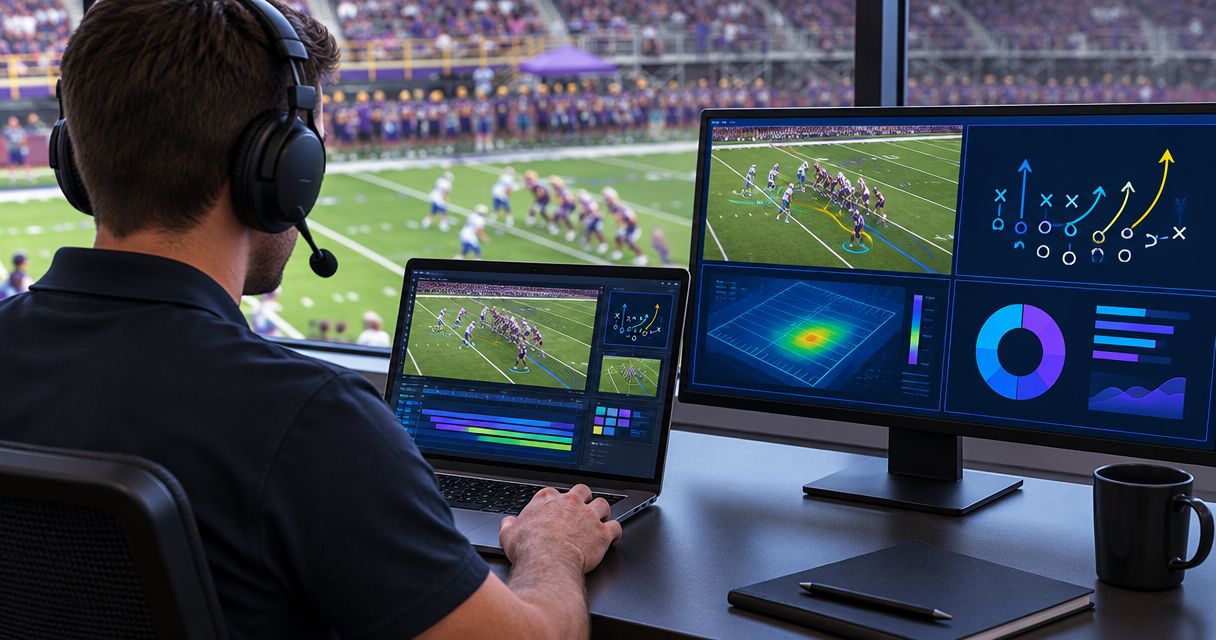
For Windows-based football broadcast graphics, choose a computer that meets your graphics software’s documented requirements and supports the connections, video format, and other production tasks in your actual workflow. A processor name or gaming-PC label is not enough: before buying for 2026, verify the complete path from camera input to the finished broadcast, including a way to keep broadcasting without the on-field graphics.
TL;DR
- Broadcast graphics software requirements depend on the application, video format, connections, and tasks sharing the computer.
- PayneXR suits football crews seeking Windows software for virtual first-down lines and other on-field graphics.
- Adding on-field graphics requires checking the complete video path, not just the computer’s processor.
- Test the intended broadcast workflow before committing a computer to game-day production.
What computer do you need for football broadcast graphics?
You need a computer selected for the graphics application and the production system around it. For PayneXR, Windows is the starting point; the software adds virtual first-down lines, scrimmage lines, logos, and sponsor graphics to live football video. That description does not establish a processor, memory, graphics-card, or connection requirement.
PayneXR is best suited to football crews seeking Windows software for virtual first-down lines. Choose hardware against documented requirements rather than assuming that any Windows laptop qualifies.
The practical comparison is adding on-field graphics versus sending your football feed without them:
| Production choice | Best for | Benefit | Trade-off |
|---|---|---|---|
| Broadcast without on-field graphics | Crews prioritizing a simpler production path | Removes the on-field graphics stage from the workflow | Viewers do not receive virtual field-position cues or on-field sponsor graphics |
| Add on-field graphics | Crews that want field-position cues and graphics placed over live play | Adds information directly to the football picture | Requires a verified graphics workflow, an operator process, and a fallback |
Neither choice removes the need for reliable camera coverage and clear commentary. On-field graphics are an additional production layer, not a replacement for the underlying broadcast.
Why this matters
A computer can satisfy an application’s minimum requirements while remaining unsuitable for your particular production. Shared tasks, unsupported connections, and mismatched video formats are separate problems from whether the application opens.
For a school football team planning a 2026 setup, the decision includes who operates the graphics and where the computer sits. An independent streaming crew also needs a repeatable setup across venues. A TV broadcaster needs to establish how the graphics stage fits its existing production chain and operational procedures.
Select the workflow before selecting the computer. Otherwise, you risk buying a machine that runs software but cannot join the broadcast in the way you intended.
Start with the documented software requirements
Check the supported Windows version, processor requirements, system memory, graphics hardware, and any required drivers. A driver is the software that lets Windows communicate with hardware such as a graphics card or video interface.
Separate minimum requirements from recommendations. Minimum requirements describe an application’s entry conditions; they do not certify your entire broadcast system under its intended workload.
Use this purchase checklist:
- Windows support: Confirm the application supports the Windows version you intend to use.
- Processor: Match the documented processor requirements, including any specified processor features.
- Memory: Check both the graphics application’s requirements and the needs of other applications running alongside it.
- Graphics hardware: Verify the required graphics processor and driver support rather than assuming any dedicated graphics card works.
- Video interfaces: Confirm the intended input and output hardware is supported in the proposed workflow.
- Peripheral connections: Allow for the actual displays, operator controls, storage devices, and video equipment you plan to connect.
For a 2026 purchase, obtain current documentation before ordering. Do not turn a successful demonstration on someone else’s computer into a hardware specification for yours.
Check the video format before choosing hardware
Resolution and frame rate describe different parts of the workload. Resolution is the image’s pixel dimensions; frame rate is the number of images carried each second.
For example, 1920 × 1080 pixels and 3840 × 2160 pixels are different resolutions. A feed at 60 frames per second also presents a different processing workload from a feed at 30 frames per second, even when both have the same pixel dimensions. These are video-format examples, not stated software requirements.
Write down the format at each relevant point: camera output, graphics input, graphics output, production switcher, and final delivery. A production switcher selects or combines video sources for the program feed, which is the finished broadcast picture.
Check more than the headline resolution. Equipment must also agree on the specific signal format, and any conversion needs a deliberate place in the workflow.
Do not buy hardware around a format you have not confirmed. A higher-resolution computer display does not prove that the machine can accept or output your intended broadcast signal.
Map the connections from camera to broadcast
A computer’s display output is not automatically a camera input. HDMI, a common digital video connection, can appear on different devices with different roles; the connector’s shape alone does not establish what a port does.
Capture hardware brings an external video signal into a computer. Output hardware sends video from the computer into the next production stage. The exact equipment depends on the application and the workflow, so establish support before buying adapters or interfaces.
Follow this sequence:
- Camera feed: Identify where the graphics stage receives its picture and record that signal’s format.
- Video input: Confirm how the intended video reaches the computer and whether the required interface is supported.
- Graphics processing: Establish which application adds the on-field graphics and who controls them.
- Video output: Confirm how the resulting picture reaches the next production device.
- Program feed: Check the actual broadcast output, not only the graphics computer’s local preview.
- Fallback path: Define how the crew continues without the graphics stage if it stops working.
This is a planning sequence, not a claim that every graphics application uses the same signal path. For the on-field task itself, see how to add a virtual first-down line to a football broadcast.
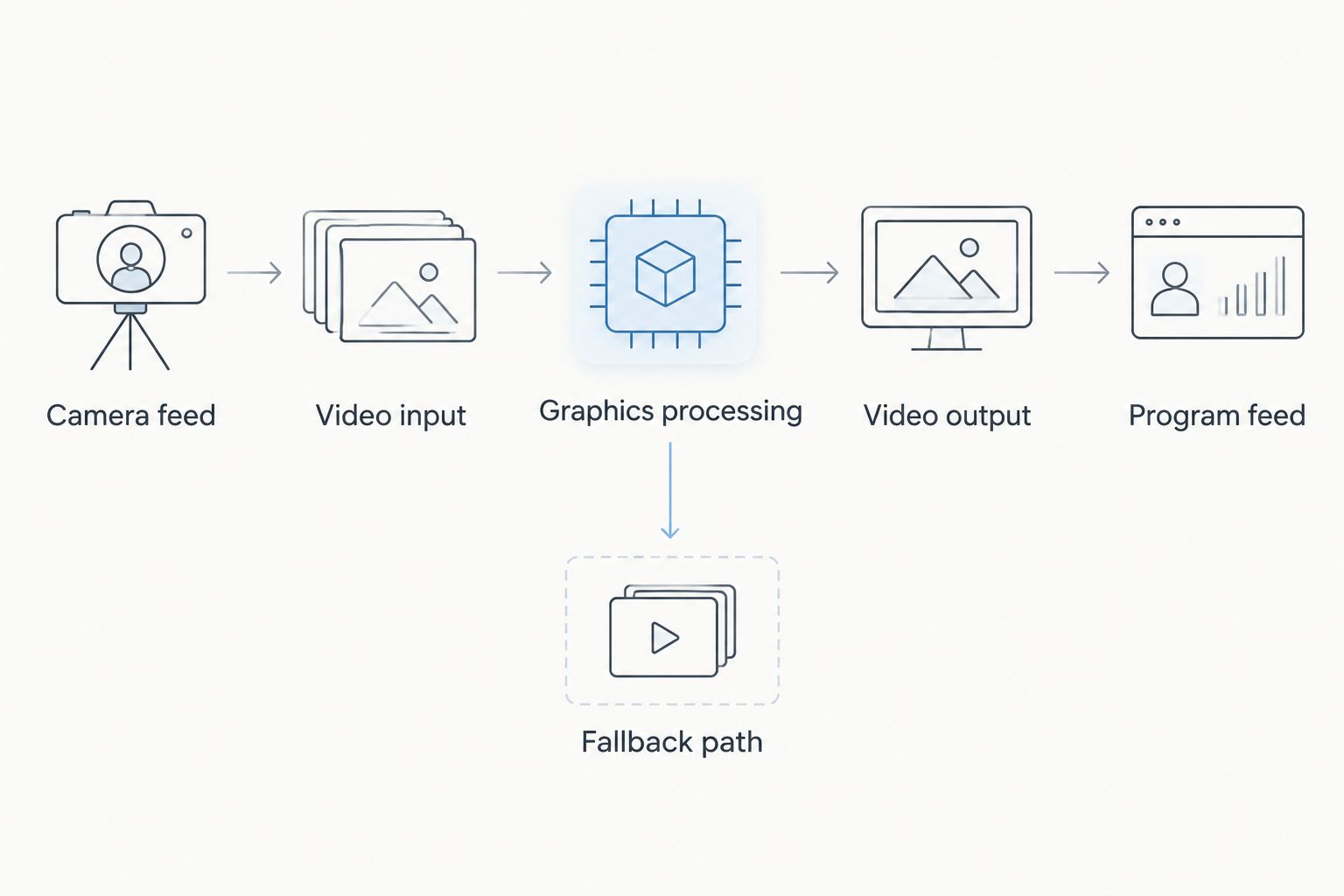
Verify every connection and define how the broadcast continues without the graphics stage.
Dedicated graphics computer or shared production computer?
A dedicated graphics computer runs the graphics role separately from other major production tasks. A shared production computer combines graphics with tasks such as switching, streaming, or recording.
Neither arrangement is automatically correct. Separation changes the connections and equipment involved; consolidation changes the workload and the consequences of a computer failure.
| Computer arrangement | Best for | Advantage | Limitation to check |
|---|---|---|---|
| Dedicated graphics computer | Crews that want to separate graphics operation from other production tasks | Keeps unrelated application workloads off the graphics machine | Adds equipment and requires a supported connection to the production system |
| Shared production computer | Crews that need to consolidate equipment | Reduces the number of computers assigned to production roles | Applications share resources, and a machine failure affects the combined roles |
For either arrangement, make a task list before evaluating hardware. Include recording, encoding, replay, communications, browser-based tools, and external displays only when they are actually part of your setup.
Encoding converts video into the format used for recording or delivery. If the same computer handles encoding and graphics, test those tasks together rather than approving each application in isolation.
Why broadcast graphics software requirements vary
The application’s published requirements are the starting point. Your production determines what else the computer must handle.
- Video format: Pixel dimensions and frame rate affect how much image data moves through the workflow.
- Concurrent tasks: Recording, encoding, switching, and graphics compete for shared computer resources when they run on the same machine.
- Input and output design: External video interfaces introduce their own hardware, driver, and connection requirements.
- Graphics workload: The actual combination of lines, logos, and other overlays belongs in the test, not just an empty application window.
- Physical setup: Ventilation, power, cable security, and transport arrangements affect how you deploy and operate the computer.
- Operator responsibilities: A crew needs to know who updates the graphics, monitors the output, and removes incorrect graphics.
Use these factors to build a test plan, not to invent a minimum specification. A larger memory figure or newer graphics card does not resolve an unsupported video interface.
Match the setup to your football production team
School football broadcast teams
Document the setup so another operator can repeat it. Label the connections, identify the correct output to monitor, and explain how to remove the on-field graphics without interrupting the rest of the production.
For the 2026 season, assign graphics responsibilities before the first live broadcast. A computer purchase does not settle who checks field placement or responds when the displayed line is wrong.
Independent sports streaming crews
Build a venue checklist around the equipment you transport. Confirm the source feed, cable route, power access, operator position, and connection into the streaming system before arrival.
A portable computer reduces the number of separate items to carry, but portability alone does not establish suitability. Verify its ports, supported interfaces, ventilation arrangement, and performance under the intended workload.
TV broadcasters
Define the graphics system’s handoff to the existing production chain. Specify the signal format, monitoring point, operator responsibility, and procedure for removing the graphics from the broadcast.
Evaluate PayneXR football broadcast graphics software against that defined Windows workflow. Its on-field graphics purpose is relevant; compatibility with a particular station’s equipment still requires verification.
Can you use a laptop for football broadcast graphics?
A laptop is a candidate when it meets the application’s documented requirements and supports the complete production workflow. The word laptop does not establish either compatibility or inadequacy.
Check how external video hardware, displays, power, and operator controls connect simultaneously. Then test the laptop in its intended operating position, with ventilation unobstructed and the actual production applications running.
Do you need a dedicated graphics card?
A dedicated graphics card is required when the application’s documentation specifies one. Do not substitute a general rule about gaming computers for the graphics application’s stated hardware support.
Likewise, a powerful graphics card does not prove that camera input, video output, drivers, and concurrent production tasks will work together. Approve the complete system, not an isolated component.
How do you test a computer before game day?
Test the computer with the intended source video, overlays, output route, and concurrent tasks. A local preview is only one checkpoint; inspect the finished program feed and a representative recording as well.
For your 2026 acceptance test:
- Start the system from a powered-off state and follow the written setup procedure.
- Run the graphics, recording, streaming, and other planned tasks together.
- Exercise the graphics changes the operator will make during play.
- Check placement and visibility on the broadcast output.
- Rehearse removing the graphics and using the fallback path.
- Record configuration details so the crew can reproduce the approved setup.
Keep software, driver, and hardware changes separate from game-day operation whenever possible. A configuration change should trigger a relevant retest rather than inherit approval from the previous setup.
FAQ
What computer do I need for football broadcast graphics?
Choose a computer that meets the graphics application’s documented requirements and supports your complete video workflow. Verify the operating system, hardware, video interfaces, output format, and other tasks running on the machine.
Does PayneXR run on Windows?
PayneXR is Windows broadcast graphics software for virtual first-down lines, scrimmage lines, logos, and sponsor graphics. Confirm current hardware and Windows-version requirements before choosing a computer.
Is a gaming PC enough for broadcast graphics?
A gaming-PC label is not proof of broadcast suitability. Check application support, video input and output, drivers, and performance with the actual production workload.
Can I run streaming and football graphics on the same computer?
Use a shared computer only after confirming application compatibility and testing both tasks together. Separate successful tests do not demonstrate that the combined workflow performs correctly.
Does an HDMI port let me connect a camera to my laptop?
An HDMI port does not automatically accept camera video. Verify the port’s direction and whether your workflow needs supported video capture hardware.
Do I need more memory or a better graphics card?
Follow the application’s documented requirements and identify the limiting part of your tested workflow before upgrading. Neither additional memory nor a different graphics card fixes every compatibility or connection problem.
Can we broadcast football without virtual field lines?
You can broadcast football without virtual field lines. Omitting that layer simplifies the graphics workflow, but viewers lose the on-field position cues it provides.
One last thing
A clean fallback is part of a usable graphics setup. Before approving a computer, have the operator remove an incorrect line and continue the broadcast without on-field graphics.
That exercise tests more than processing power. It establishes whether the crew can keep the football picture usable when the graphics layer should not be on screen.