Guides
How to add a virtual first-down line to a football broadcast
Use broadcast graphics software for football to add a virtual first-down line. Learn the input, placement, output, and game-day checks for your crew.
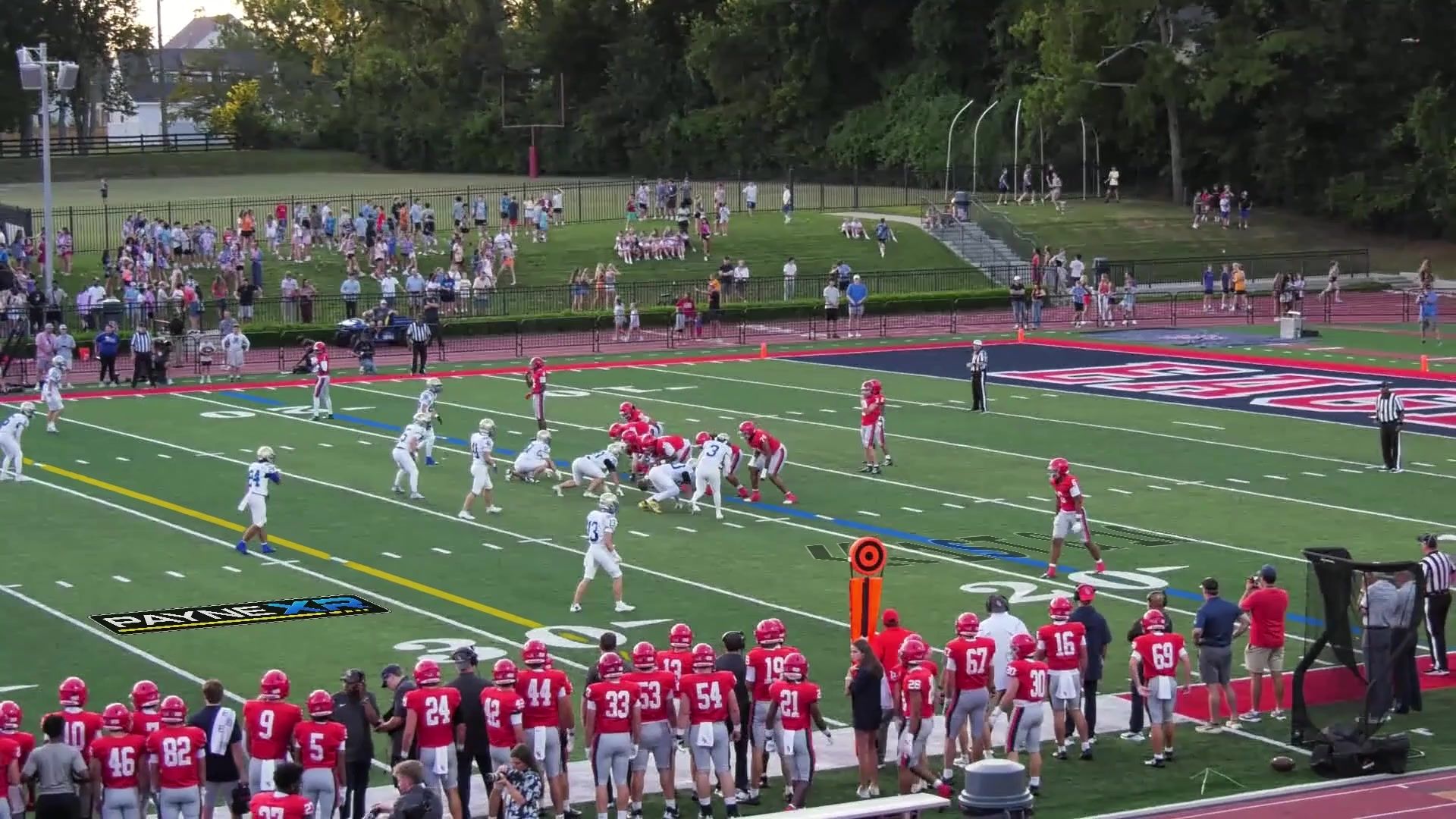
To add a virtual first-down line to a football broadcast, send your camera feed through field-tracking graphics software, position the line at the line to gain, and route the finished picture into your production. Test the complete path before putting it on air: a line that looks right in a still frame also needs to hold its position while the camera moves.
TL;DR
- Broadcast graphics software for football needs a tested camera-input, field-placement, and video-output path.
- PayneXR adds virtual first-down lines and scrimmage lines without separate camera-tracking hardware.
- Confirm the ball spot and line to gain before showing graphics; tracking does not replace that check.
- Keep a clean camera feed ready when on-field graphics are not appropriate.
How to add a virtual first-down line to a football broadcast
Build the setup in this order, rather than adding a graphic directly to the final stream and hoping it follows the field:
- Bring a stable camera picture into your graphics computer.
- Confirm the field perspective and place the scrimmage and first-down lines.
- Send the finished picture to your production software or switcher.
- Rehearse camera movement and line updates.
- Check the actual audience output before taking the graphic live.
PayneXR is Windows broadcast graphics software for football crews that need on-field lines without separate camera-tracking hardware. Its published setup uses capture-device, DeckLink, or NDI input, with several ways to send the finished picture onward. This guide follows those supported connections without assuming your school crew, streaming company, or TV production uses the same equipment.
Why this matters
A scoreboard tells viewers the down and distance; a field line shows where that distance sits in the picture. The two solve different presentation problems. A virtual first-down line is an additional visual reference, not a replacement for official decisions or your crew's verification of the spot.
For a 2026 football production, judge the addition by whether your operators can keep it accurate throughout the game. A clean picture is better than a misplaced line. Keep that rule even when the graphic is an important part of your planned presentation.
Start with the camera feed, not the yellow line
Identify the camera source you want to process and the destination that will receive its finished picture. Write those connections down before installing anything. You need to know where graphics enter the production and how you will bypass them if necessary.
The published input choices are:
- A USB camera or USB/PCIe capture device recognized by Windows.
- A compatible DeckLink input using a supported video format.
- An NDI source available on the production network.
- A video file for rehearsal rather than live coverage.
A capture device brings an external video signal into the computer. NDI carries video over a network. Neither choice removes the need to test the camera, computer, and receiving production system together.
Begin with a stable progressive camera feed, as the software's system guidance recommends. Confirm the picture is usable before enabling graphics. If the source is interrupted or unstable, fix that first; adjusting line placement will not repair the underlying video path.
Match the computer to the complete production
The published entry guidance for a 720p picture at 30 frames per second includes 16 GB RAM and an NVIDIA graphics card with at least 6 GB of video memory. The recommended 1080p production setup at 60 frames per second lists an Intel Core i7-13700K and NVIDIA GeForce RTX 4070, with 32 GB RAM minimum and 64 GB recommended.
Those are planning targets, not guaranteed output rates. Other software, the capture device, and the source all affect the result. If your 2026 production also runs switching or streaming software on that computer, leave capacity for that work and test with it running.
Do not buy a computer based only on whether it can display the application. The useful test is whether the complete production can deliver the picture you intend to broadcast.
Place the scrimmage line and the line to gain separately
The scrimmage line and first-down line are not interchangeable. Confirm the current ball spot and the line to gain before presenting either. Do not treat an automatically placed graphic as confirmation that the football information is correct.
The public workflow describes automatic placement of a blue scrimmage line and a yellow first-down line, followed by taking the result to Program—the picture intended for air. Follow the current application guidance for the controls rather than relying on a guessed button sequence.
Use this operating check before showing the lines:
- Confirm which team has possession and the direction of play.
- Check the current spot against the visible field markings.
- Verify the line to gain independently of the scrimmage line.
- Inspect the perspective across the visible field, not just one endpoint.
- Confirm the correct picture is reaching production.
Tracking the field and knowing the next first-down spot are different jobs. Decide who owns each verification before kickoff. A small crew can combine duties, but the responsibility still needs to be explicit.
Check the line through camera movement
PayneXR follows the field from the camera image and is designed to keep graphics in place during pans and zooms. That removes a separate camera tracker from its published setup; it does not eliminate rehearsal.
Test the movements your camera operator actually uses. Include a wide pre-snap view, a tighter shot, and movement toward both ends of the field. Watch the line against recognizable field markings throughout each move.
Do not approve the setup after looking at a paused frame alone. If the graphic becomes misleading during a particular shot, leave it off that shot until you have a reliable operating method. Apply the same check when the camera position or production setup changes.
Choose an output your production can receive
After the line looks correct inside the graphics application, send the finished picture to the next part of the production. Keep the receiving system in view while testing. A successful preview on the graphics computer does not prove viewers are receiving that picture.
| Output | Best for | Useful feature | Limitation to check |
|---|---|---|---|
| Virtual Camera | Compatible production software such as OBS | Presents the finished picture as a selectable camera | The receiving software must recognize and use that source |
| NDI | A compatible production system on your network | Carries the finished picture over the network | Source discovery and the complete network path need testing |
| DeckLink | A supported production-switcher connection | Sends finished video through supported DeckLink output | Hardware and video-format compatibility must match |
| Screen output | A production that can use the displayed picture | Provides a clean full-screen or windowed view | The downstream capture or display method still needs checking |
These are routing choices, not a ranking from best to worst. For a 2026 production, choose the connection that fits the equipment you already operate reliably. Adding an unfamiliar route just to use a different output creates another thing your crew must learn.
Verify the final picture and sound
Look at the program monitor and a test recording made through your normal production path. Check that the line is visible, correctly positioned, and present only on intended shots. Then confirm your existing sound path still works as expected; this guide does not assume a particular audio-routing method.
Check transitions between the processed camera picture and other sources. An alternate angle or replay is a separate shot decision, not proof that the same graphic placement belongs on it. Keep graphics off pictures you have not verified.
Rehearse the operator's work before kickoff
Use a recorded video file to practice the placement workflow before a live game. Then repeat the test with your actual camera and output route. File rehearsal teaches the application; the live-camera test checks the production.
For your 2026 rehearsal, assign these tasks explicitly:
- Who confirms the spot and line to gain?
- Who changes or removes the graphics?
- Who watches the final output for placement errors?
- Who switches to the clean camera picture if needed?
- Who makes the decision to leave graphics off a difficult shot?
A school crew needs instructions another student or supervisor can follow. An independent streaming crew needs a repeatable check when equipment moves between venues. A TV crew needs the graphics operator's responsibilities to fit the director's existing shot and communication plan.
Do not make sponsor artwork the first test. Establish a reliable camera picture and line placement first, then add other on-field images if your production needs them. Each added graphic should have a purpose and a clear rule for when it appears.
Why first-down-line setups vary
There is no single cable diagram that fits every football production. The differences below determine what you need to test, even when the intended yellow line looks the same:
- Camera source: A directly captured feed and a network source arrive through different paths.
- Computer workload: Graphics-only operation is different from running graphics, production, and streaming together.
- Video target: The published 720p30 and 1080p60 targets place different demands on the complete setup.
- Output destination: A software camera source, network receiver, switcher, and screen require different checks.
- Crew responsibilities: Line updates need an owner even when one person performs several roles.
- Shot selection: The crew must decide when the processed camera picture is appropriate and when to use another view.
The public product page, checked in October 2026, is the source for the connections and computer guidance in this article. It does not provide a guaranteed frame rate for your particular equipment. Test the setup you will use rather than treating a specification list as a broadcast acceptance test.
When is going without on-field graphics the better choice?
Going without on-field graphics is a sensible choice when your crew cannot verify and update them reliably. You can still produce a useful game broadcast with a clear camera picture, accurate commentary, and the information your existing production supports.
| Approach | Best for | Advantage | Tradeoff |
|---|---|---|---|
| No on-field graphics | Crews prioritizing a simpler production | Removes field-line placement from the operating workload | Viewers do not get a virtual line-to-gain reference |
| PayneXR on-field graphics | Windows-based crews ready to operate field lines | Adds first-down lines, scrimmage lines, and field images without separate camera trackers | Requires suitable hardware and a tested operator workflow |
Choose the second approach when the line improves the presentation without making the production harder to control. If you cannot keep the line correct, switch it off. The audience does not benefit from a graphic your crew cannot trust.
Can you keep your existing camera?
You do not need to replace a camera simply because you want an on-field line. First establish whether its feed can reach a supported input through your capture or network setup. Compatibility belongs to the entire path, not just the camera model.
Does field tracking remove the need for an operator?
No. Following the field's perspective is different from confirming the current scrimmage position, line to gain, and appropriate shot. Assign an operator or an explicit shared workflow for those decisions.
FAQ
How do I add a yellow first-down line to my football stream?
Route the camera feed through field-tracking graphics software, position the first-down line, and send the finished picture to production. Verify the line to gain and rehearse camera movement before showing it live.
Does PayneXR need separate camera-tracking hardware?
PayneXR tracks the field from the camera image without separate camera-tracking hardware. You still need a supported video input and a tested output path.
Can I use a virtual first-down line with OBS?
The published output options include selecting the finished picture as a Virtual Camera in OBS. Test source selection and the final recording in your own production before game day.
Will the line stay in perspective when the camera moves?
The software is designed to keep field graphics in place during camera pans and zooms. Rehearse the shots you plan to use and remove graphics from any view you cannot verify.
Can I practice without a live camera feed?
Yes, the published input workflow includes opening a video file for rehearsal. Follow that practice with a test of the live camera and actual production output.
Are the advertised video frame rates guaranteed?
No, the published video formats are targets rather than guaranteed frame rates. Actual performance depends on the computer, source, capture device, graphics hardware, and other running software.
Should I leave the first-down line on every shot?
No, show the line only on shots where its position and perspective have been verified. Keep a clean camera picture ready for other views or placement problems.
One last thing
Rehearse removing the line as deliberately as you rehearse putting it on air. Before your next 2026 broadcast, make every operator demonstrate the clean-picture fallback. That simple operating habit matters more than adding another graphic to the field.