Guides
PayneXR to YouTube Live: complete 2026 workflow
Build a paynexr to youtube live workflow through an encoder. Verify video routing, audio, line placement, and a clean-feed fallback before kickoff.
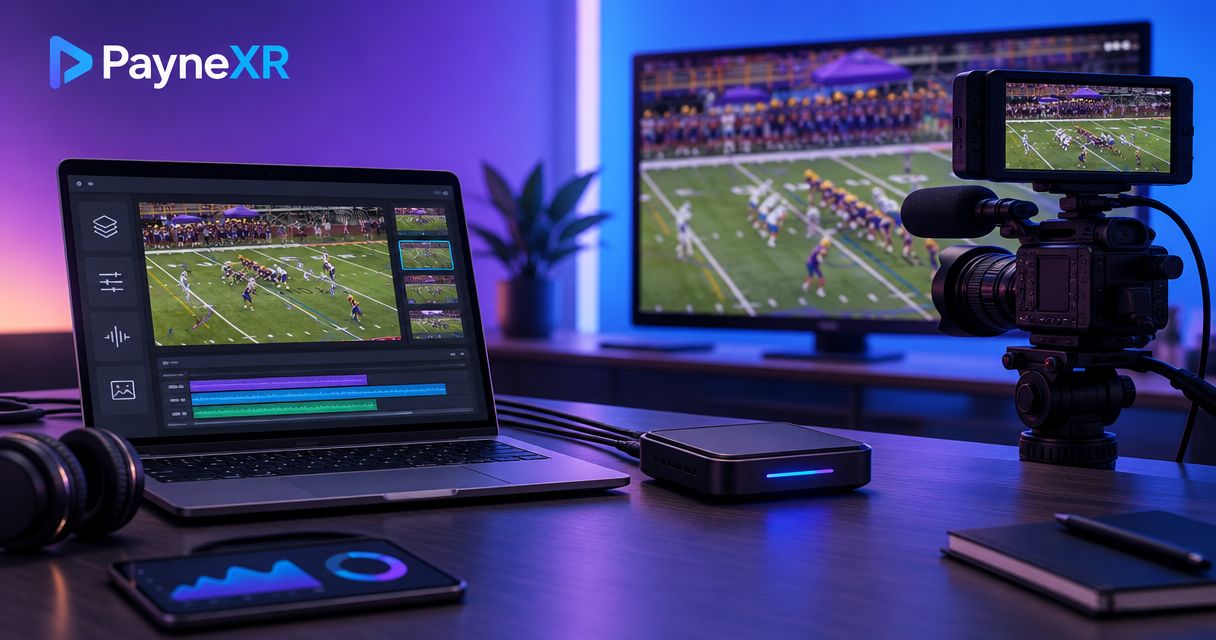
Instead of manually rebuilding football overlays in your streaming encoder, use a PayneXR to YouTube Live workflow that sends graphics-treated video into your production feed, then streams that finished feed through an encoder. Keep a clean video path ready so you can remove on-field graphics without stopping the broadcast.
TL;DR
- The paynexr to youtube live workflow sends graphics-treated football video through an encoder, not an assumed direct connection.
- PayneXR suits football crews that need virtual first-down lines and can assign an operator to manage them.
- Verify the graphics output connection before configuring YouTube Live; a stream key does not connect the graphics software.
- Test an unlisted broadcast, camera changes, audio synchronization, and a clean-feed fallback before kickoff.
Why this matters
Your audience sees the final encoded picture, not the graphics operator’s desktop. A correct line on a local monitor does not prove that YouTube receives the same picture, sound, or camera angle.
PayneXR is best for football production teams that need on-field graphics and can assign someone to operate them. Its Windows software overlays virtual first-down lines, scrimmage lines, logos, and sponsor graphics onto live football video. The PayneXR workflow still needs a verified route from that graphics stage to your streaming encoder.
For your 2026 production plan, distinguish the encoder from the graphics software. The encoder compresses finished video and audio for delivery to YouTube; the graphics stage changes what appears in that video.
| Broadcast approach | Best for | Advantage | Trade-off |
|---|---|---|---|
| On-field graphics | Crews with an assigned graphics operator | Adds visual references for field position and sponsor artwork | Requires placement checks, camera-change discipline, and a fallback |
| Clean video without on-field graphics | Crews prioritizing a simpler production | Removes the field-overlay operation from the live workload | Viewers do not receive virtual line or field-logo references |
Choose graphics only when your crew can keep them accurate. A clean picture is preferable to an incorrect first-down line.
Before you start
- Prepare the production equipment. Have the Windows graphics computer, your football video source, an encoder, program audio, and a monitor for the finished feed. This guide uses OBS Studio for the encoder steps; verify the graphics-to-encoder connection separately.
- Prepare YouTube access. Sign in to the channel that will carry the game and confirm live streaming is enabled before game day. New live-streaming access can require an activation wait, so do not make channel setup a kickoff task.
- Resolve the connection gotcha first. Confirm the actual output method supported by your installed graphics configuration and the corresponding input available to your production system. Do not assume a stream key, window capture, or spare video cable provides that connection.
Write down the working route before opening the stream settings. For example: camera feed, graphics stage, finished-video input, encoder, YouTube. If a switcher selects cameras, include its position in that route and identify which camera view the graphics operator is monitoring.
Video path configuration
The first setup unit is the picture path, not the YouTube destination. Establish where the field graphics enter the production and where they can be removed.
- Identify the source view. Select the football camera view you intend to use for on-field lines. Confirm that the graphics operator sees that same view rather than a different camera or a delayed return.
- Establish the graphics output. Use the input and output method documented for your installed configuration. Connect its finished video to an input your production system can receive; verify that connection with moving video before adding graphics.
- Check the line placement. Place the scrimmage and first-down references against visible field markings. Pan, zoom, and change the framing during rehearsal. Remove the overlay whenever its placement is not correct for the displayed picture.
- Prepare clean video. Make the untreated camera feed selectable independently of the graphics-treated feed. Confirm that choosing it removes field overlays while retaining the intended picture and audio.
- Name the paths clearly. Use operational names such as Graphics feed and Clean feed in your production notes. Identify who selects each path and who calls for a change.
Expected result: You can display the treated football picture and deliberately replace it with clean video before involving YouTube.
This is also the point to rehearse scrimmage and first-down line placement. Streaming settings cannot correct a line placed at the wrong field position.
OBS input and encoding configuration
OBS Studio is the encoder in this example, not evidence of a particular PayneXR output protocol. Begin only after the graphics-treated picture reaches an input that OBS can receive.
- Create the production scene. In Scenes, use + to create a scene for the finished football feed. Give it a name that distinguishes it from any test scene.
- Add the verified input. In Sources, use + and choose the source type matching your working connection. Use Video Capture Device only when the feed arrives through a compatible capture device; do not select it merely because the content is video.
- Set the picture format. Open Settings, then Video. Check Base (Canvas) Resolution, Output (Scaled) Resolution, and Common FPS Values against your production plan. A 1920 × 1080-pixel output and a 1280 × 720-pixel output are different formats; select deliberately rather than stretching one into the other.
- Verify audio. Watch the Audio Mixer while someone speaks into the commentary microphone. Confirm that the intended program audio is present once, without a second copy arriving through another source.
- Review encoding. Open Settings, then Output, and choose settings appropriate to your encoder hardware, connection, and YouTube’s current requirements. Do not copy a bitrate without checking those conditions.
Expected result: OBS shows the full treated picture, correct framing, and one intended program-audio mix.
For a 2026 setup, record the selected resolution and frame rate in the show notes. If you choose 60 frames per second, verify that the complete path supports that choice; changing the encoder setting alone does not create additional camera frames.
YouTube destination configuration
YouTube receives the encoded production feed. It does not need a separate first-down-line layer when those graphics are already part of the picture.
- Open the channel’s live controls. In YouTube, select Create, then Go live. Set up the game’s broadcast in Live Control Room and select the correct channel and event.
- Choose the test audience. Set the rehearsal broadcast to Unlisted. Unlisted is not private: anyone with its link can watch, so keep test material appropriate for sharing.
- Connect OBS. Open Settings, then Stream. Under Service, select YouTube - RTMPS. Use the channel connection or stream-key method offered by your OBS version, and match it to the intended broadcast. Treat the stream key like a password.
- Send the encoder feed. Select Start Streaming in OBS. Check Live Control Room for the incoming picture and connection status. Sending video from the encoder and making an event live are separate checks; verify the event’s live state rather than assuming it.
- Inspect the viewer result. Open the watch page on another device. Confirm the lines, picture edges, commentary, and any approved sponsor artwork. Mute that device near production microphones to prevent feedback.
Expected result: The intended YouTube event receives your finished football picture and program audio, and a separate viewing device confirms playback.
Before the public 2026 broadcast, double-check the event title and visibility. A successful rehearsal on the wrong event does not validate the game’s destination.
Game-day control and verification
A stream that connects successfully still needs an operating routine. Assign responsibility for the field graphics, the camera cuts, and the YouTube output check.
- Run a full rehearsal sequence. Show the wide field view, place lines, pan and zoom, cut to another view, return to the field, and select clean video. Watch the YouTube result rather than relying exclusively on local previews.
- Check synchronization. Use a visible clap during rehearsal and compare its picture with its sound in the recording or viewer playback. Correct the timing at the appropriate production stage and repeat the check.
- Define the cut rule. Agree on when lines must be hidden for close-ups, replays, or camera views whose placement has not been verified. Do not leave field graphics visible simply because the previous shot was correct.
- Assign fallback authority. Name the person who can call for clean video and the person who selects it. Rehearse that instruction without stopping the encoder.
Expected result: Your crew can manage normal play and remove a questionable overlay while the YouTube broadcast continues.
For schools, give student or volunteer operators a written handoff and an escalation contact. Independent streaming crews need a realistic division of attention; TV broadcasters need the same rules expressed through their established director and technical-director calls.
Second variant: an existing switched program feed
If your crew already switches cameras and produces a finished program, keep that established production intact. Add the graphics stage only where its picture assumptions match the video it receives.
- Before switching: A treated camera source needs disciplined selection. Graphics aligned to a wide camera view should not be assumed correct on a different camera.
- After switching: The graphics stage receives camera cuts. Define how overlays are removed or corrected when the program changes to an unverified view.
- At the encoder: Feed the selected finished program into OBS and retain the same YouTube destination procedure. Avoid rebuilding an established audio mix unnecessarily.
These are signal-path choices, not claims that every connection method is supported. Verify your actual equipment route before choosing either arrangement.
The best placement is the one your crew can monitor and bypass reliably. During the 2026 rehearsal, include a replay and a close-up in the test; a static wide shot does not exercise the camera-change rules.
Troubleshooting
OBS shows a desktop instead of football video
Check the selected source and the verified graphics output route. A desktop preview is not proof that the finished feed reaches the encoder; restore the intended video input and check it before streaming again.
The lines appear locally but not on YouTube
Trace the picture downstream from the graphics stage. Confirm that the active OBS scene uses the treated feed rather than the clean source, then verify that YouTube is showing the intended event and current playback.
Lines become incorrect after a camera change
Remove the overlay and use clean video for that shot. Recheck placement for the active camera view before restoring lines; do not compensate for the wrong source view by moving graphics during live action.
Commentary echoes or arrives out of sync
Check for duplicate audio inputs and an unmuted viewer device near microphones. If the mix is clean but timing is wrong, repeat the clap test and correct the relevant audio or video delay rather than adjusting unrelated settings.
Playback stutters despite a smooth local preview
Open View, then Stats in OBS. Separate rendering or encoding problems from network-related dropped frames, and change the affected part of the path. Test again after each change so you know which adjustment helped.
Customize your workflow
Add complexity only after the basic line workflow passes rehearsal. Sponsor artwork adds another editorial decision: who approves it, when it appears, and when it must leave the picture.
For a small crew, begin with the field references you can operate consistently. For a staffed production, document separate graphics, switching, and stream-monitoring responsibilities rather than assuming everyone watches the same output.
Keep a saved 2026 show sheet containing the input route, picture format, audio source, YouTube event, and fallback call. Store credentials separately; a crew handoff document should not expose the stream key.
FAQ
Can PayneXR stream directly to YouTube Live?
Use a verified encoder route rather than assuming direct streaming support. Send the graphics-treated football picture into your encoder, then configure that encoder for the intended YouTube Live event.
Do I need OBS Studio for this football workflow?
OBS Studio is the encoder used in this guide, not a requirement for every production. Another encoder can serve the same role if it accepts your finished program feed and supports YouTube delivery.
Can one person operate the graphics and the stream?
Assign both tasks to one person only after rehearsing the complete workload. If camera operation, switching, or commentary prevents accurate line updates, simplify the graphics or assign another operator.
Should I use 1080p or 720p for football streaming?
Choose the format your full production path and upload connection can sustain. Test motion, graphic readability, and encoder performance using the intended cameras rather than choosing resolution in isolation.
Why does YouTube show video without the first-down line?
The encoder can be receiving clean video instead of the graphics-treated feed. Check the active source, the picture leaving the graphics stage, and the event being watched before changing line settings.
Can I test the football stream without publishing it publicly?
Yes, use an unlisted YouTube broadcast for rehearsal. Anyone with its link can still watch, so unlisted visibility is not a substitute for privacy.
What should I do if the first-down line is wrong during a play?
Remove the overlay and keep the clean football picture on air. Restore the line only after its position and camera view have been checked.
One last thing
Treat the fallback as a production control, not an emergency repair. Practice removing the graphics while the encoder keeps sending video. That rehearsal proves something a successful connection test cannot: your crew can protect the picture without ending the broadcast.