Guides
PayneXR to NFHS Network: complete 2026 workflow
The paynexr to nfhs network workflow puts PayneXR graphics before the broadcast encoder. Set up the video route, verify the line, and keep a clean feed ready.
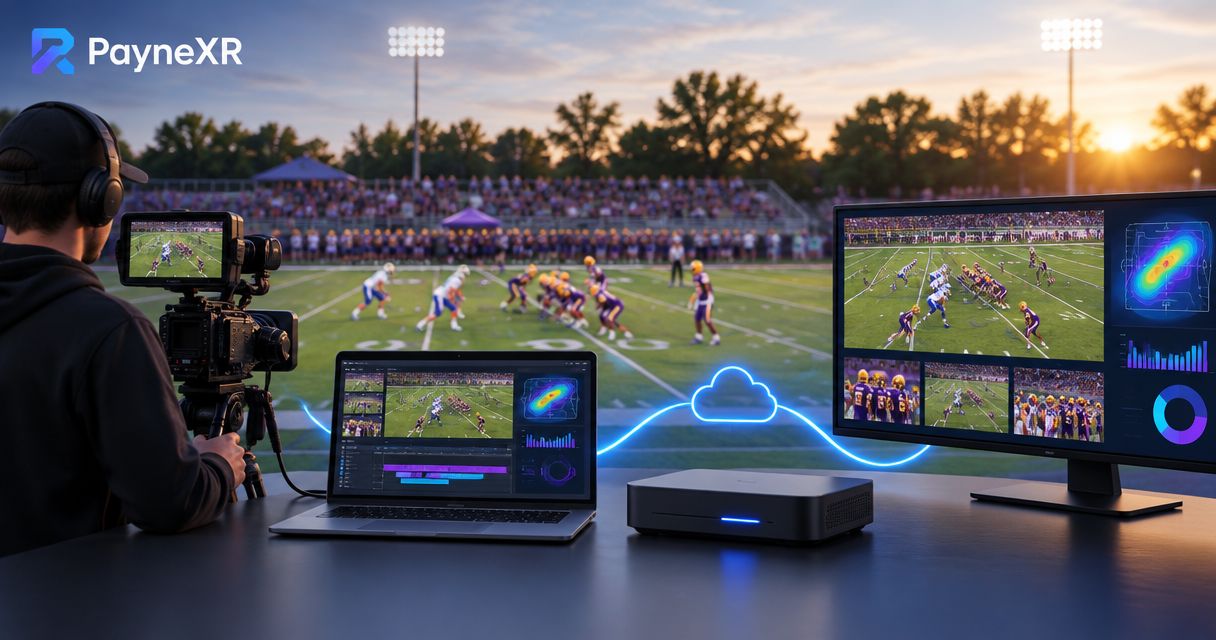
Instead of manually explaining the first-down marker on every play, add PayneXR graphics to the football video before that video enters your NFHS Network broadcast path. The 2026 paynexr to nfhs network workflow is a signal-routing job: confirm where your encoder gets its video, place the graphics feed upstream of that point, and keep a clean feed ready if the overlay fails.
TL;DR
- The 2026 paynexr to nfhs network workflow places PayneXR football graphics before the video sent to NFHS Network.
- Best for school football crews, independent streaming teams, and TV broadcasters that can control their video signal path.
- Confirm how your encoder receives video before choosing a graphics connection; do not assume PayneXR connects directly to NFHS Network.
- Keep a clean video feed available so the broadcast can continue without on-field graphics.
Why this matters
PayneXR is Windows software for virtual first-down lines, scrimmage lines, logos, and sponsor graphics on live football video. PayneXR is best for football production teams that can place an on-field graphics feed before their broadcast encoder; it is not a substitute for a working clean-feed path. Start by identifying that placement in your own setup, not by looking for an unverified direct connection between the software and NFHS Network. The PayneXR football graphics software supplies the graphics side of the workflow; your production and encoding equipment determine how the finished video reaches the broadcast.
A first-down line gives viewers a field reference during a play. It also adds an operating task: someone must place it correctly, remove it when it does not belong, and watch how it behaves when the camera changes. Broadcasting without the overlay avoids those tasks. Adding it makes sense only when the crew can keep the graphic aligned without interrupting the game feed.
That trade-off looks different across crews. A school team with volunteers needs a repeatable handoff. An independent streaming crew may carry its own production and encoding gear between venues. A TV broadcaster may need to insert the graphic into an established signal path. The same rule applies to all three: prove the route from camera to viewer with clean video before adding on-field graphics.
Before you start
- Map the video route. Identify the camera feed, the device or software that selects the program picture, the encoder that sends the broadcast, and the monitor showing what the encoder actually receives. A program picture is the video selected for viewers, not merely a camera preview.
- Confirm the available connections. You need a Windows computer running PayneXR, access to the football video, and a connection your production system can accept from the graphics setup. Verify the input and output methods on your own equipment before game day; the software description alone does not establish which connectors or protocols your installation supports.
- Prepare a clean-feed route. Keep an unaltered camera or program feed available to the encoder. The mid-setup trap is discovering that the graphics computer sits on the only path to air: if that path stops, you lose the broadcast rather than just the line.
Agree on who controls the line before you connect anything. The person placing a first-down marker needs the current down and distance from the game operation, while the person switching cameras needs to know when the graphic is safe to show. One operator can hold both jobs only if that person can see the field, the graphics view, and the outgoing program without losing track of the play.
Set up your video route
- Trace the camera-to-encoder path. Follow the actual live picture through each device or software input. Mark where you can insert a graphics-bearing feed and where the clean feed can bypass it. For a detailed routing decision, use this football graphics signal-path guide.
- Check the encoder input. Inspect the video source selected for the NFHS Network broadcast. Write down whether it receives the graphics-bearing program or the clean program; a preview window elsewhere in the setup does not answer that question.
- Match the video format across the route. Check resolution and frame rate at the camera, graphics connection, production input, and encoder. For example, 1920 × 1080 pixels and 1280 × 720 pixels are different image sizes; 30 frames per second and 60 frames per second are different rates. Use settings supported by every device in your actual path rather than assuming those examples are supported by PayneXR or your encoder.
- Pass clean video first. Send the unaltered picture through the intended broadcast route. Check motion, sound, and whether the encoder receives the expected camera. Leave the graphics off until this works.
Expected result: your production monitor and encoder input show the intended clean football picture. If they differ, fix the routing before you add a line; graphics will make a bad route harder to diagnose.
The two feed states serve different purposes:
| Feed state | Best for | What viewers see | Operating cost |
|---|---|---|---|
| Graphics-bearing feed | Live plays when the line is correctly placed | Football video with the selected on-field graphic | Requires alignment checks and an operator decision before each use |
| Clean feed | Setup, uncertain alignment, camera changes, or graphics failure | Football video without the on-field graphic | Removes the extra field reference but keeps the game visible |
These are broadcast choices, not competing products. A clean feed is not a failed version of the graphics feed. It is the deliberate fallback when the graphic would make the picture less accurate.
Configure the PayneXR graphics feed
- Open the live football video in the graphics setup. Use the input and connection method documented for your installed PayneXR setup. Check that the picture is current by watching an unmistakable movement on the field; a frozen image can look convincing during a timeout.
- Select only the graphic needed for the next shot. PayneXR can overlay virtual first-down lines, scrimmage lines, logos, and sponsor graphics. Start with a field line rather than displaying every available element. Position it against the live field picture, not against a remembered camera framing.
- Check the line before making it visible to viewers. Compare it with the correct field position and watch a camera move. If the picture pans or zooms and the line no longer tracks the intended position, take the graphic off the broadcast picture until the placement is corrected.
- Route the resulting picture to the production input. Select that input on the production system, then inspect the encoder input rather than stopping at the graphics computer display. A correct line in the software preview does not prove it reached the broadcast.
Expected result: the encoder receives live football video with the intended graphic, and the clean feed remains available as a separate operating choice. If your setup cannot present those choices, resolve that limitation before the game rather than planning to change cables during a play.
Do not treat a sponsor graphic like a first-down line. A first-down marker depends on the current play and field position. A sponsor graphic also needs an agreed appearance cue, artwork that reads on the live picture, and an operator who can remove it when it obstructs the action. Neither graphic should be left on simply because it is available.
Verify the NFHS Network broadcast path
- Select the intended program picture. On your production system, choose the graphics-bearing feed for a test and then the clean feed. Confirm that the encoder input changes accordingly.
- Inspect the outgoing broadcast through the viewing method available to your crew. Check the picture at the destination or in the encoder's confirmed output view. A local preview alone cannot establish what viewers receive.
- Test a play sequence. Put the line on while the camera holds the field, remove it for a shot where placement cannot be confirmed, and restore it only after checking the next field view. Listen for uninterrupted audio throughout the switches.
- Write down the fallback action. Specify which input the director selects if the line freezes, shifts, or obscures play. Make the instruction short enough for a substitute operator to follow during live coverage.
Expected result: viewers get the selected picture, the graphics operator can remove a bad line promptly, and switching back to clean video does not stop the broadcast. Repeat this test after any change to camera framing, production routing, or encoder input.
A rehearsal matters more than a perfect still frame. In 2026, the useful test is not whether a line looks right while the camera is parked; it is whether the crew can keep it right through live play. If nobody can watch the alignment while also running the production, use the clean feed for that sequence.
Send a clean picture when the line is not needed
The adjacent workflow is simple: send the same live football coverage without the on-field overlay. Use it for shots where the field marker is irrelevant, for a camera view that has not been checked, or whenever the graphics path needs attention. This is not a different NFHS Network connection; it is a different picture selected before the encoder.
- Choose the clean feed at the production point that determines the encoder's picture.
- Confirm live motion and audio on the encoder input.
- Keep the graphics setup available for the next suitable field view, but do not restore a line until its position is checked again.
Expected result: the broadcast continues with unmarked football video, while the operator has time to correct the graphic. A school crew can assign this switch to its game director; an independent crew can include it in its portable setup checklist; a TV crew can put it into its existing control-room handoff. The role changes, but the on-air decision does not.
If you also make athlete clips from the broadcast, keep an unmarked version of a play when an on-field line covers information needed in the clip. That choice fits the separate highlights to a coach-ready profile workflow: the broadcast graphic helps a live viewer follow the down, while a replay or recruiting clip has a different purpose. Decide which feed to record before the game; do not rely on removing a burned-in graphic afterward.
Troubleshoot the live workflow
- The line appears in PayneXR but not on the broadcast. Trace the picture from the graphics output to the selected production input, then to the encoder input. If clean video is on air, confirm the director selected the graphics-bearing source. Do not change the line's position to solve a routing problem.
- The line shifts during a pan or zoom. Remove it from the program picture and recheck placement on the current camera view. A line aligned to one framing is not proof that it remains aligned on another; use clean video until the field view is verified.
- The graphics picture stops but clean video still works. Switch to the clean feed and keep coverage running. Diagnose the graphics computer and its connection off air. The clean-feed fallback guide covers the preparation this response depends on.
- The encoder shows the wrong resolution or uneven motion. Compare the format at each handoff instead of changing several settings at once. Confirm that the selected camera, graphics connection, production input, and encoder accept the format you chose.
- The graphic is correct locally but late or absent for viewers. Compare the graphics computer, production monitor, encoder input, and available destination view in that order. This isolates whether the problem begins before encoding or later in the broadcast path.
Do not diagnose all five problems by restarting PayneXR. A misplaced line, a wrong input selection, and a stopped encoder require different fixes. In 2026, the fastest operating response to an uncertain on-field graphic is to select clean video first, then investigate while the game stays visible.
Customize your workflow
Once the basic route works, make the operating decisions repeatable. Put the approved line-placement position, camera view, clean-feed input, and removal cue on a short crew sheet. Record who verifies the down and distance and who has authority to take the graphic off air. These are assignments, not software settings, and they prevent a technically correct route from producing a misleading line.
Practice with the crew you actually have. For school broadcasts, make the clean-feed switch usable by a volunteer who did not build the setup. For independent streaming crews, test the route after connecting at each venue rather than assuming the previous site's input selection remains in place. For TV broadcasters, agree on the handoff between the graphics operator and the person selecting the program picture. The useful 2026 standard is a graphic your crew can verify and remove, not one it can merely display.
FAQ
Does PayneXR connect directly to NFHS Network?
This workflow does not require a claimed direct PayneXR-to-NFHS Network integration. Route the video with PayneXR graphics through your production setup to the encoder used for the broadcast, and verify the encoder input.
What equipment do I need for a paynexr to nfhs network workflow?
You need a Windows computer running PayneXR, a live football video source, a production path that can receive the graphics-bearing picture, and the encoder used for your NFHS Network broadcast. Confirm the specific connections supported by your installed equipment before game day.
Where should the first-down line go in the signal path?
Add the first-down line before the video reaches the broadcast encoder. Check the finished picture at the encoder input so a correct software preview is not mistaken for a correct broadcast.
Can we broadcast without an on-field line?
Yes. Select a clean football feed when the line is unnecessary, its position cannot be verified, or the graphics path fails. Keeping that feed ready protects the live game picture.
Who should remove a misplaced first-down line?
Assign one operator or director authority to take the graphic off the program picture immediately. The crew can correct its position while clean video stays on air.
Should sponsor graphics stay on during every play?
No. Show a sponsor graphic only when the crew has an appropriate on-air cue and it does not obstruct the action. Treat its timing separately from first-down and scrimmage lines.
How do we check whether viewers can see the graphic?
Inspect the encoder input and the available outgoing broadcast view. A graphic visible only on the PayneXR computer or a production preview has not been verified for viewers.
One last thing
The decisive test in 2026 is a deliberate failure: remove the graphics-bearing feed during rehearsal and switch to clean video. If the broadcast picture survives, your crew has a workable fallback. If it does not, fix the signal path before adding another graphic.