
Guides
Is football broadcast graphics software compatible with Mac?
Is football broadcast graphics software compatible with Mac? Check native support, Windows workstation needs, video routing, and clean-feed fallback.
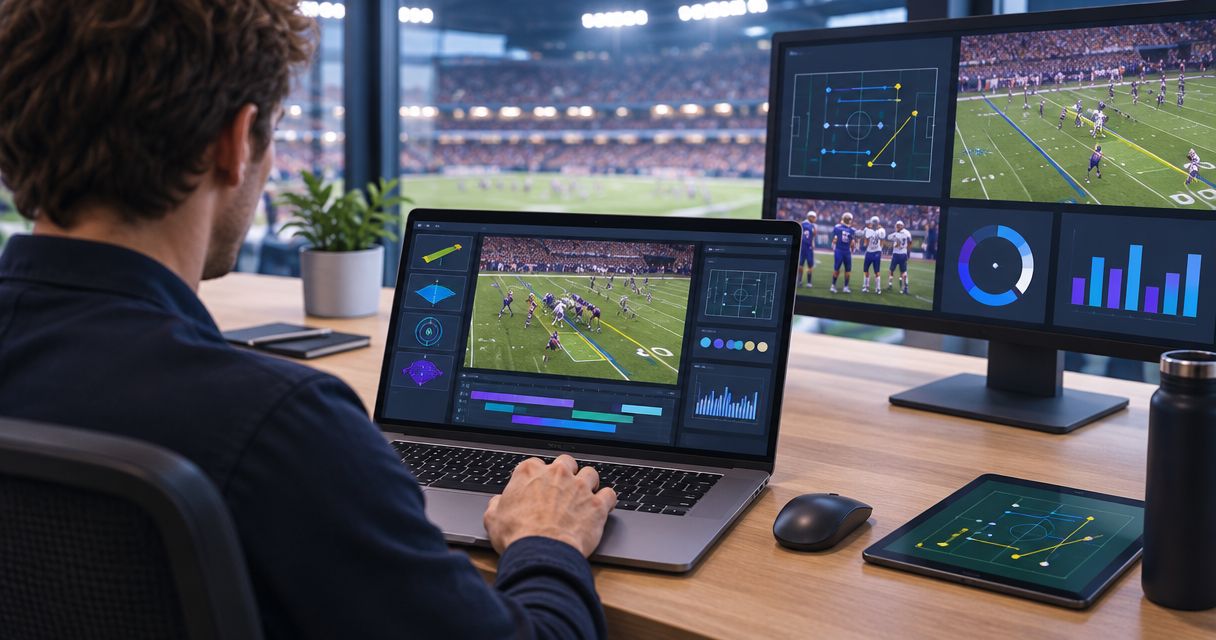
Football broadcast graphics software is compatible with Mac only when the specific application supports macOS; Windows software is not a native Mac application. A Mac-based production can also use a separate Windows graphics workstation, but you must verify how video passes between the systems. For your 2026 setup, distinguish running the graphics application from receiving its finished video.
TL;DR
- Is football broadcast graphics software compatible with Mac? Check application support separately from video connections.
- PayneXR is Windows football broadcast graphics software for crews adding virtual field lines, logos, and sponsor graphics.
- A separate Windows workstation requires a verified video path into your production system.
- Broadcasting without on-field graphics removes the graphics workstation from your required production path.
Is football broadcast graphics software compatible with Mac?
Mac compatibility is application-specific, not a property of football graphics as a category. Check whether the graphics application runs on macOS, then check whether its supported video connections match your production equipment. Those are separate decisions.
PayneXR is Windows football broadcast graphics software for sports production teams and broadcasters. Its stated platform is Windows; plan around that platform rather than assuming a Mac installation.
| Production approach | Best for | Benefit | Limitation |
|---|---|---|---|
| Add on-field graphics using a supported workstation | Crews that need virtual field lines or sponsor graphics | Adds visual references and on-field branding to live football video | Requires graphics operation and a verified video connection |
| Broadcast without on-field graphics | Crews prioritizing a simpler production path | Removes field-graphics operation from the live workload | Does not add virtual first-down lines, scrimmage lines, or field logos |
The practical question is not just whether you own a Mac. It is whether you can run the required application, connect its video correctly, and keep the broadcast working when graphics are removed.
Why this matters
An application opening successfully does not prove that an entire broadcast workflow works. The software, video input, video output, receiving production system, and operator all have different jobs.
For a 2026 equipment decision, approve the complete signal path, not just the computer. A signal path is the route video takes from the camera to the audience. Adding graphics changes that route and introduces another operation to rehearse.
School crews need a setup that another student or staff member can operate. Independent streaming crews need a manageable equipment and staffing plan. TV broadcasters need a defined handoff into their existing production chain. Each audience needs the same compatibility checks, but the operational constraints differ.
Native Mac installation versus a separate Windows workstation
Native Mac installation: verify the application itself
Native Mac software runs directly on macOS. A download labeled for Windows does not establish macOS support, even if another application in your broadcast setup runs on a Mac.
Before choosing an application for native Mac use, check its published operating-system requirements. Then check the requirements for any capture or output device—the equipment that brings video into a computer or sends video out.
Treat operating-system support and device support as separate approvals. A supported application does not automatically make every connected device compatible. Confirm the exact combination you intend to use rather than substituting a different computer during rehearsal.
Separate Windows workstation: verify the connection
A separate Windows workstation keeps the graphics application on its intended operating system. Your Mac then has a different role, such as receiving video for production or streaming, provided the connection is supported at both ends.
Start by identifying what the graphics workstation outputs. Does the receiving system need finished video with graphics already combined, or separate picture and graphics signals? Do not assume these arrangements are interchangeable.
Finished video with graphics already combined is often called a composite or composited picture in production discussions. Separate graphics workflows require additional checks around transparency and how the receiving system places graphics over video. Confirm the required arrangement before selecting cables or interface hardware.
Windows inside a Mac environment: verify the whole setup
A virtual machine runs a guest operating system inside another operating system. That is different from native macOS support and different from a dedicated Windows computer.
Do not approve a live graphics setup merely because Windows starts inside a Mac environment. Verify application support, access to video devices, and sustained operation through the complete broadcast path. Obtain confirmation for the exact configuration before depending on it during a game.
For 2026 planning, write down the computer model, operating system, graphics application, connected devices, and receiving system. A compatibility answer without that configuration leaves the central question unresolved.
How do you connect a graphics workstation to a Mac-based production?
Use this sequence to establish the connection. It is a planning and acceptance process, not a claim that every graphics application supports every transport method.
- Identify the source. Write down where the football camera picture originates and which device receives it first. Include the camera connection and the production system’s available inputs.
- Locate the graphics stage. Decide where field graphics enter the signal path. Establish whether the graphics workstation receives camera video or supplies graphics to another device that combines the picture.
- Specify the connection. Match a supported output from the sending system to a supported input on the receiving system. A connector that fits physically does not by itself establish video compatibility.
- Verify the program output. Program output is the final picture selected for the audience. Watch and record that output, not just the graphics workstation’s preview.
- Prove the fallback. Remove graphics deliberately during rehearsal and confirm that the production can continue with an unobstructed camera picture.
Keep your written route simple: Camera source, Graphics stage, Production input, Program output. Add a separate Clean feed route, meaning video without the added on-field graphics.
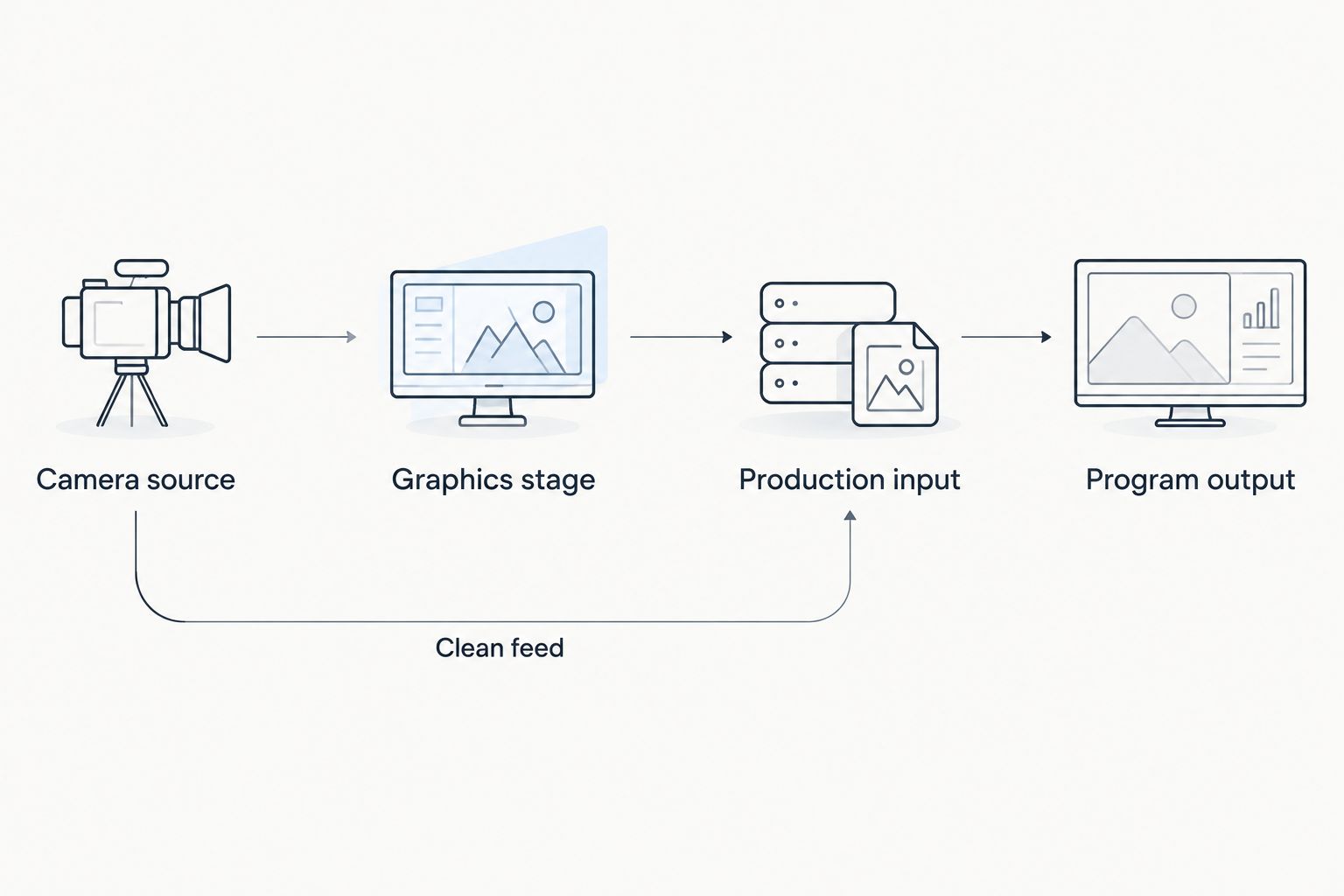
Verify both the graphics route and the route that removes graphics from the broadcast.
The actual connections depend on the equipment’s documented inputs and outputs. Do not buy an adapter because its connectors look correct; confirm signal direction, supported video format, and device compatibility first.
Why football graphics compatibility varies
Compatibility depends on the configuration you assemble, not just the operating-system name on the computer.
- Application platform. Confirm the operating system the graphics application supports. Do not substitute a different platform based on another broadcast application’s requirements.
- Video devices. Check the capture and output equipment against the computer, operating system, and application you intend to use.
- Signal arrangement. Establish whether the receiving system expects finished video or graphics that it must combine with camera video.
- Video format. Match the picture dimensions and frame rate—the number of video frames shown each second—across the connected equipment.
- Operator responsibilities. Assign responsibility for placing graphics, removing them, checking the final output, and switching to the fallback picture.
Use these factors as your 2026 acceptance checklist. A successful test of one factor does not establish the others: a correct-looking preview does not prove the audience receives the same picture.
Should you add on-field graphics or broadcast without them?
PayneXR is best for football production teams that want Windows software for virtual field lines and sponsor graphics. Its role is specific: it overlays virtual first-down lines, scrimmage lines, logos, and sponsor graphics onto live football video.
That adds a way to show field position and on-field branding. It also adds work: someone must prepare the graphics, operate them, and check the resulting picture. Windows is part of that production plan, not an incidental detail for a Mac-only crew.
Broadcasting without on-field graphics remains a valid choice. You lose the virtual field references and on-field graphic placements, but you remove that graphics operation from the required workflow. Camera coverage, commentary, and any separately supported production graphics can remain the focus.
Add field graphics when you can operate and remove them reliably. If the crew cannot yet demonstrate the fallback, rehearse that task before expanding the graphics package.
What should different football crews check first?
School football teams: make the setup transferable
For a school crew, document the startup order and the route to the final picture. Assign 1 named operator to field graphics during rehearsal, even if another person will provide backup on game day.
Have the backup operator repeat the graphics-removal procedure without verbal prompting. A setup that depends on an undocumented action is difficult to hand over when staffing changes.
Keep the Mac-versus-Windows decision separate from student familiarity. Choose the supported platform first, then train operators on the actual equipment they will use.
Independent streaming crews: account for the extra workstation
For an independent crew, a separate graphics computer means another device to transport, connect, power, and monitor. Include those tasks in the setup plan rather than treating the software installation as the entire job.
If the same person switches cameras and operates field graphics, rehearse those tasks together. Decide which task takes priority when a play starts, a camera changes, or a graphic needs removal.
A simpler broadcast without on-field graphics is preferable to a workflow the available crew cannot control reliably.
TV broadcasters: define the receiving requirements
For a TV production, specify exactly what the graphics position delivers to the production system. Document the expected signal arrangement, video format, and person responsible for accepting the picture.
Include camera changes, replay transitions, and graphic removal in the rehearsal. Verify the final program output rather than approving the graphics station in isolation.
A shared written handoff prevents the graphics operator and technical director from making different assumptions about where the picture is combined.
How should you test Mac compatibility before game day?
For your 2026 rehearsal, use the actual computers, devices, connections, and receiving software planned for the broadcast. A substitute connection can hide the problem you need the test to expose.
Record 1 full rehearsal from the final program output. Include field-graphics placement, removal, camera movement, camera changes, and the transition to video without field graphics. Review the recording rather than relying only on the operator’s live impression.
Check 2 video paths: the graphics path and the clean-feed fallback. Confirm that removing the graphics stage does not leave the audience watching a frozen picture, an unintended preview, or no picture at all.
Use the clean-feed fallback guide to plan that recovery procedure. Keep the switching instructions beside the production controls, where the responsible operator can use them.
Can I keep my Mac for streaming?
You can keep a Mac in the production plan if it accepts the intended video connection and supports the receiving application and hardware. That does not mean the football graphics application itself runs on macOS.
Test the receiving Mac with the actual graphics workstation. Approve the combination only after checking the final recorded or streamed picture.
Does a Windows virtual machine prove Mac compatibility?
No. A Windows virtual machine demonstrates a different operating environment, not native macOS application support.
For live video, verify the application, connected devices, and complete production path in that environment. Do not replace a documented supported setup with an unverified workaround on game day.
Do I need on-field graphics to broadcast football?
No. You can broadcast football without virtual first-down lines, scrimmage lines, or on-field logos.
Choose on-field graphics when they serve the production and the crew can operate them reliably. Choose the simpler path when adding the graphics stage would exceed the crew’s tested workflow.
FAQ
Is football broadcast graphics software compatible with Mac?
Compatibility depends on the specific application’s macOS support. Running graphics software on a Mac and receiving video from a separate Windows graphics workstation are different compatibility questions.
Can I install PayneXR directly on my Mac?
PayneXR is Windows football broadcast graphics software, so plan a supported Windows environment rather than assuming a native Mac installation. Verify the exact computer and video connections before committing the setup to a broadcast.
Can a Mac receive video from a Windows graphics computer?
A Mac can serve as the receiving system when the sending output, receiving input, hardware, and applications support the intended connection. Confirm the complete configuration through a rehearsal of the final program output.
Does running Windows in a virtual machine guarantee football graphics will work?
No, running Windows in a virtual machine does not establish that the graphics application and video devices work together. Verify application support and the complete live-video path for that configuration.
Should I add on-field graphics if I have a small crew?
Add on-field graphics only when your crew can operate them and remove them reliably. Broadcasting without field graphics reduces the graphics workload and remains a valid production choice.
What should I test before using football graphics live?
Test the final program output, graphics removal, camera changes, and clean-feed fallback using the actual game-day equipment. Record the rehearsal and inspect the audience-facing picture.
What does a clean feed mean for football graphics?
A clean feed is video without the added on-field graphics. Keep a tested route to that picture so the broadcast can continue when field graphics need to be removed.
One last thing
The most useful compatibility test is removing the graphics. A working overlay proves that you can add something to the picture; a successful fallback proves that the broadcast can continue without it.
Make that removal test part of every changed 2026 configuration. Replacing a computer, video device, or connection deserves another check of both paths—not just another glance at the preview.