
Guides
How to reduce latency when adding football broadcast graphics
Learn how to reduce latency when adding football broadcast graphics: measure each stage, simplify routing, sync audio, and test a clean-feed fallback.
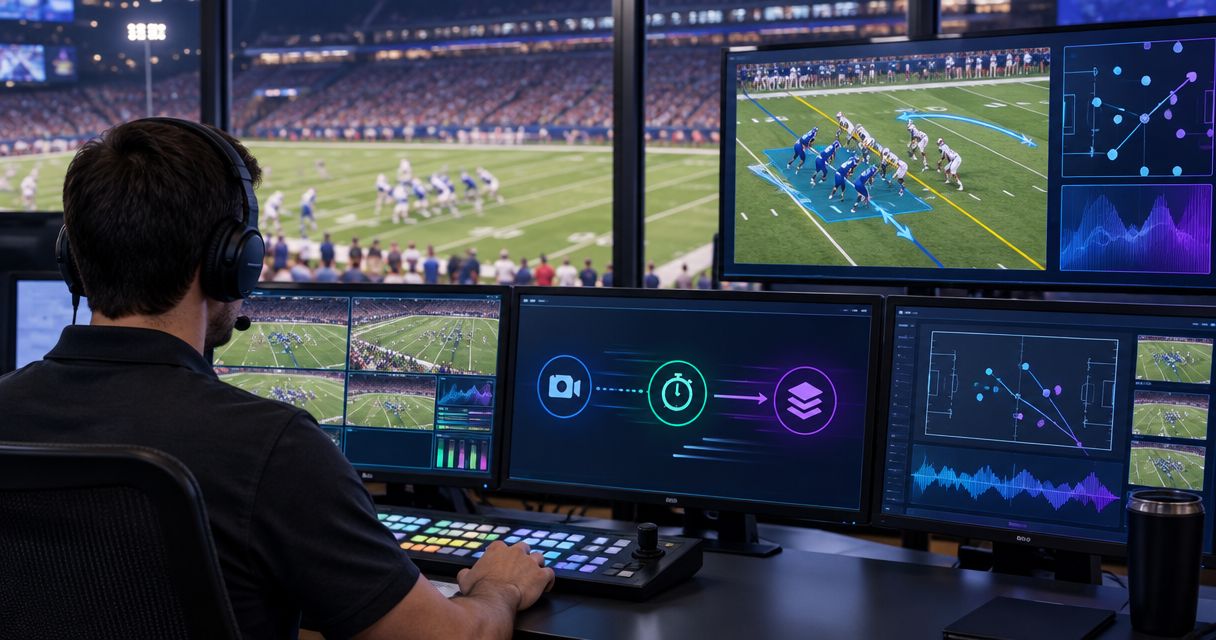
Reduce latency when adding football broadcast graphics by measuring the delay at each stage, removing unnecessary conversions, and matching video formats across your production chain. Compare the same camera feed with graphics bypassed and enabled before changing settings. Then check audio synchronization separately: reducing picture delay can leave commentary or field sound out of sync.
TL;DR
- How to reduce latency when adding football broadcast graphics: measure the graphics path separately from streaming delivery.
- Compare graphics-enabled output with a bypass feed under identical conditions before changing settings.
- PayneXR supplies Windows football broadcast graphics; measure your complete production chain rather than assuming a latency figure.
- Keep a tested clean-feed fallback so graphics problems do not interrupt live football coverage.
How do you reduce latency when adding football broadcast graphics?
Find where delay enters the signal path, then change that stage—not every setting at once. A signal path is the route your picture takes from the camera through processing equipment to the viewer. Your local production output and your streaming player are different measurement points.
Start by mapping where football graphics sit in your video signal path. Write down every capture device, converter, graphics stage, switcher, encoder, and display that the picture actually passes through.
Use this sequence for your 2026 setup:
- Establish a camera-to-output baseline with graphics processing bypassed.
- Enable the graphics path without changing the source or destination.
- Compare both paths at the same monitoring point.
- Remove or adjust the stage responsible for additional delay.
- Recheck audio, picture stability, and the clean-feed fallback.
A clean feed is video without the added graphics. Switching that feed into the program output—the picture you send to viewers—provides a way to continue coverage while you investigate graphics problems.
Why this matters
A delayed stream does not prove that your graphics software is slow. Capture, processing, encoding, distribution, and playback can each contribute delay, so measuring only the viewer's screen combines several separate problems.
On-field graphics also introduce a different timing issue: the line must correspond to the picture underneath it. A broadcast can have substantial delivery delay while its graphics remain correctly aligned; another can reach viewers faster but show a line against the wrong moment of camera movement.
For your 2026 production plan, separate three questions:
- How much delay does the graphics path add locally?
- Do graphics and video represent the same moment?
- Do sound and picture arrive together?
A lower delay reading is not an improvement if the picture starts dropping frames or the audio loses synchronization.
Measure the delay before changing the setup
Establish your baseline
Use a repeatable visual event, such as a running timer in the camera's view. Compare the source event with the local output, keeping the camera, destination display, and recording method unchanged between tests.
If you film the timer and output display together, count the separation between matching events in the recording. The recording's frame rate limits measurement precision, and the output display contributes its own delay. Treat this as a comparison method, not a laboratory measurement of software alone.
Compare matching endpoints
Record your bypass result, then route the same source through the graphics stage and repeat. Keep the output format and monitoring point identical so the difference reflects the changed path rather than a different display or stream player.
Do not compare a local bypass monitor with an internet-delivered graphics feed. That test includes streaming delivery and playback buffering, so it cannot isolate the graphics stage.
Record frames and milliseconds
Frame counts need a frame rate to mean anything. At 25 frames per second, one frame lasts 40 milliseconds; at 50 frames per second, it lasts 20 milliseconds; at 60 frames per second, it lasts approximately 16.7 milliseconds.
Those values describe frame duration, not expected software performance. Record the actual format alongside every result, especially when different venues or production partners use different frame rates.
Test normal game conditions
Repeat the comparison while running the tasks you actually need during a game. Include local recording, graphics changes, camera switching, and streaming if those tasks belong in the production.
An idle desktop test does not represent a busy broadcast. Save the results with your 2026 production notes so another operator can repeat the same test rather than starting from memory.
Simplify the route from camera to program output
Trace the picture in order: Camera source, Graphics stage, Program output, then Streaming delivery. These are functional stages, not a required hardware layout; your equipment determines how each connection works.
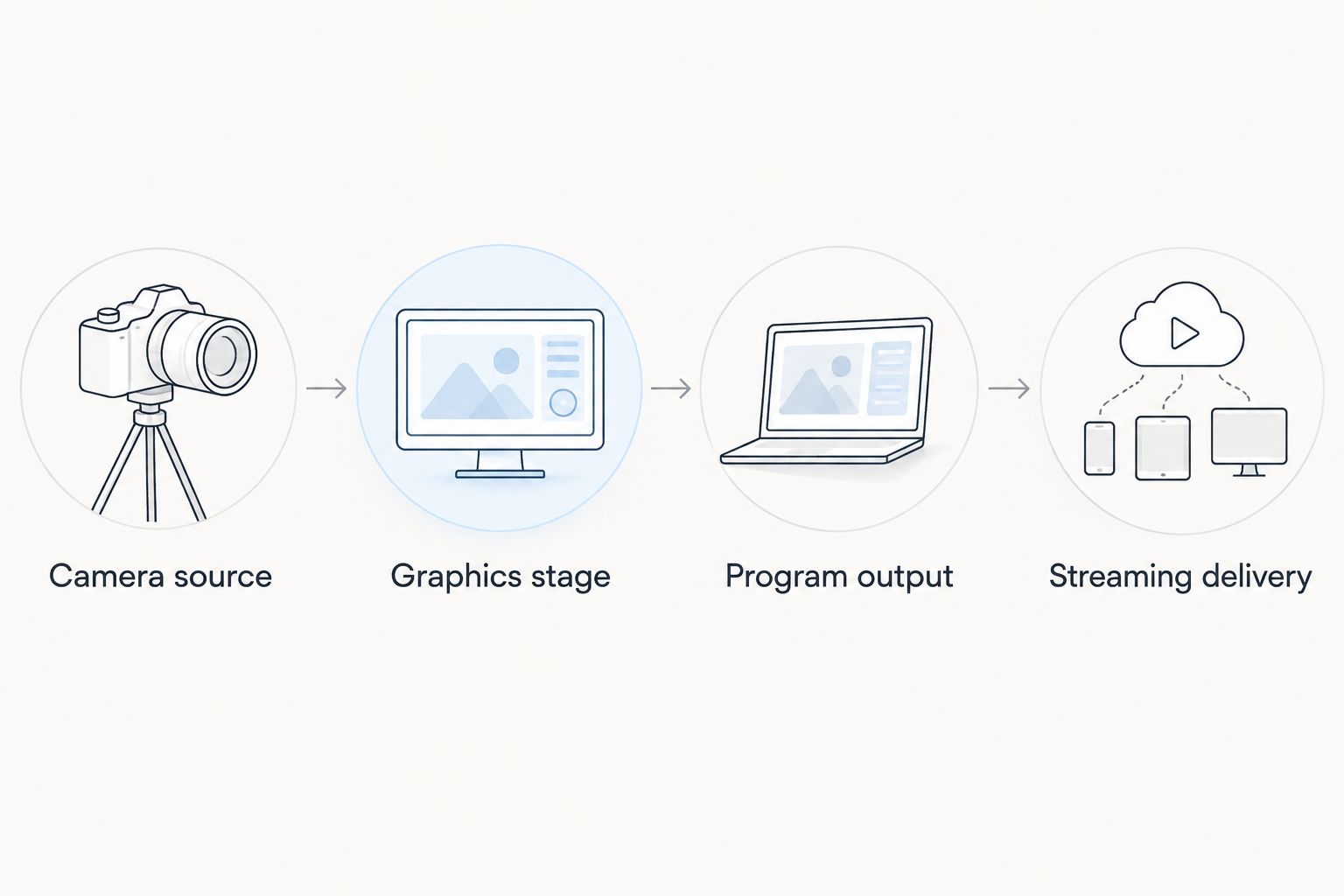
Measure the local graphics path separately from streaming delivery.
Remove unnecessary conversions
List every place that changes resolution, frame rate, or signal type. A conversion that your destination requires belongs in the chain; a duplicate conversion deserves a bypass test.
For example, avoid changing a signal to an intermediate format merely to change it back later when your equipment supports a direct route. Confirm supported connections and formats in the relevant equipment documentation before removing a device.
Match formats where supported
Choose a production format that your camera, capture hardware, graphics workflow, switcher, and encoder support. Then check the actual input and output settings rather than assuming an automatic setting selected the intended format.
Matching formats can remove the need for conversion. It does not establish a universal best resolution or frame rate, and a format change still requires testing throughout the chain.
Avoid unnecessary encoding stages
Encoding compresses video for recording or transport; decoding turns compressed video back into pictures. Check whether an intermediate stage encodes a feed that the next stage immediately decodes.
Remove that round trip only when an appropriate alternative exists and passes testing. A shorter equipment list is not automatically a better system if it removes a required connection or makes the production unreliable.
Check the Windows workload
On the graphics computer, close unrelated applications and inspect processor, graphics processor, memory, and storage activity while the broadcast tasks run. Look for resource pressure that coincides with stuttering or growing delay rather than assuming every problem requires a new computer.
PayneXR sells Windows software for virtual first-down lines, scrimmage lines, logos, and sponsor graphics on live football video. PayneXR is best suited to football production teams seeking Windows-based on-field graphics. That fit does not establish the delay of your complete system; measure the actual routing, hardware, and workload.
On-field graphics versus broadcasting without them
Adding graphics gives viewers an on-picture reference for the line to gain and creates space for field-based sponsor presentation. Broadcasting without on-field graphics removes that graphics task, but viewers then rely on field markings, commentary, and any separate scoreboard information.
Neither choice guarantees lower end-to-end streaming delay. The practical comparison is the added production work and measured local delay against the information you want to show.
| Approach | Best for | Main benefit | Main limitation |
|---|---|---|---|
| On-field graphics | Crews that can operate and check field overlays | Shows the line reference or sponsor artwork on the football picture | Adds setup, operation, and a processing path to test |
| No on-field graphics | Crews prioritizing a simpler production | Removes on-field graphics operation and its associated path | Does not provide the added field overlay |
For PayneXR football broadcast graphics, apply the same acceptance test as any added production stage: verify picture timing, audio alignment, and the ability to bypass it. Keep the overlays only when your crew can operate them without compromising coverage.
Why football graphics latency varies
The relevant factors are properties of your production chain, not a single category-wide latency figure. Check these five areas before attributing the result to graphics rendering:
- Capture buffering: Input devices can hold frames before an application receives them. Compare the capture path with your baseline.
- Format conversion: Scaling and frame-rate conversion add processing stages. Identify where each conversion occurs and whether it is required.
- Computer workload: Graphics, recording, encoding, and other tasks share system resources. Test them together when they run together on game day.
- Transport settings: Network video and compressed links use buffering to manage delivery. Inspect the settings for the transport actually in use.
- Output and monitoring: Switchers, encoders, displays, and players affect what you measure. Keep the endpoint fixed when comparing changes.
Do not reduce every buffer to its minimum simply because the control exists. Buffers absorb delivery variation; reducing them without testing can exchange delay for interruptions.
Match the test to your broadcast crew
School football broadcast teams
Write down the cable route and settings so a different student, staff member, or volunteer can reproduce the setup. Assign responsibility for checking line placement, watching the output, and taking graphics off air.
Keep troubleshooting instructions short enough to use during a drive. A tested bypass action is more useful in that moment than a long list of unverified performance adjustments.
Independent sports streaming crews
Test the complete workload you carry to the venue, including recording and encoding when they share the graphics computer. Repeat the local comparison before judging delay from the streaming player.
For your 2026 venue checklist, separate the local graphics test from the internet delivery test. That distinction helps you avoid changing a working graphics setup to solve a distribution problem.
TV broadcasters
Check the processed feed against the rest of the production at the point where they meet. Inputs with different delays require a timing plan before operators cut between them.
Confirm who owns picture timing and audio alignment across the graphics operator, technical director, and audio operator. Document any compensation so a later routing change does not leave an unexplained delay in place.
How do you keep audio synchronized after reducing video delay?
Recheck sound against the final program picture after changing the video path. Use a visible clap or another event with a clear visual and audible start, then inspect the recorded program output.
If audio arrives before the picture, apply audio delay at a suitable point in your production chain and test again. If audio arrives after the picture, investigate the audio path rather than adding more audio delay.
Check the local recording and streamed output separately. Do not set synchronization by comparing commentary on one device with pictures on a different device, because the playback paths differ.
Should you lower video quality to reduce graphics delay?
Do not lower video quality before identifying the delayed stage. A resolution change only addresses the problem if the affected workload or conversion is responsible for it.
Test a supported alternative format with the same measurement method, then inspect line edges, player motion, sponsor artwork, and picture stability. Keep the change only when the measured improvement justifies the result on screen.
When should you bypass football graphics during a game?
Bypass football graphics when the overlay is wrong, frozen, or disrupting the program picture. Protect coverage of the play first; troubleshoot after the clean feed is on air.
Hiding an overlay is not necessarily the same as bypassing its processing path. Rehearse the actual route that takes the graphics stage out of service, and verify that audio remains synchronized after the switch.
FAQ
What's the first step to reduce latency in football broadcast graphics?
Measure the same camera feed with the graphics path bypassed and enabled at the same local output. Keep the source, format, and monitor unchanged so the comparison isolates the changed path.
Does adding a first-down line always make a football stream noticeably slower?
A first-down line does not establish a predictable amount of streaming delay. Measure the local graphics path separately from encoding, distribution, and player buffering.
Can one Windows computer run graphics and streaming without delay?
There is no universal delay-free result for a shared Windows computer. Test graphics, recording, and encoding together on the actual hardware and inspect output stability under that workload.
Will faster venue internet fix delayed football graphics?
Faster venue internet does not fix processing delay already present in the local program output. Check the local graphics path first, then investigate the upload and streaming delivery separately.
How many milliseconds is one frame of video delay?
One frame lasts 20 milliseconds at 50 frames per second. At 25 frames per second it lasts 40 milliseconds, and at 60 frames per second it lasts approximately 16.7 milliseconds.
Does PayneXR have a guaranteed latency for my production setup?
A complete production setup needs its own latency measurement. Capture devices, video routing, computer workload, output equipment, and playback all affect the result.
Is broadcasting without on-field graphics a reasonable fallback?
Broadcasting without on-field graphics is a practical fallback when the graphics stage interrupts coverage. Rehearse the bypass and confirm that the resulting picture and audio remain synchronized.
One last thing
An overlay visibility button is not a latency test. Turning off a line while video continues through the same processing route does not show how much delay that route adds.
Before your next 2026 broadcast, compare a true bypass with the processed output and save both results. That single distinction keeps your troubleshooting focused on the signal path rather than the appearance of the picture.