
Guides
How to diagnose dropped frames in football graphics output
Check broadcast graphics software requirements by testing each video stage. Isolate dropped frames, compare clean feeds, and protect live football coverage.
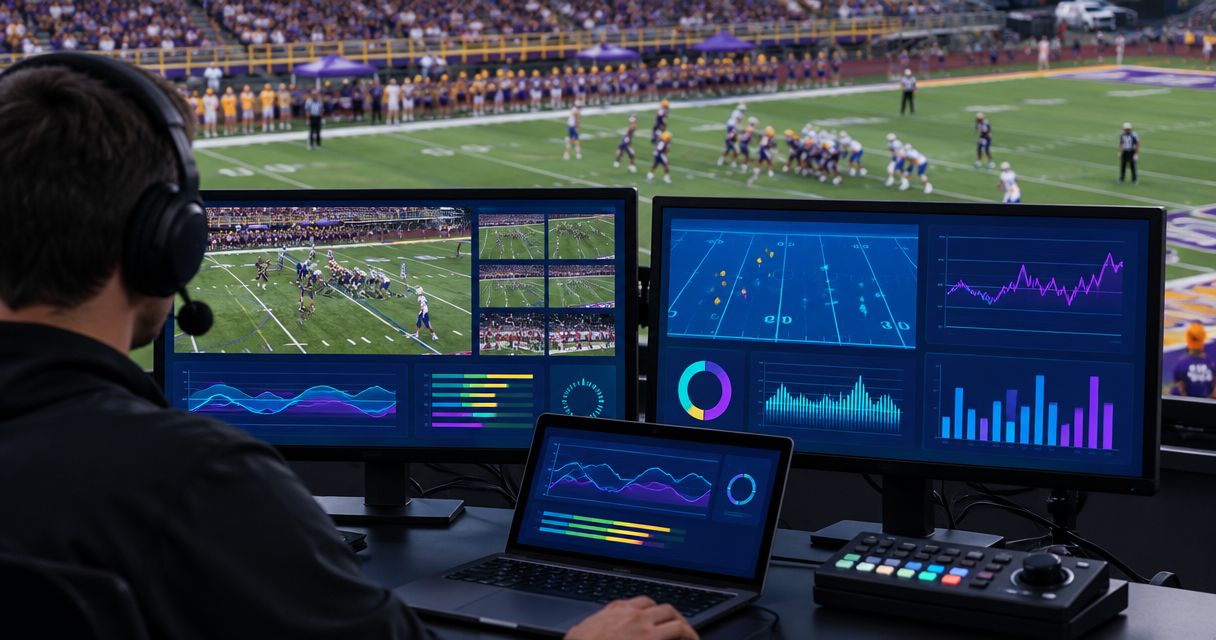
Diagnose dropped frames in football graphics output by comparing the incoming video, graphics output, and final program feed to find the first point where motion breaks. Check broadcast graphics software requirements against the exact video format and the computer’s live workload; a smooth preview alone does not prove the transmitted output is healthy.
TL;DR
- Broadcast graphics software requirements include video format, processing capacity, and output routing—not just a computer specification.
- Compare clean video with graphics-enabled output before blaming the graphics application.
- Paynexr provides Windows football graphics; diagnose each signal stage before changing the production setup.
- Keep a clean-feed fallback ready while investigating missing frames or uneven motion.
Why this matters
A first-down line helps viewers locate the target on the field, but uneven video makes the play harder to follow. Protect continuous action before restoring on-field graphics. Your audience needs to see the ball and players clearly, even when that means temporarily removing the overlay.
Before your next 2026 broadcast, document where graphics enter the production chain. The guide to where football graphics sit in your video signal path helps you name the checkpoints rather than treating the whole broadcast as a single failing system.
How do you diagnose dropped frames in football graphics output?
Work downstream from the source toward the viewer. At each checkpoint, ask whether motion was already uneven before that stage or became uneven after it. Use the same passage of football action for each comparison so different camera movement does not distort the result.
1. Establish clean video
Watch the source before it enters the graphics stage. Use footage with visible movement: players running across yard lines, a steady camera pan, or an official walking across the field. A static wide shot hides repeated frames.
If the source already stutters, investigate the camera feed, capture connection, or recorded source before adjusting graphics. Check a recorded file locally as well; an uneven recording is not a dependable reference for testing output smoothness.
2. Compare graphics output
Compare video with on-field graphics disabled against video with graphics enabled, keeping the remaining route unchanged. Removing a visible overlay is not necessarily the same as bypassing its processing stage, so record which test you performed.
If only the graphics-enabled version breaks, investigate the graphics workload and its input/output configuration. That result narrows the search; it does not establish that the computer needs replacing.
3. Inspect final output
Check the outgoing program feed—the finished video sent toward recording, transmission, or streaming. Compare it with the graphics-stage output. If the graphics output is smooth but the program feed is not, move downstream to switching, conversion, encoding, and delivery.
Also compare a local program recording with the audience-facing stream. Smooth local video alongside a stuttering stream directs attention toward streaming and playback rather than immediately implicating the overlay.
4. Correlate counters
Watch available performance counters while reproducing the fault. Read each counter’s description: a rendering delay, encoding delay, and network drop describe different failures, even when the visible result looks similar.
Record which counter changes when the picture breaks. A rising counter without a matching timestamp is less useful than a brief note connecting a specific pan, output interruption, and resource spike.
5. Repeat the test
Change a single setting, then replay the same action through the same route. Keep the original configuration available so you can reverse an unsuccessful change. Do not alter resolution, output method, and encoder settings together and then guess which adjustment helped.
Your 2026 test log should identify the source, active graphics, output destination, changed setting, and observed result. Save configuration details rather than relying on memory after the game.
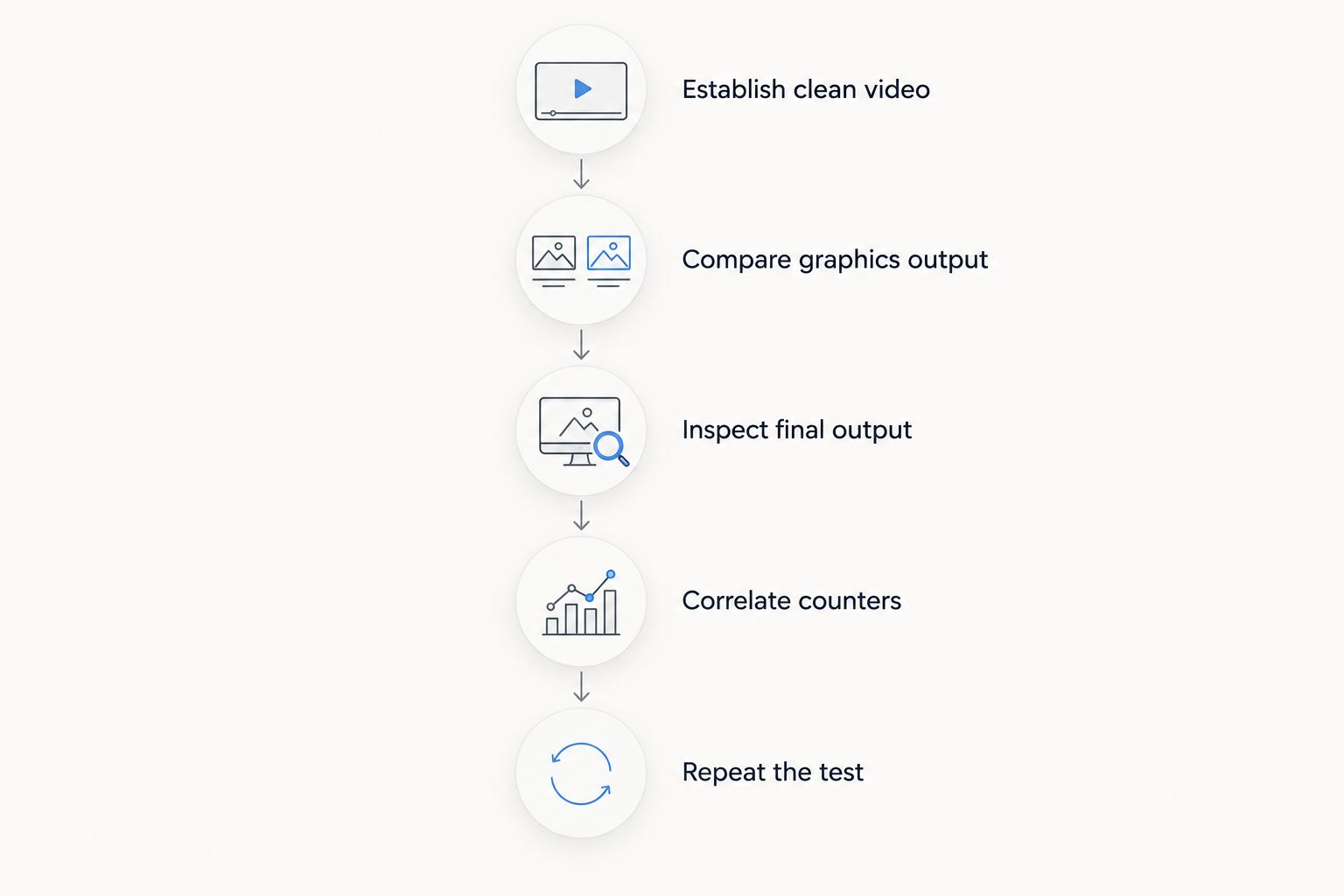
Find the first failing checkpoint before changing the production configuration.
Compare on-field graphics with a clean feed
Best for diagnosis: keep the video route identical and change only the graphics state. A clean feed means video without the on-field overlays being investigated; specify whether other elements, such as a score graphic, remain present.
| Test option | Best for | What it establishes | Limitation |
|---|---|---|---|
| Graphics enabled | Reproducing the live workload | Whether the problem appears during the intended production setup | Several active stages can contribute to the fault |
| Graphics disabled, same route | Isolating visible overlay workload | Whether removing overlays changes motion continuity | The graphics processing stage can remain active |
| Graphics stage bypassed | Testing the rest of the production chain | Whether the downstream route works without that stage | Bypassing can also change timing or connections |
Adding on-field graphics gives viewers a visible first-down target and scrimmage reference. Broadcasting without them removes those visual aids but also removes the need to operate those overlays. Neither choice excuses uneven source video.
Paynexr is best for football production teams seeking Windows software for virtual first-down lines and on-field graphics. Its stated scope includes scrimmage lines, logos, and sponsor graphics; those functions still need a tested place in your production chain. Select on-field graphics for their viewing purpose, then validate the complete route under load.
Check broadcast graphics software requirements against the actual format
A hardware checklist is incomplete without resolution, frame rate, connected devices, and the work happening alongside graphics. For a 2026 equipment review, write down the exact format at the source, graphics stage, switcher, encoder, and recording destination.
Frame rate determines the processing interval
At 30 frames per second, each frame represents about 33.33 milliseconds. At 60 frames per second, that interval is about 16.67 milliseconds. These are timing relationships, not promised performance figures or minimum specifications for a particular application.
The shorter interval leaves less time between successive frames. That is why a workflow that behaves well at one frame rate still needs testing at another. Do not label a machine suitable for every football production merely because a lower-frame-rate rehearsal looked smooth.
Match exact formats, not approximate labels
Check the full frame-rate value rather than a rounded label. For example, 59.94 frames per second and 60 frames per second are different rates. Document any conversion between them instead of assuming every stage uses the same timing.
Also distinguish progressive video, which carries complete frames, from interlaced video, which carries alternating fields. Conversion between formats adds another stage to inspect. A regular cadence problem can resemble dropped frames without proving that the graphics renderer is missing deadlines.
Treat specifications as a starting point
Use the publisher’s current requirements for the software version you intend to run. Then verify capture and output hardware requirements separately, including the selected format and driver support. Do not substitute generic gaming specifications for production validation.
Passing a minimum specification check does not establish that simultaneous graphics, recording, encoding, and monitoring will run smoothly. Rehearse those tasks together when they will share the same Windows computer during the game.
Why dropped frames vary between production setups
The following factors change the diagnostic workload. Check each against your actual routing rather than assigning a universal cause:
- Video format: Resolution, frame rate, and format conversions affect the amount and timing of video processing.
- Shared processing: Graphics, recording, streaming, and other applications compete for computer resources when they run together.
- Capture and output: Device configuration, drivers, and connection paths can introduce faults before or after graphics rendering.
- Recording storage: A recording destination that cannot sustain its workload can affect recording even when another output remains healthy.
- Network delivery: Network congestion or packet loss can disrupt network-carried video independently of the local graphics preview.
- Thermal conditions: Sustained load and restricted cooling can reduce available processing performance during a longer production.
Windows Task Manager helps you inspect CPU, memory, disk, and GPU activity. Check the relevant GPU engine where available rather than relying only on an overall percentage. No single utilization reading proves a fault; match the activity to the visible interruption and the application’s own diagnostics.
Test the workload your crew will actually run
A school football team, independent streaming crew, and TV broadcaster need the same basic diagnosis: locate the failing stage. Their rehearsals should reflect different operating responsibilities, not an assumed difference in technical ability.
School football broadcast teams
Assign someone to monitor the outgoing picture while the graphics operator handles the play. When staffing is limited, make a short recording for review instead of expecting the operator to watch every diagnostic counter during live action.
Practice the fallback with the actual student or volunteer operators. A technically sound alternative is not ready until the person on duty knows how to select it and confirm that normal football video remains on air.
Independent sports streaming crews
Rehearse graphics alongside every task the production computer will perform, including recording and streaming where applicable. A graphics-only test does not represent a shared-machine show.
Watch local output and stream health separately. If local recording remains smooth while streaming reports delivery problems, investigate the delivery route before reducing graphics quality or replacing the graphics computer.
TV broadcasters
Check the graphics handoff at the receiving stage, not only on the graphics operator’s monitor. Document the expected format, destination, and any required timing or synchronization settings with the production engineer.
Where reference synchronization is part of the facility workflow, verify it at the relevant devices. Reference synchronization supplies common timing; it is not a substitute for checking the application’s rendering performance or the actual on-air output.
What should you do when the preview is smooth but output stutters?
A smooth preview does not clear the output path. Inspect the output device, receiving input, format conversion, and downstream processing independently. A preview and a transmitted feed are different observation points.
Monitor or record the output immediately after the graphics stage where your equipment permits. Then compare that result with the program recording. Your 2026 fault report should identify the earliest recording or monitor that contains the interruption, not simply say that graphics dropped frames.
Should you lower resolution or frame rate first?
Change the setting supported by the evidence, not the easiest menu option. If diagnostics point to rendering or encoding load, test a reduced workload off air and compare the result. Treat that as a controlled experiment, not a permanent fix by default.
Confirm that the receiving devices accept the changed format before applying it. A successful local test is not useful if the switcher or transmission chain expects something else. Preserve the production’s agreed output format unless the team approves a change.
When should you remove on-field graphics during a game?
Remove on-field graphics when the tested fallback restores continuous football video. If both the normal route and fallback stutter, continue investigating the shared source or downstream stages; removing an overlay has not isolated the cause.
Keep the fallback accessible and rehearse the transition before kickoff. Record the fault time and current configuration for later diagnosis, but do not let troubleshooting obstruct coverage of the next play. Your 2026 game-day run sheet should name who authorizes the switch and who confirms the outgoing picture.
FAQ
What broadcast graphics software requirements matter for dropped frames?
Broadcast graphics software requirements must cover the selected video format, supported input and output devices, and computer resources. Validate the complete workload, including recording or streaming that runs alongside graphics.
How do I tell whether graphics or the camera feed is dropping frames?
Compare the incoming camera video with the graphics-stage output using the same moving action. If the incoming video already stutters, investigate upstream before changing graphics settings.
Can a smooth preview still produce a stuttering broadcast?
Yes, a smooth preview can coexist with a stuttering broadcast because output, encoding, and delivery are separate stages. Check the actual outgoing feed and compare local recordings with the audience-facing stream.
Does Paynexr run on Windows?
Paynexr sells Windows broadcast graphics software for live football video. Its stated graphics include virtual first-down lines, scrimmage lines, logos, and sponsor graphics.
Should I buy a new computer to fix dropped frames?
Buy replacement hardware only after identifying a resource limitation that explains the fault. A format mismatch, device problem, or downstream delivery issue requires a different correction.
Is broadcasting without a first-down line a useful fallback?
Broadcasting without a first-down line is a useful fallback when the tested clean route restores continuous video. Confirm the fallback before kickoff and keep it available during troubleshooting.
One last thing
An overlay that disappears is not proof that its processing stage has been bypassed. Label those tests separately in your notes. That distinction prevents a clean-looking picture from becoming a misleading diagnosis—and makes the next rehearsal more useful than another round of random settings changes.