Guides
How to connect PayneXR to Facebook Live streams
Connect PayneXR to Facebook Live through a checked production path. Verify on-field graphics, stream preview, audio, and a clean-feed fallback before kickoff.
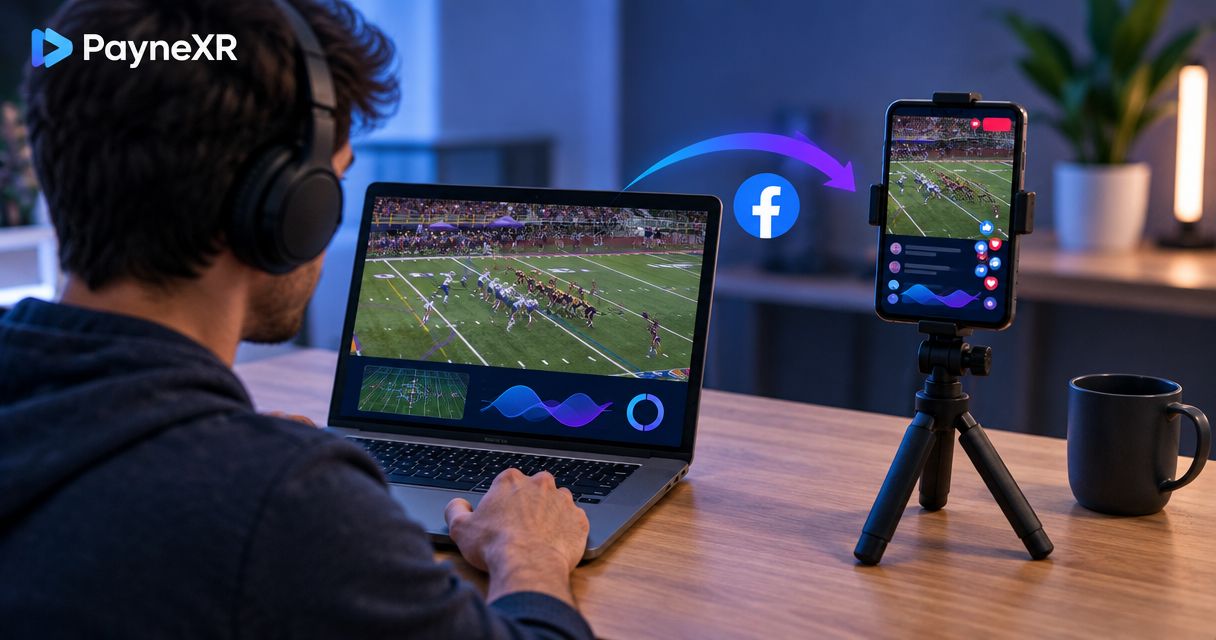
Instead of sending a plain football camera feed to Facebook Live and trying to explain every first down verbally, route PayneXR’s on-field graphics through your production software, verify the finished picture, then start the stream. The key check is whether the graphics actually appear in the video Facebook receives—not just on the Windows computer running PayneXR.
TL;DR
- To connect PayneXR to Facebook Live, put its finished football video into your production workflow, then send that output to Facebook.
- PayneXR is best for football crews that want virtual lines or sponsor graphics on the live field view.
- Check the Facebook preview and a clean camera feed before you go live; a visible Windows preview alone is not enough.
- OBS can send the finished stream, but your PayneXR-to-OBS video path must be confirmed on your equipment.
Why this matters
Facebook Live receives the video your streaming software sends it. PayneXR runs on Windows and overlays virtual first-down lines, scrimmage lines, logos, and sponsor graphics onto live football video. Those graphics only reach viewers if the video path between the graphics computer and the streaming output carries the finished picture.
A school crew might use one operator for cameras and graphics. An independent streaming crew might bring its own Windows computer into an unfamiliar venue. A TV broadcaster might need to feed an existing production switcher. The test is the same: follow the signal from camera to graphics to stream, and check each handoff. For the production-software side of that handoff, see the PayneXR-to-OBS workflow.
In 2026, decide whether on-field graphics earn their place in your production before adding another signal path. A first-down line helps when its placement is clear; an incorrect line is worse than a clean camera feed. PayneXR football graphics are best for crews that can assign someone to check placement and remove a graphic when the shot changes.
| On-air choice | What viewers receive | Best for | Production responsibility |
|---|---|---|---|
| On-field graphics | The selected football picture with a virtual line, logo, or sponsor graphic when the operator puts one on air | Crews that can check placement during play | Monitor the finished output and take graphics off air when they do not fit the shot |
| Clean camera feed | Football video without an on-field overlay | Crews without a reliable graphics handoff or a dedicated check | Keep the picture and audio stable; describe field position verbally |
Before you start
- Confirm access: Have the Windows computer running PayneXR, the football video source, your production software or switcher, and permission to stream to the intended Facebook Page or profile. Check access before the crew reaches the venue.
- Identify the finished-video connection: Find out how your actual PayneXR setup delivers its output to the next device or application. That connection depends on your installed equipment; do not assume a particular capture card, network-video protocol, or software output is present.
- Prepare a clean feed: Keep a camera picture available without on-field graphics. The non-obvious failure is monitoring PayneXR on its own screen while Facebook receives a different source. A clean feed also gives you an immediate on-air option if a line is misplaced.
Write the signal path on the run sheet in plain terms: camera input → graphics output → production output → Facebook Live. If one handoff has no known connection, resolve it before setting up the Facebook stream. In 2026, a run sheet should also name who watches the finished output and who can switch to the clean feed.
Set up the football video path
- Bring the camera picture into the graphics workflow. Use the input method available in your PayneXR installation and connected production equipment. Confirm that live camera movement appears in the graphics operator’s view; a still image is not a useful end-to-end test.
- Place a test graphic on a suitable shot. Use a virtual first-down line or scrimmage line only where the operator can judge its position against the field. If you use a logo or sponsor graphic instead, confirm that it does not cover essential play information.
- Trace the output into production. On the receiving application or switcher, select the source that carries the finished video—not the original camera feed. Look for both the moving field picture and the test graphic in that receiving preview.
- Remove the test graphic. Confirm that the receiving preview shows the same picture without the overlay. This checks that the production team is watching a controllable graphics output rather than a frozen image.
Expected result: The receiving preview changes when the graphics operator adds or removes the overlay. If PayneXR shows the line locally but the receiving preview does not, stop here; Facebook settings will not fix a missing video handoff.
Configure the production output
Use OBS Studio if OBS is the application that sends your finished show to Facebook. If your crew uses a hardware or software switcher instead, apply the same source-selection and program-output checks there; do not treat OBS controls as instructions for another device. Program output means the picture chosen for viewers, rather than a source that is merely available in preview.
- Open the receiving production scene. In OBS, select the Scene intended for the football stream. Add or select the Source that receives the verified finished video path. The source type depends on the connection you confirmed in the previous section.
- Check the complete frame. In the OBS preview, look at the field edges, scoreboard area, and the position of the test overlay. A graphic that appears in the source but falls outside the final frame will not help the viewer.
- Check audio separately. Watch the relevant channel in the Audio Mixer while someone speaks into the live commentary microphone. PayneXR’s video overlay does not establish that your commentary audio reaches OBS.
- Confirm the clean-feed switch. Select the scene or source that contains the unmodified camera picture. Return to the graphics picture, then repeat the switch so the operator knows the on-air route.
Expected result: OBS shows the finished football picture when graphics are selected, a clean picture when they are not, and activity on the intended audio channel. In 2026, make this check on the same production computer and connections you will use for the game; a separate rehearsal machine does not establish that the venue path works.
Connect the stream to Facebook Live
Facebook Live setup controls can differ by account and interface. Use the stream destination details shown for the specific Page or profile you are authorized to use, and enter them only in the application that sends the program output. Never put a stream key in a graphic or share it in a crew screenshot: it grants access to the stream destination.
- Open Facebook’s live-video setup for the intended destination. Choose the option for streaming software, then locate the connection details Facebook provides for that live video.
- Open OBS
Settingsand selectStream. Set the Service to Facebook Live if that option and the connection method you need appear in your OBS installation. Otherwise, use the connection method Facebook and OBS present for a custom streaming destination; copy the server and stream-key fields from Facebook without changing them. - Apply the settings and start the OBS output with Start Streaming. Watch for the incoming picture in Facebook’s live setup preview before publishing the live video. Do not assume that starting the output in OBS has made the event public.
- Inspect the Facebook preview. Check for the field picture, the test graphic, and moving action. Listen through a separate device if you need to confirm the audio that viewers receive. Then remove the test graphic or replace it with the graphic intended for the opening shot.
- Publish only after the preview passes. Use Facebook’s Go Live control when the correct picture and audio are present and the crew is ready. Keep the stream key private after the event as well.
Expected result: The Facebook preview matches the production program output, including the graphics when selected. If OBS looks right but Facebook does not, investigate the stream output and Facebook preview before changing the football graphic placement.
Run a clean-feed variant
Broadcast without on-field graphics when the graphic cannot be checked. This is an adjacent workflow, not a failed version of the graphics workflow. It lets a school crew cover a sudden camera change, an independent crew handle an unfamiliar venue feed, or a TV production team protect the program output while graphics are corrected.
- Keep the clean camera source ready in your production application or switcher. Give its scene or input an unmistakable name on the crew run sheet.
- Switch to the clean source when the line does not match the field, the camera changes, or the graphics output disappears. Watch the program output to confirm that the overlay has left the on-air picture.
- Correct the issue off air. Have the graphics operator check the shot and placement in preview. Bring the graphics output back only after the production operator confirms it is suitable for the current camera.
Expected result: Facebook continues receiving football video and commentary while the on-field overlay is absent. In 2026, rehearse this switch before kickoff rather than asking an operator to discover the fallback during a live play.
Troubleshoot the handoffs
- PayneXR shows a line, but OBS shows only the camera. OBS has selected the clean camera input or another source instead of the finished graphics output. Follow the connection backward from the OBS source to the output you confirmed in the video-path test.
- OBS shows graphics, but Facebook shows no incoming video. Check that OBS has started streaming and that its Stream settings match the current destination details shown by Facebook. Keep the stream key out of shared screenshots while you check.
- Facebook shows video without commentary. The picture path and audio path are separate. Check the intended Audio Mixer channel in OBS, then listen to the incoming Facebook preview on a separate device.
- The line fits one shot but not the next. Take the overlay off air, use the clean feed, and have the graphics operator check the current camera picture before restoring the line. Do not use a previous shot’s placement as proof that the new shot is correct.
- The preview looks right but the live picture is stale. Check movement at each handoff: the graphics operator’s view, the receiving production preview, and Facebook’s incoming preview. The first place where motion stops identifies the connection to investigate.
These checks isolate different failures. Changing Facebook’s destination settings will not repair a missing graphic in OBS; adjusting the graphic will not repair missing commentary audio. Treat each handoff as its own test.
Customize your workflow
Assign decisions, not just controls. The graphics operator judges when a line fits the field; the production operator chooses which picture is on air; the stream operator confirms that Facebook receives the intended output. One person can cover several roles, but the checks still need an owner.
For a school football broadcast, write the clean-feed switch and the graphics operator’s name on the game run sheet. For an independent streaming crew, verify the receiving connection after building the setup at each venue. For a TV broadcaster, agree on whether the graphics picture enters before or after the main production switcher, then check the actual program feed rather than relying on a graphics preview.
Use PayneXR for the Windows football graphics part of this setup; choose the production and streaming connections from the equipment you actually have. Do not schedule a first-down line for every shot. A clean picture is the right choice when nobody can verify that the line follows the current field view.
Review your football graphics setup
Check the Windows graphics option before assigning your live-stream signal path.
FAQ
How do you connect PayneXR to Facebook Live?
Send the finished PayneXR football picture into your production workflow, then send that program output to Facebook Live. Verify the overlay in both the production preview and Facebook’s incoming preview before you go live.
Does PayneXR connect directly to Facebook Live?
A direct PayneXR-to-Facebook Live connection is not established by the supplied product information. Plan around a verified video handoff to production software or a switcher that sends the stream.
Can I use OBS to send PayneXR graphics to Facebook Live?
Yes, if your equipment delivers the finished PayneXR video into an OBS source that you have verified. OBS then sends its program output to Facebook; confirm the graphic appears in Facebook’s preview.
Why can I see the first-down line on Windows but not on Facebook?
The streaming path is receiving a different picture from the one showing the line. Check the finished graphics output at the production input, the program preview, and Facebook’s incoming preview in that order.
What should I do when a camera change makes the line look wrong?
Switch to a clean camera feed and remove the line from the on-air picture. Check placement against the new shot before returning the graphics output to program.
Do I need a separate audio check for a football stream?
Yes. An on-field video overlay does not confirm that commentary audio reaches Facebook. Check the production audio channel and listen to the incoming stream on a separate device.
Should every football play have an on-field graphic?
No. Use a graphic when its position fits the current shot and an operator can check it; otherwise, keep the camera feed clean.
One last thing
Judge the connection at Facebook, not at the graphics computer. In 2026, the decisive pregame test is a moving football picture with the intended overlay in Facebook’s incoming preview, followed by a successful switch to the clean feed. That single rehearsal checks both what viewers will see and what the crew will do when a graphic should leave the air.