Guides
How to assign hotkeys for football broadcast graphics
Learn how to assign hotkeys for football broadcast graphics: map supported commands, avoid conflicts, and test removal controls before taking overlays live.
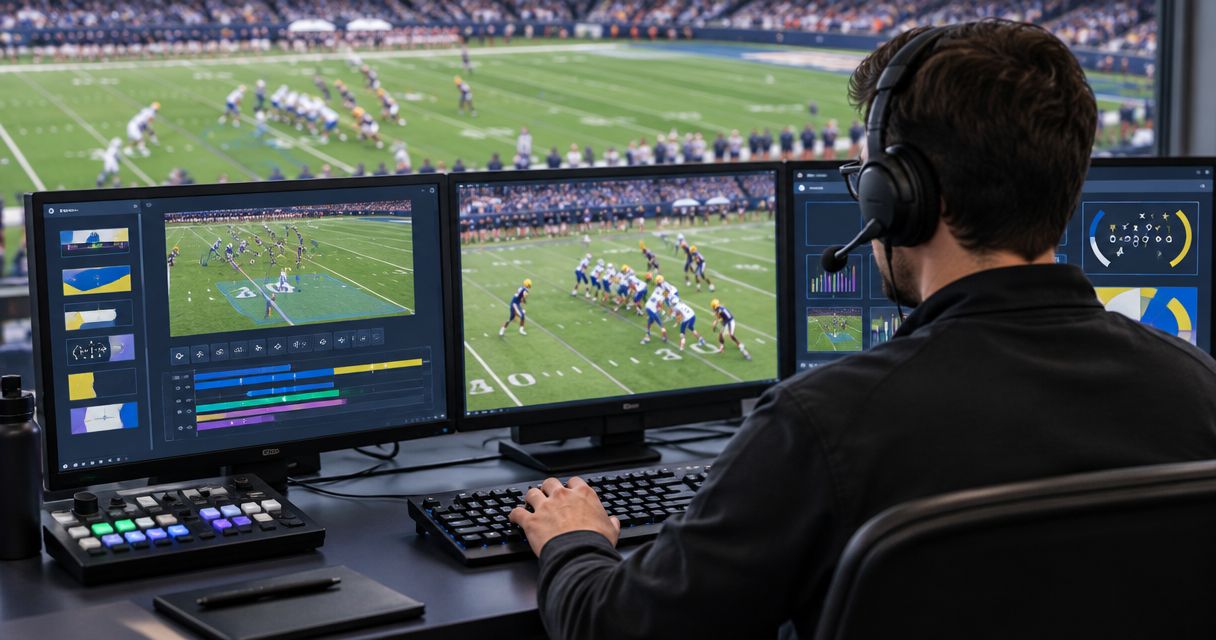
To assign hotkeys for football broadcast graphics, list the actions your operator needs, bind the commands your installed software supports, remove conflicts, and test every key against the outgoing video. Prioritize removing an incorrect graphic before adding convenience shortcuts; a keypress is not confirmation that viewers received the intended picture.
TL;DR
- How to assign hotkeys for football broadcast graphics: map supported commands, separate line controls, and verify the outgoing video.
- Paynexr provides Windows football broadcast graphics; verify shortcut support in your installed application before planning keyboard control.
- Keep scrimmage lines, first-down lines, and sponsor graphics distinct in your operating plan.
- Broadcast without on-field graphics whenever you cannot confirm placement or reliably remove an incorrect overlay.
Why this matters
A shortcut makes an action easier to trigger. It does not make the action correct. During football coverage, the operator still needs to confirm the ball position, the intended graphic, and whether the current camera view is suitable for that graphic.
Adding on-field graphics is useful only when your crew can control what appears on air. Broadcasting without them removes that operating task, but viewers lose the added field-position reference. Include keyboard control in your football broadcast graphics software selection, rather than treating it as a finishing detail.
How do you assign hotkeys for football broadcast graphics?
Build your 2026 hotkey map around supported commands and observable results, not a memorized list of keys. Follow this sequence on the actual computer and keyboard that will travel to the game.
Identify supported commands
Find the shortcut settings or documented keyboard commands in your installed application. Look for actions that display, remove, select, or adjust graphics, but do not assume every mouse control has a keyboard equivalent.
If a command has a fixed shortcut, document it rather than trying to reassign it through an unrelated utility. If an action has no supported shortcut, leave it as a mouse operation or use another documented control method. Avoid building a live workflow around simulated clicks whose targets change when windows move.
Define the result before choosing the key
Write each action in plain language: show the first-down line, remove the first-down line, or select the sponsor graphic. Keep selection separate from transmission. Selecting a logo is not necessarily the same action as putting that logo on air.
Aim for 1 action per shortcut in your initial map. That is a design recommendation, not a software limit. Combining several changes into one trigger makes it harder to identify which change failed during rehearsal.
Assign keys and check their scope
A shortcut's scope means where it works: only inside the graphics application, inside a particular panel, or across the desktop. Establish that behavior before choosing your bindings. A key that works in the main window might instead type text when a name field has focus.
Use a consistent modifier pattern for related commands where reassignment is supported. A modifier is a key such as Ctrl, Alt, or Shift that you hold while pressing another key. Check the complete combination against Windows, the graphics application, and every other production application running on the computer.
Separate placement from visibility
Keep commands that move or position a graphic apart from commands that display it. An operator should be able to prepare a line without accidentally making an unfinished adjustment visible.
Where the application provides separate show and hide commands, consider those before a single toggle. A toggle reverses the current state; it does not explicitly request visible or hidden. If only a toggle exists, confirm the current state before pressing it.
Verify the outgoing result
Test on a preview or rehearsal output before taking the graphics live. Preview means a picture you can inspect without sending it to viewers; program means the outgoing picture. Confirm both the intended action and the absence of unintended changes elsewhere.
Then repeat the test after switching between the applications your operator uses during a game. A shortcut that works only when the correct window happens to be active is not ready for an unattended or multitasking workflow.
Record the tested map
Create a short reference showing the action, assigned key, required application focus, and expected output. Include mouse-only actions too. A complete control reference is more useful than a keyboard list that hides its exceptions.
Label it with the application version and the date you tested it in 2026. Keep the reference beside the operating position, not buried in a folder that requires leaving the production screen.
What should your football graphics hotkey map contain?
Start with control categories rather than copying someone else's bindings. The table below is a planning template, not a list of built-in Paynexr commands or promised shortcut features. Assign a key only where your installed application supports the action.
| Control category | Intended result | What to verify | Best for |
|---|---|---|---|
| First-down line | Display or remove the target line | Correct position and visibility | Showing the line to gain |
| Scrimmage line | Display or remove the scrimmage reference | Correct position before display | Showing the play's starting position |
| Sponsor graphic | Select or display the intended artwork | Correct artwork and timing | Approved sponsor placements |
| Removal control | Remove the affected graphic | Actual disappearance from program | Recovering from an incorrect overlay |
| Placement control | Adjust a graphic's field position | Adjustment affects only the intended graphic | Preparing the next play |
Put the removal procedure at the top of your 2026 control reference. It might be a supported keyboard command, an application control, or a production-switcher action. Do not label a key as an emergency control until the crew has demonstrated what it removes and what remains on air.
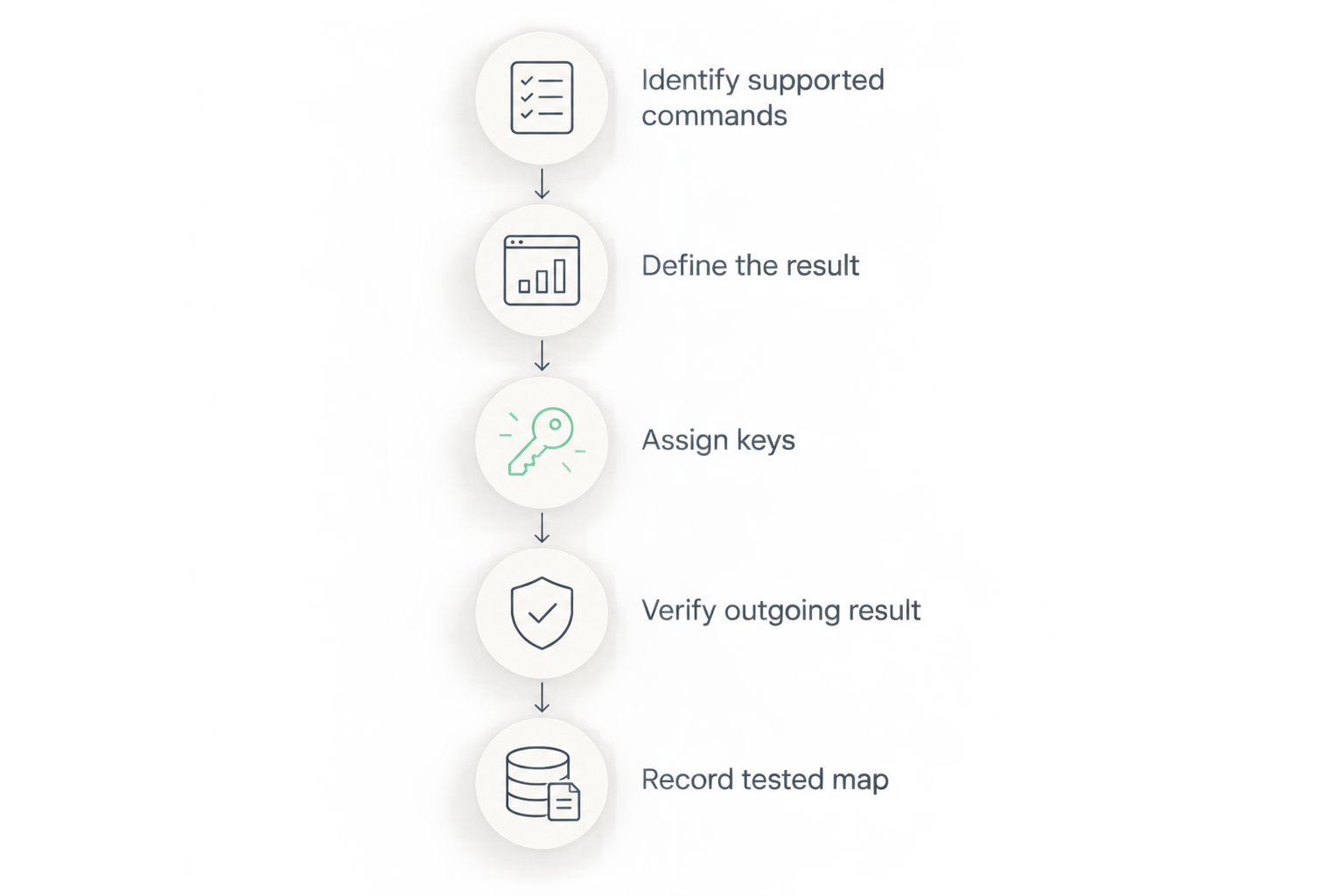
Choose keys only after defining supported actions, then verify the outgoing result.
Why hotkey assignments vary between football crews
There is no useful universal keyboard layout for every football broadcast. Match the control plan to the work the operator actually performs, using these factors:
- Graphics in use. A production showing only field-position lines needs a different action list from one also displaying logos and sponsor graphics.
- Operator responsibilities. A dedicated graphics operator can watch different controls from someone also switching cameras or managing a stream.
- Application focus. Desktop-wide commands and application-only commands require different conflict tests.
- Camera coverage. Include a clear removal procedure for shots where the on-field graphic should not remain visible.
- Crew handoffs. A rotating school crew needs a reference that a replacement operator can follow without guessing.
- Output routing. The team must know whether a removal command changes the actual outgoing feed or only a local display.
For a school team, prioritize repeatable instructions and supervised rehearsal. For an independent streaming crew, test the map while the operator performs the other assigned production tasks. For a TV broadcaster, agree on graphics cues and removal responsibility with the director before using the shortcuts live.
Is adding on-field graphics better than broadcasting without them?
Paynexr football broadcast graphics are best for production teams seeking Windows software for virtual field lines, logos, and sponsor graphics. Keyboard operation remains a separate setup question: use the controls documented for the installed application, then test the complete production workflow.
The decision is not whether a keyboard looks faster than a mouse. It is whether your crew can reliably add useful information without leaving an incorrect graphic on screen.
| Approach | Main advantage | Main limitation | Best for |
|---|---|---|---|
| Add on-field graphics | Shows virtual field-position references and sponsor artwork on the picture | Requires placement checks, visibility control, and an agreed removal procedure | Crews ready to operate and monitor graphics |
| Broadcast without on-field graphics | Removes the task of managing field overlays | Does not provide those virtual field references or field-placed sponsor graphics | Crews prioritizing a simpler production workflow |
Paynexr sells Windows software for virtual first-down lines, scrimmage lines, logos, and sponsor graphics. Those capabilities describe what the software overlays; they do not establish which commands support reassignment. Keep that distinction clear when planning your keyboard map.
How do I test hotkeys before kickoff?
Use 3 rehearsal passes as a proposed acceptance checklist, not as a claim about required setup time. Each pass tests a different failure point. Keep the same video routing, keyboard, and application arrangement intended for the game.
Pass one: isolated commands
Trigger each assigned action individually and inspect the result. Test removal before display, then check placement controls without sending an unfinished position to viewers. Record any command whose behavior depends on a selected panel or active text field.
Pass two: a simulated possession
Rehearse the sequence from the end of a play through the next snap. Prepare the field references, confirm the intended picture, display the graphics when cued, and remove them when instructed. Add a sponsor cue separately so the operator must distinguish sponsor control from line control.
Pass three: recovery and handoff
Deliberately start with the wrong window active, an unexpected graphic visible, or a replacement operator at the keyboard. Confirm that the crew can identify the state and remove the affected overlay without random keypresses. Update the 2026 reference whenever a test exposes ambiguity.
Should I use the same shortcut to show and hide a line?
Use separate show and hide commands when the application supports them and your crew finds them clearer during testing. They express the intended result directly. A toggle is workable, but the operator must know the current visibility state before triggering it.
Can one person operate graphics and switch cameras?
One operator should take both roles only after rehearsing both workloads together. Test the shortcuts while changing cameras and responding to production cues, not while the graphics application is the only active task. If the operator loses track of overlay state, simplify the graphics plan or separate responsibilities.
What should I do when a hotkey stops working during a game?
Use the rehearsed removal or fallback procedure first if an incorrect graphic is on air. Then check application focus and whether the action works through its normal application control. Do not repeatedly press an uncertain shortcut while watching only the keyboard.
FAQ
What's the best way to assign hotkeys for football broadcast graphics?
Start with supported commands, define each intended result, and test the assigned keys against the outgoing picture. Put the removal procedure ahead of convenience controls.
Does Paynexr let me customize every football graphics shortcut?
Check the installed Paynexr application's documented controls for supported shortcut assignments. This guide describes a control-planning method, not a verified list of customizable commands.
Should first-down and scrimmage lines use different hotkeys?
Use distinct controls for first-down and scrimmage lines where the application supports them. The operator should know which line a command changes before pressing it.
Why does my graphics hotkey work only sometimes?
Check application focus first: an application-specific shortcut depends on the correct window or panel being active. Also test for conflicts with other production applications and active text-entry fields.
Can I use a printed shortcut sheet during a live football broadcast?
Use a printed reference showing tested keys, intended actions, and any focus requirements. Include the removal procedure and any actions that still require the mouse.
Do I need hotkeys to use on-field football graphics?
Hotkeys are not the objective; reliable graphics control is. Use the application's documented controls and choose keyboard operation only where it supports a tested workflow.
When should I broadcast without on-field graphics?
Broadcast without on-field graphics when you cannot confirm their placement or reliably remove an incorrect overlay. A picture without the overlay is preferable to knowingly leaving misleading field information visible.
One last thing
Test what happens when you press the same key twice. A repeated press can reveal whether a control explicitly sets visibility or merely reverses it. That distinction belongs on your shortcut reference because the operator needs to predict the result under pressure, not discover it during a live play.
Before your next 2026 broadcast, rehearse the removal procedure from the actual operating position. Watch program, execute the agreed action, and confirm the graphic is gone before returning to normal operation.