Guides
Can football broadcast graphics work with drone camera footage?
Can football broadcast graphics work with drone camera footage? Yes, with verified alignment. Learn what to test and when to use a clean drone feed.
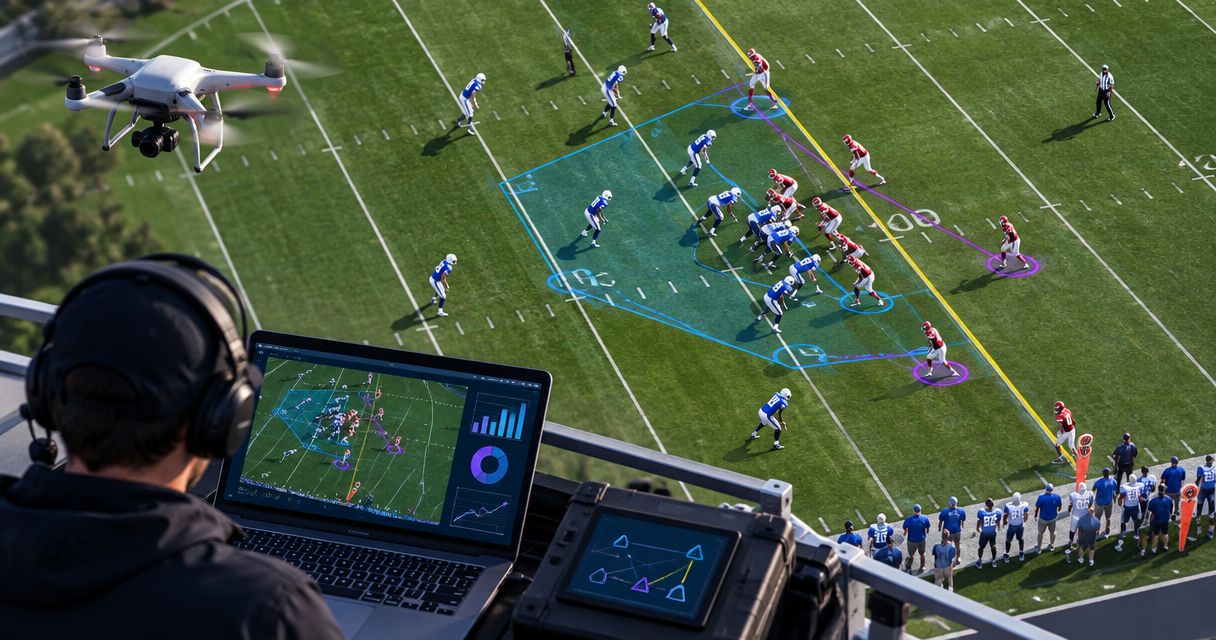
Yes, football broadcast graphics can work with drone camera footage when the graphics system supports the incoming video and keeps field-anchored overlays aligned as the camera moves. Receiving the picture is not enough: virtual first-down lines, scrimmage lines, and field logos must follow the field’s changing perspective. For your 2026 production, use an unadorned drone shot unless that exact workflow passes a recorded rehearsal.
TL;DR
- Can football broadcast graphics work with drone camera footage? Yes, when video compatibility and field alignment are verified.
- PayneXR provides Windows football broadcast graphics; confirm drone-specific requirements before selecting a workflow.
- Use field-anchored graphics only while their position remains accurate throughout the shot.
- Keep a clean drone feed ready when movement, alignment, or camera changes make overlays unreliable.
Can football broadcast graphics work with drone camera footage?
Yes—but distinguish graphics placed over the picture from graphics anchored to the field. A screen-corner logo stays in the same picture position. A virtual first-down line must remain attached to the correct location on the playing surface, even when the drone changes position.
PayneXR football broadcast graphics software is best for football production teams seeking Windows-based virtual lines and field graphics. Drone use requires a separate workflow check; that product description alone does not establish compatibility with a particular aircraft, receiver, or moving-camera setup.
| Production choice | Best for | Benefit | Limitation |
|---|---|---|---|
| Drone footage with field-anchored graphics | A shot with verified alignment throughout its movement | Shows field position directly on the playing surface | Requires the overlay to match changing perspective |
| Drone footage without on-field graphics | Establishing shots and unverified camera movements | Preserves the picture without misplaced virtual markings | Does not provide a virtual line-to-gain reference |
| Drone footage with screen-fixed graphics | A conventional corner logo or information panel | Adds information without attaching artwork to the turf | Can cover action and does not mark a field location |
The main decision is not whether to add more graphics. It is whether each graphic remains truthful and readable on the shot you intend to broadcast.
Why this matters
A first-down line communicates a location, not just a visual style. If the line slides across the field while the drone moves, viewers receive the wrong spatial reference even when the overlay looks polished.
Your 2026 production plan should therefore treat drone graphics as a camera-specific decision. A successful overlay on the main sideline camera does not validate the same overlay on an aerial view with a different angle and movement pattern.
School teams, independent streaming crews, and TV broadcasters face the same accuracy requirement. Their staffing and routing differ, but a clean picture is better than a confidently misplaced line.
What changes when the camera leaves the sideline?
A fixed camera can pan, tilt, or zoom while remaining in one physical location. A drone can also move sideways, climb, descend, and rotate, changing how the field appears in the picture.
Field registration means matching known locations on the playing surface to their positions in the video. Calibration establishes that relationship; tracking updates it as the image changes. These terms describe the production requirement, not a claim that every graphics application performs those tasks automatically.
A moving drone makes that relationship harder to preserve. Yard lines change apparent angle and spacing, parts of the field leave the frame, and players obscure useful reference points.
Separate these requirements before discussing equipment:
- Video compatibility: Can the production chain receive and process the drone picture?
- Field registration: Can the overlay stay attached to the correct field location?
- Layering: Does the finished picture place graphics appropriately relative to players and other foreground objects?
- Operational control: Can the crew remove an incorrect overlay immediately?
Passing the first check does not imply passing the others. A visible drone picture proves signal delivery, not accurate virtual lines.
How do you test a drone graphics workflow?
Use the exact camera path, receiver, production computer, and switching arrangement intended for the broadcast. For a 2026 rehearsal, record the finished output as well as watching the live preview; the recording lets you inspect movement and transitions afterward.
1. Establish the clean feed
Start with the drone picture without on-field overlays. A clean feed is video without the graphics you are evaluating, and it gives you a reference for judging what changes when processing is added.
Identify the receiver’s actual video output and the input accepted by your production equipment. HDMI and SDI are video connection types, but the connector alone does not establish that devices accept the same format. Check the documented output, input, and conversion requirements rather than assuming that a cable completes the workflow.
2. Match the video format
Check image dimensions, frame rate, and progressive or interlaced scanning across the signal path. Frame rate is the number of video frames delivered each second; mismatches require conversion or a different configuration.
For example, 1920 × 1080 pixels and 1280 × 720 pixels describe different image dimensions. Likewise, 30 frames per second and 60 frames per second are different frame rates. These are format examples, not supported-format claims for any particular software or drone.
Write down the actual settings at the receiver, capture input, graphics stage, and final output. Test the complete chain, including any converter between them.
3. Verify field alignment
Choose visible field markings and check whether the virtual line follows the intended location. Begin with a steady shot, then repeat the movements you expect during production.
Inspect both ends of the line, not just its center. A line that touches the correct spot near midfield can still diverge from the field markings toward the picture edges.
4. Check movement
Rehearse lateral travel, changes in altitude, rotation, and reframing separately before combining them. This isolates the movement that causes an alignment problem instead of hiding it inside a complicated shot.
Watch for sliding, rotation errors, sudden jumps, and a line that remains on screen after its field location leaves the frame. Remove the overlay when its position becomes uncertain; do not leave it visible while troubleshooting.
5. Rehearse switching
Cut between the drone and another camera with graphics enabled and disabled. Verify that a field alignment intended for one shot does not remain visible on a different view.
Name the person responsible for removing graphics before an unverified camera change. The practical checks in handling camera changes with on-field football graphics belong in the same rehearsal.
6. Verify the fallback
Deliberately remove the graphics during rehearsal and confirm that the director can continue with usable video. A fallback that nobody has practiced is not an operating procedure.
Use this sequence as a production checklist: Clean feed, Format check, Field alignment, Movement check, Camera switch, Fallback. Keep the recorded result with your setup notes so another operator can repeat the same checks.
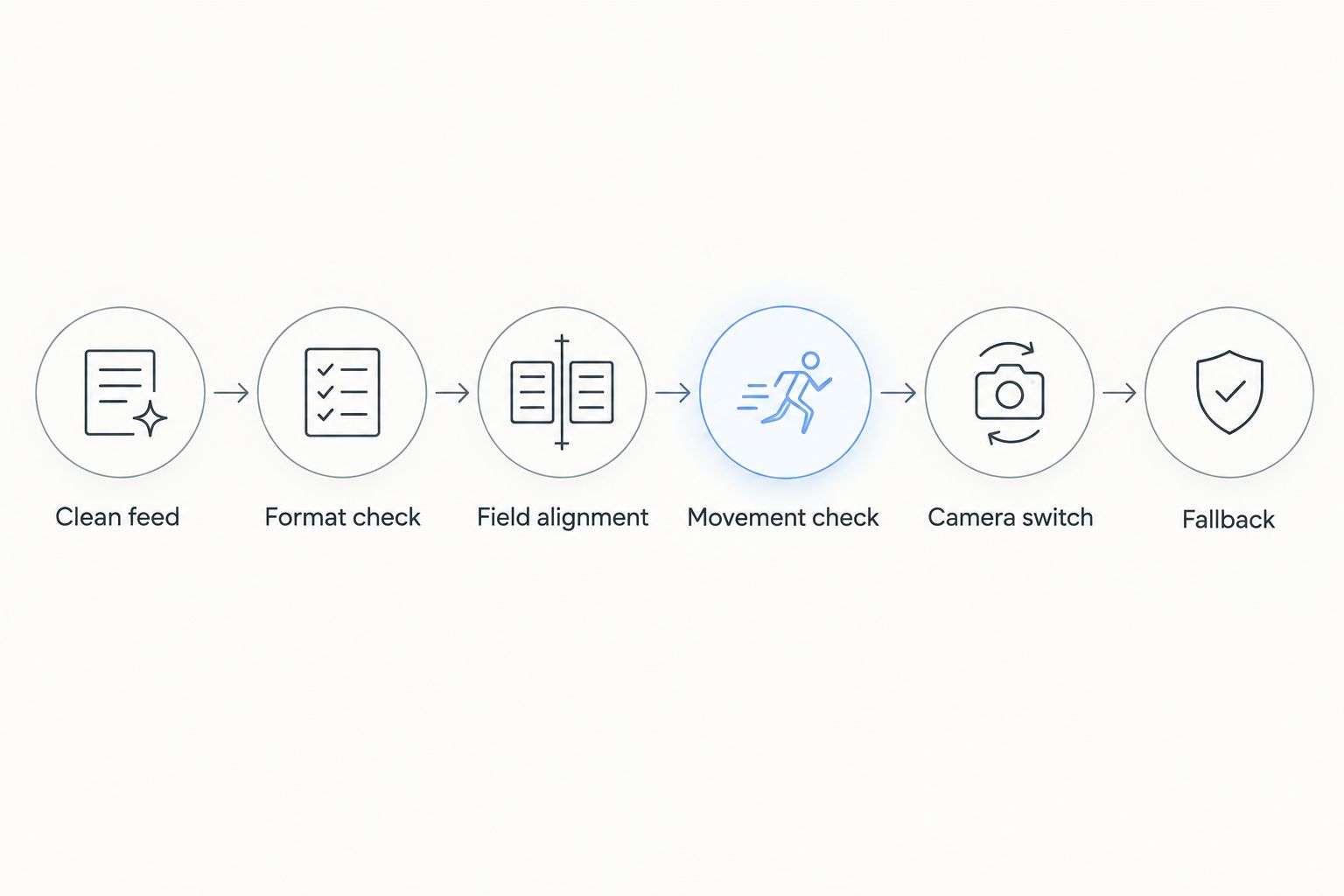
Validate the picture, alignment, movement, and fallback before using field graphics live.
Why drone graphics reliability varies
The shot and signal path determine the work required. Use these factors to decide what to test, rather than treating drone footage as a single camera category.
- Camera movement: A steady aerial view and a traveling shot create different alignment demands. Test the actual movement, not just the opening frame.
- Field visibility: Clear markings provide visual references. Tight framing, obstructions, or a partially visible field make visual verification harder.
- Video processing: Conversion, scaling, and cropping change the picture delivered to the graphics stage. Verify alignment after those changes, not only at the receiver.
- Timing: An overlay that follows an earlier camera position will not match the current picture during movement. Inspect the finished output for this mismatch.
- Camera changes: Each view has its own relationship to the field. Switching sources requires a deliberate decision about which graphics remain visible.
- Operator workload: Someone must verify placement and remove errors. Assign that responsibility before adding aerial graphics to a busy production.
For your 2026 setup notes, describe each approved shot precisely. “Steady wide aerial view” is a more useful instruction than “drone works,” because it states what the crew actually rehearsed.
When should you broadcast the drone shot without field graphics?
Use the clean drone picture whenever field alignment has not been verified for that shot. An aerial establishing view can show the stadium and field layout without carrying a virtual first-down line.
Also remove field graphics when the camera reframes beyond the rehearsed view, when the overlay visibly drifts, or when the operator cannot confirm the current field position. Keep the removal procedure simple enough to execute during a live cut.
This is not an argument against graphics. Virtual lines help communicate field position when they are accurate; broadcasting without them avoids introducing a false reference when they are not.
A screen-fixed information graphic is a separate editorial choice. It does not need to follow the turf, but you still need to check that it does not obscure the ball, players, or other essential information.
What should school, independent, and TV crews prioritize?
School football broadcast teams
Write a short camera-change procedure that student and volunteer operators can follow. Assign responsibility for field position, graphic placement, and removal rather than leaving those tasks implied.
If the same person switches cameras and operates graphics, rehearse that combined workload. Keep aerial shots clean when the crew cannot check alignment while managing the rest of the broadcast.
Independent sports streaming crews
Document where the drone video enters the production chain and whether graphics are applied before or after camera selection. That distinction determines which pictures receive an overlay.
Save a diagram of the actual connections and record a representative switching sequence. A compact crew needs an explicit fallback just as much as a larger control room does.
TV broadcasters
Include drone graphics in camera-specific rehearsal and routing documentation. Verify what reaches the program output—the final picture sent to viewers—rather than approving the workflow from an isolated preview.
Coordinate aerial camera changes with the graphics operator and director. Do not treat a previously approved sideline-camera setup as approval for a moving aerial source.
What should you confirm before choosing software?
PayneXR football broadcast graphics software runs on Windows and overlays virtual first-down lines, scrimmage lines, logos, and sponsor graphics onto live football video. Those functions match the category requirement; they do not, by themselves, answer every drone-integration question.
Ask for a documented workflow covering your incoming video, camera movement, alignment method, and clean-feed routing. Distinguish what the application does from what requires external capture, conversion, or production equipment.
For a 2026 decision, define acceptance in observable terms: the video reaches the final output, the line stays in place throughout the approved shot, and the crew can remove it immediately. Avoid approving the setup solely because a still image looks correct.
FAQ
Can I use a virtual first-down line on a live drone shot?
Yes, when the complete workflow supports the live video and maintains accurate field alignment throughout the shot. Test the intended camera movement and final output before using the line during a game.
Does a steady drone shot eliminate the need to check alignment?
No, a steady drone shot still needs verified field alignment. Check the entire visible line, and repeat the check if the camera position or framing changes.
Can I use PayneXR with any drone?
Do not assume universal drone compatibility for PayneXR. Confirm the receiver output, production input, and method for maintaining field alignment in your exact workflow.
Is adding a corner logo the same as adding a field logo?
No, a corner logo stays fixed within the picture, while a field logo must follow the playing surface. Moving-camera field graphics require alignment checks that screen-fixed graphics do not.
Should I leave the first-down line on when switching cameras?
Only leave the first-down line visible when the incoming view has verified alignment. Otherwise, remove the overlay before the switch and restore it only after checking the new view.
Is it better to show drone footage without on-field graphics?
Yes, when field alignment is unverified or visibly incorrect. A clean drone picture avoids presenting a misplaced line as a reliable field reference.
One last thing
Test the exit from the aerial shot as carefully as the shot itself. Rehearse a cut from a correctly aligned drone view to a completely different camera, and confirm that the old field overlay disappears.
A successful demonstration proves one shot works. A usable broadcast procedure also proves that the crew can leave that shot without carrying its graphics onto the next picture.