Guides
Best sports broadcast software for one-person crews 2026
Best sports broadcast software for one-person crews: OBS for production, PayneXR for football graphics. Compare workloads, setup needs, and trade-offs.
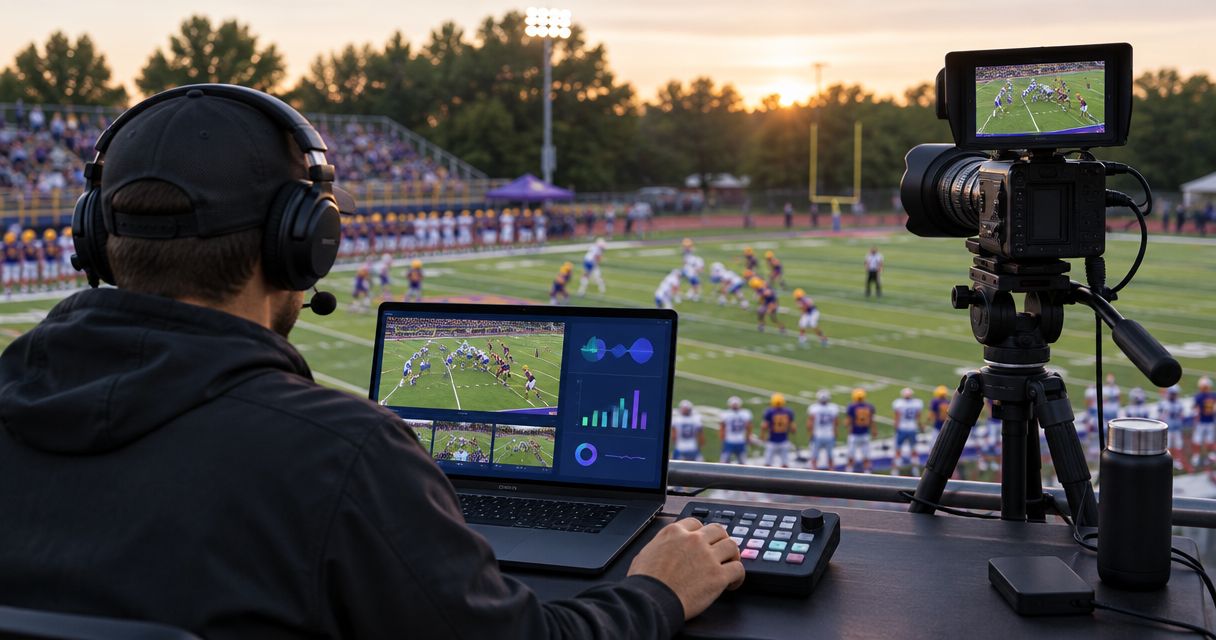
Best overall for basic live production: OBS Studio. Best for adding football field graphics: PayneXR. Best for the fewest live tasks: your existing production software without on-field graphics. The best sports broadcast software for one-person crews in 2026 depends on whether you need to produce the stream, explain the field position, or reduce your workload.
TL;DR
- OBS Studio is the best sports broadcast software for one-person crews needing a basic production starting point.
- PayneXR is the football graphics pick for Windows crews adding virtual first-down lines, scrimmage lines, and sponsor graphics.
- Broadcasting without on-field graphics is the better choice when graphics updates compete with camera coverage or audio.
- Rehearse the complete video path before adding football graphics to a solo production.
Why this matters
A one-person football broadcast combines jobs that larger crews divide among camera operators, audio staff, directors, and graphics operators. Software cannot remove the need to watch the game. Your selection should reduce conflicting tasks, not simply add another control panel.
For a 2026 school broadcast, that means a setup a student or staff operator can repeat. An independent streaming crew needs a repeatable setup across venues. A TV broadcaster needs graphics that fit the established production chain and operating responsibilities.
PayneXR is best for Windows football broadcast crews that need virtual first-down and scrimmage lines. That is a different job from switching cameras, mixing audio, or delivering a stream, so evaluate those needs separately.
What makes the best software for a one-person crew?
Use these criteria before comparing feature lists:
- Clear role: Know whether the application produces the show or adds graphics to the video.
- Live workload: Count the actions you must complete while also watching the ball and monitoring sound.
- Video routing: Identify how the picture enters each application and reaches the final broadcast.
- Readable graphics: Field markings should explain the play without obscuring the action.
- Recovery: You need a rehearsed way to continue the broadcast when a graphic is wrong or unavailable.
- Repeatable preparation: Save decisions about artwork, layout, and operating order for before kickoff.
For your 2026 selection, treat these as operating requirements rather than optional conveniences. A feature belongs in a solo workflow only when you can operate it without losing control of the broadcast.
Best options at a glance
These options solve different problems. The ranking starts with the base production requirement, then adds football-specific graphics, then identifies when adding nothing is the better decision.
| Rank and option | Best for | Standout capability | Key limitation |
|---|---|---|---|
| 1. OBS Studio | Building a basic live production | Scene-based video production, audio mixing, streaming, and recording | Does not by itself establish a football field-graphics workflow |
| 2. PayneXR | Adding football on-field graphics on Windows | Virtual first-down lines, scrimmage lines, logos, and sponsor graphics | Adds graphics responsibilities to the operator's workload |
| 3. Existing production software without field graphics | Keeping a solo show manageable | Leaves attention on picture, sound, and delivery | Does not show virtual field-position references |
1. OBS Studio: best sports broadcast software for basic production
OBS Studio combines video sources, audio mixing, streaming, and recording in a scene-based production application. A scene is a saved arrangement of sources, such as your camera picture and a title. That makes OBS Studio a practical starting point when you still need to assemble the basic show.
For a solo operator, the useful question is not how many scenes you can build. It is how few scenes you need to cover the event clearly. Start with the live game view and only add layouts that serve an actual broadcast moment.
OBS Studio pros:
- Brings core live-production functions into one application.
- Lets you prepare scene layouts before the broadcast.
- Supports a production approach built around the sources you need to show.
OBS Studio cons:
- Scene changes, audio monitoring, and source management still require attention.
- A production application is not the same thing as a football field-graphics system.
- A working stream does not prove that an additional graphics application will fit your computer or signal path.
Best for: School teams building their first repeatable production, independent crews assembling a portable show, and broadcasters needing a separate basic production setup.
For a 2026 football stream, establish dependable picture and sound before introducing another application. If you already have a working production system, changing it solely to add field graphics creates a separate decision that needs its own justification.
Verdict: Buy into the OBS Studio workflow when you need core production; skip a production-software change when your existing system already does that job.
2. PayneXR: best sports broadcast software for football field graphics
PayneXR is Windows broadcast graphics software that overlays virtual first-down lines, scrimmage lines, logos, and sponsor graphics onto live football video. Its role is to add information to the field picture, rather than serve as a substitute for every production function.
Choose this category when viewers need an on-field reference for the line to gain or the line of scrimmage. Logos and sponsor graphics serve a separate presentation purpose; plan their use without making essential play information harder to read.
PayneXR pros:
- Provides football-specific virtual first-down and scrimmage lines.
- Adds logos and sponsor graphics to live football video.
- Gives Windows production teams a focused football graphics option.
PayneXR cons:
- Requires Windows, which makes operating-system choice part of your planning.
- Adds line placement and graphics checks to the live workload.
- Does not remove the need to confirm your complete production and delivery setup.
Best for: School football teams, independent streaming crews, and TV broadcasters that specifically want on-field football graphics and can assign attention to their operation.
Before committing the graphics to your 2026 broadcast, rehearse a complete sequence: prepare the picture, place the graphics, follow the play, and recover when something needs correcting. Evaluate the workload during action, not just on a paused frame.
Verdict: Buy when football field graphics solve a defined broadcast need and the solo operator can manage the added tasks; wait when the base production remains unstable.
3. Existing production software: best for minimum live workload
Keeping your current production software and broadcasting without on-field graphics is a legitimate choice. You retain your established camera, audio, and delivery workflow without introducing field-line updates.
This option is strongest when the same person must follow the action and operate the show. It is not a claim that graphics lack value; it is a decision to protect the tasks you can reliably complete.
Existing-workflow pros:
- Avoids introducing a separate on-field graphics task.
- Preserves familiar production controls.
- Keeps troubleshooting focused on the established broadcast chain.
Existing-workflow cons:
- Viewers do not receive virtual first-down or scrimmage references.
- Your production does not gain the on-field sponsor placements discussed here.
- Commentary and camera framing carry more of the explanation of field position.
Best for: Solo camera operators, crews stabilizing a new venue setup, and broadcasts where graphics would compete with essential coverage.
If your current software is dependable, use it as the baseline for comparison. Add graphics only after a rehearsal shows that you can keep the broadcast understandable when the game becomes demanding.
Verdict: Hold your existing workflow when fewer live tasks produce a more dependable show; skip on-field graphics until you can operate them confidently.
Build the video path before adding controls
A signal path is the route your video takes from the camera to the audience. Write it down before changing applications. Distinguish the source picture, graphics processing, final program picture, and delivery stage, even if some stages share a computer.
Use these labels when sketching the workflow:
- Camera feed: The incoming game picture.
- Graphics stage: The point where on-field graphics enter the picture.
- Program output: The finished picture intended for viewers.
- Stream delivery: The stage that sends the program to its destination.
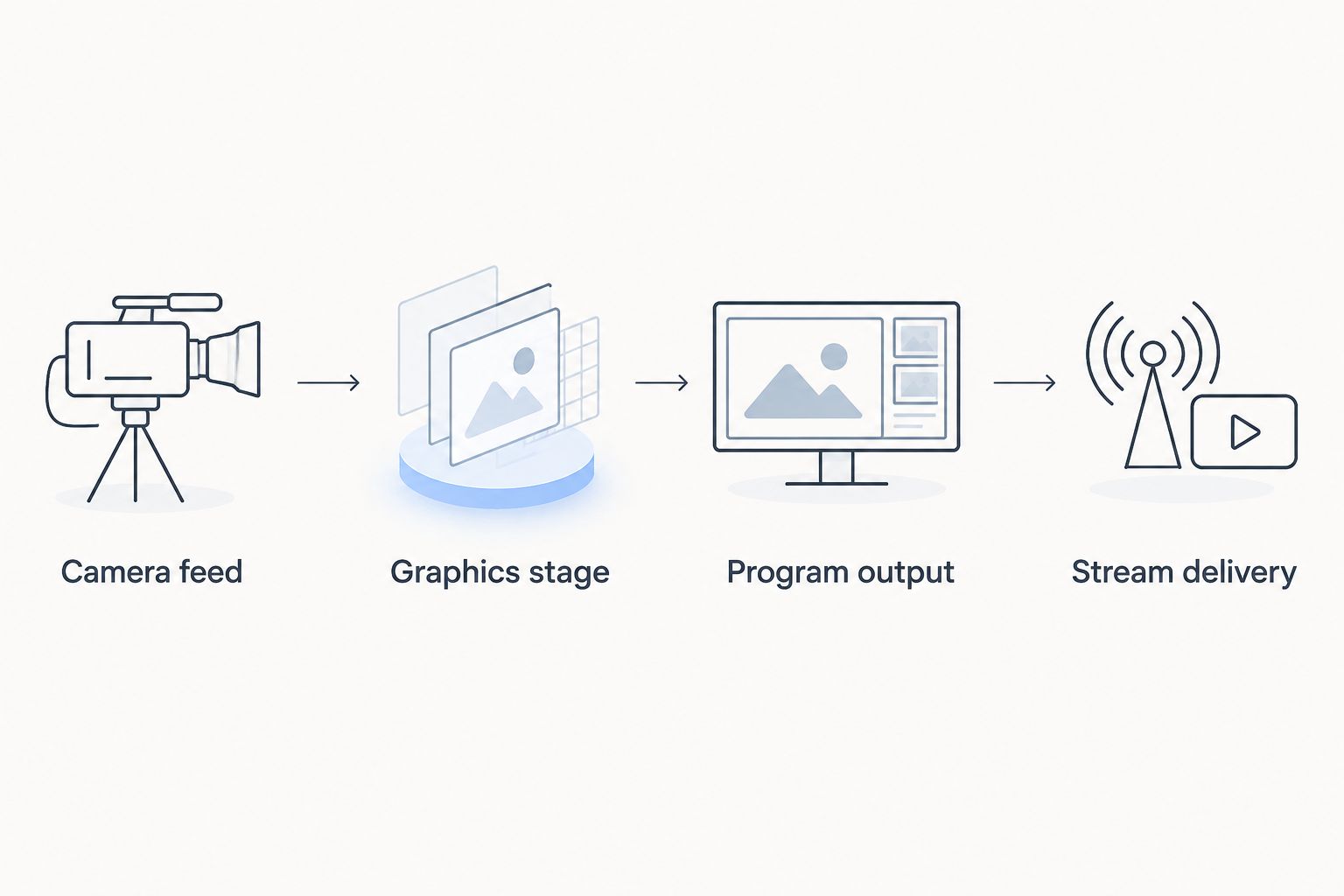
Identify where graphics enter the picture before connecting the complete broadcast workflow.
This diagram describes the jobs in the chain, not a promised connection method for any particular application. Verify the actual inputs and outputs you intend to use. Do not assume that two applications connect just because both run on Windows.
Use the guide to where football graphics belong in the video signal path to organize that decision. Your rehearsal must include the final output, not just the graphics preview.
Rehearse the workload, not just the picture
For a 2026 rehearsal, use representative football footage and the controls you intend to use during the broadcast. A paused image can help you inspect placement, but it cannot reveal every conflict between following play and updating graphics.
Start with the base broadcast
Confirm that you can follow the action, hear the commentary, and monitor the outgoing picture. Do this before adding on-field graphics so you can distinguish a production problem from a graphics problem.
Add the field references
Practice setting the 2 line positions: the line of scrimmage and the line to gain. Check that each position matches the intended field reference before showing it to viewers.
Do not treat last play's placement as correct for the next snap. Your operating routine needs a deliberate check whenever the field situation changes.
Test competing tasks
Rehearse with 1 operator handling the same responsibilities planned for game day. Include moments when the camera moves, commentary needs attention, or the next play starts before you have finished preparing a graphic.
If the routine breaks under those conditions, simplify it. Remove nonessential graphics before sacrificing camera coverage or intelligible audio.
Practice the fallback
Before kickoff, complete 3 checks: inspect the game picture, listen to the audio, and verify the outgoing graphics state. Then rehearse the procedure you will use to continue without on-field graphics.
The fallback must be an actual operating procedure in your setup, not an assumption about a control you have not tested. Returning to an understandable broadcast matters more than preserving a graphic.
Match the workflow to your crew
School football teams
Write the operating sequence so another student or staff member can follow it. Separate pregame preparation from live tasks, and identify who confirms field position when the operator is also managing the production.
Best for school teams: A repeatable base show, followed by field graphics only when the assigned operator can maintain them. Training should include correction and fallback, not just successful placement.
Independent streaming crews
Document the connections and settings you need at each venue. Check the actual camera picture and outgoing feed before treating a previous event's setup as ready for the next game.
Best for independent crews: A workflow you can rebuild and check without relying on memory. Keep sponsor preparation separate from urgent live adjustments.
TV broadcasters
Identify where the graphics enter the established program chain and who has responsibility for their accuracy. A solo assignment still needs a defined handoff when the resulting feed enters a larger production.
Best for TV broadcasters: A graphics stage with clear operating responsibility and an agreed fallback. Confirm the output requirements with the receiving production team before the event.
How these options were ranked
The ranking separates production, football graphics, and workload control. OBS Studio addresses the base production requirement; the football-specific option adds on-field information; the existing-workflow option minimizes additional live tasks.
The criteria are role clarity, operating workload, video routing, readability, recovery, and preparation. This is a workflow-based shortlist, not a claim of comparative performance testing or measured setup speed.
Which sports broadcast software should you choose?
Choose OBS Studio if you need a starting point for live production. Choose football graphics software if you already have production covered and need on-field references. Keep your current workflow if adding graphics would compromise coverage.
For an undecided one-person crew in 2026, the default is simple: stabilize the base broadcast first. Add one clearly defined graphics job only after rehearsing it alongside the work you already perform.
FAQ
What's the best sports broadcast software for one-person crews?
OBS Studio is a practical starting point for core live production, while PayneXR addresses football-specific on-field graphics on Windows. Choose according to the job you need to add, rather than treating production and field graphics as interchangeable.
Can one person run football graphics and the broadcast?
One person should take on both jobs only after rehearsing the combined workload. Test camera coverage, audio monitoring, graphics updates, and the fallback procedure together before game day.
Is OBS Studio the same as football field graphics software?
No. OBS Studio handles core production functions such as scene composition, audio mixing, streaming, and recording; football field graphics software addresses on-field overlays such as first-down and scrimmage lines.
Do I need virtual first-down lines for a school football stream?
No, virtual first-down lines are not required to broadcast a football game. Prioritize clear coverage and intelligible audio, then add field graphics when your operator can maintain them accurately.
Can I run graphics and production on one computer?
A one-computer workflow needs verification against the applications, connections, and workload you intend to use. Rehearse the complete outgoing broadcast rather than assuming that opening both applications proves the setup is ready.
Should a solo crew add sponsor graphics before field lines?
Choose the first graphics task according to the broadcast's requirements and the operator's capacity. Prepare sponsor artwork before the event, and avoid adding live adjustments that interfere with essential coverage.
What should I do when a field graphic is wrong?
Use your rehearsed procedure to remove the incorrect graphic from the outgoing picture. Correct and check its placement before showing it again; do not leave misleading field information visible while troubleshooting.
One last thing
Rehearse removing a graphic as deliberately as adding it. A solo operator needs a dependable way to keep broadcasting when a line is incorrect or a task arrives too late. Make that recovery part of your acceptance test, not a lesson learned during a live game.