Guides
How to send football broadcast graphics over NDI
Broadcast graphics software NDI setup: send football overlays to your switcher, check transparency and timing, and keep a clean feed ready for live games.
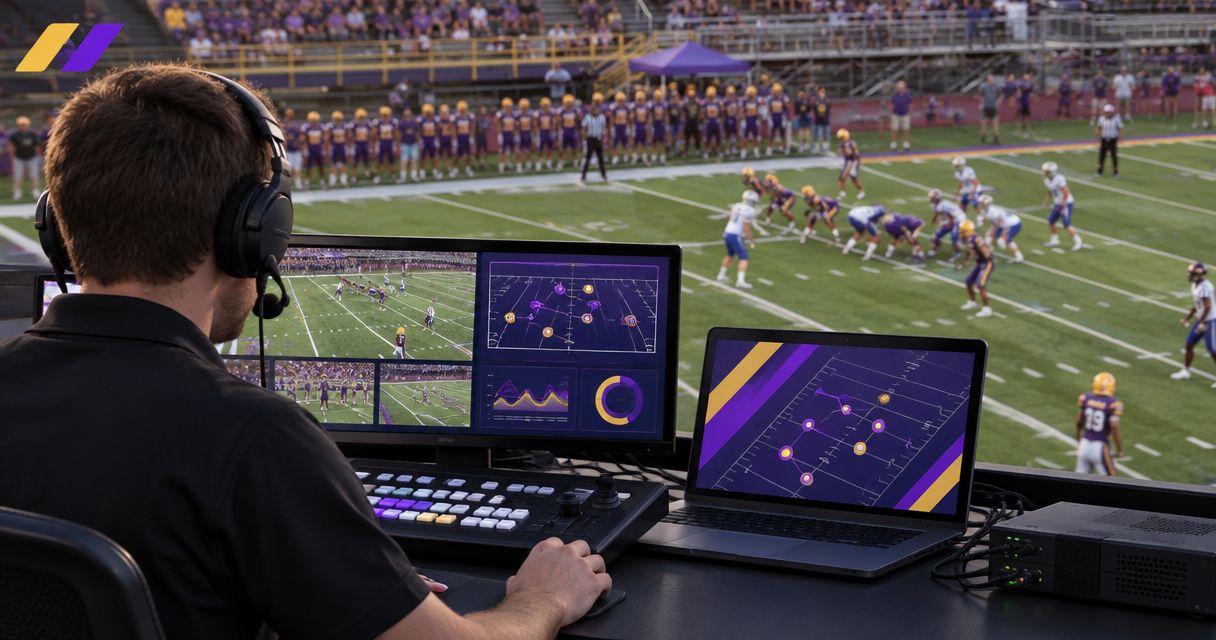
Send football broadcast graphics over NDI by enabling NDI output in a graphics application that supports it, then selecting that source in an NDI-capable production switcher. Before your 2026 broadcast, establish whether you are sending transparent graphics or a finished video picture, then test source discovery, field alignment, and timing before taking the source live.
TL;DR
- For broadcast graphics software NDI workflows, confirm sender output and receiver support before connecting the live production.
- Transparent overlays need an alpha-capable workflow; completed video pictures do not require downstream transparency.
- Paynexr provides Windows football graphics software; verify its connection options before planning an NDI workflow.
- Keep a clean camera feed ready whenever virtual first-down lines or sponsor graphics are on air.
Why this matters
A source appearing in your switcher proves that video is arriving. It does not prove that transparency, camera alignment, or audio timing is correct. Football graphics need to make the play easier to follow, not cover it with a misplaced line.
Start with the guide to adding a virtual first-down line if field graphics are new to your crew. Then separate the graphics decision from the transport decision: what viewers should see is one question; how that picture reaches the switcher is another.
How do you send football broadcast graphics over NDI?
NDI carries video over an IP network, the same general type of network used to connect computers. A sending application publishes a named source, and a receiving application selects it as an input. Both ends must support the specific workflow you intend to use.
Decide where graphics become part of the picture before configuring the network. Sending a finished camera picture and sending a transparent overlay are different production arrangements.
Step 1: Choose the production path
Write down where the live camera enters, where field graphics are applied, and where the final program is assembled. The program is the finished output that viewers receive.
For on-field graphics, the graphics stage needs the correct camera view. If another camera goes live, an overlay aligned to the previous view does not automatically become correct for the new shot.
Use these workflow labels for your plan:
- Camera feed: the picture that needs field graphics.
- Graphics stage: the application or processing stage that adds the overlay.
- NDI output: the network source sent to production.
- Production switcher: the application or device selecting the on-air picture.
- Program output: the finished broadcast sent to your destination.
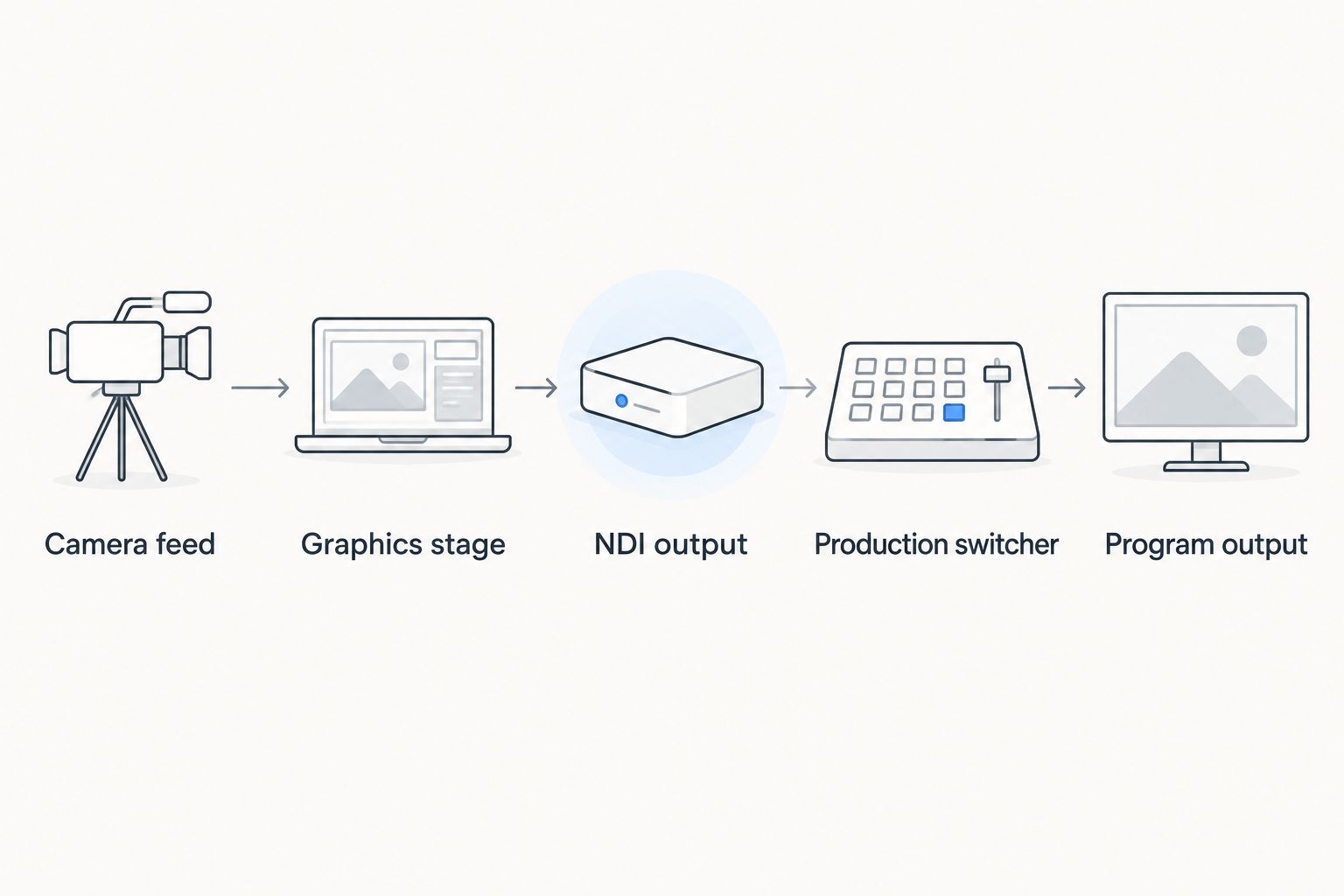
Decide where the overlay joins the camera picture before choosing the receiving input.
This is a planning diagram, not a claim that every graphics application provides every connection shown. Confirm the actual input and output options in your chosen applications before building the path.
Step 2: Choose a finished picture or transparent graphics
A finished picture contains the camera image and graphics together. Your switcher receives that combined picture as a video input, so removing the graphics requires a clean alternative or a change upstream.
A transparent overlay carries graphics without an opaque background. Its alpha channel describes transparency, allowing the receiving system to place the graphics over another picture. Confirm alpha support at both ends; seeing the graphics source in the input list is not enough.
| Production approach | Best for | Advantage | Trade-off |
|---|---|---|---|
| Camera feed without on-field graphics | Crews prioritizing a straightforward live picture | No field-overlay alignment to operate | Viewers do not receive virtual field-position cues |
| Finished picture with field graphics | Crews applying graphics before switching | The receiving switcher takes a combined video source | A clean alternative is needed to bypass the graphics downstream |
| Transparent graphics over a camera feed | Crews with a confirmed alpha-capable workflow | Graphics can be controlled separately at the receiving stage | Transparency and timing must work across the full path |
Choose the simplest path your crew can operate correctly throughout the game. Separate graphics control is useful only when the receiving system and operator can manage it reliably.
Step 3: Connect and identify the network path
For your 2026 setup, start with a wired network path between the sender and receiver. Connect both systems to the intended production network, and confirm that the receiving system can discover the sender.
Give the source a descriptive name that distinguishes it from clean cameras, replay outputs, and other graphics feeds. Label the corresponding switcher input so an operator knows whether it contains a camera picture or graphics alone.
Check operating-system firewall permissions for the applications involved. If sources cross network segments or managed network boundaries, involve the network administrator rather than changing settings during the broadcast.
Step 4: Match the production format
Use the same intended picture format across the graphics stage and receiving production. Resolution describes the picture dimensions; frame rate describes how frequently pictures update.
For example, a production using 1920 × 1080 pixels at 59.94 frames per second should have those settings checked throughout the path. These are example production settings, not requirements for every football broadcast. Do not treat 59.94 and 60 frames per second as interchangeable settings.
If the feed includes audio, check its sample rate too. 48 kHz is a standard video-production audio setting, but matching the setting does not replace a synchronization test.
Step 5: Publish and receive the source
Enable the sending application's supported NDI output, then select that named source in the receiving application. Preview it before assigning it to the live program.
If the graphics application does not provide the required network output, use only a documented, compatible output-and-conversion path. An NDI receiver cannot create an output that the sending application does not supply.
For transparent graphics, place the source in the receiver's appropriate overlay or compositing layer. Compositing means combining pictures into one output. An opaque background where you expected transparency is a stop sign, not a cosmetic issue to ignore.
Step 6: Test the actual football picture
Check a static shot, then follow a play with the camera. Inspect the line against field markings and watch what happens during pans, zooms, and camera changes.
A first-down line belongs at the intended field position, not simply at a fixed screen height. Confirm how the graphics system handles camera movement and alignment; do not assume network transport provides field tracking.
Test sponsor graphics separately from field lines. A sponsor logo positioned on the screen and a graphic intended to sit on the turf have different alignment needs.
Step 7: Rehearse the clean-feed fallback
Keep an input available that shows the game without the affected graphics path. Rehearse selecting it while the graphics operator removes or corrects the overlay.
Name who makes that call: the director, technical director, or designated operator. Your 2026 rehearsal is complete only when the crew can remove a misplaced graphic without searching through menus or interrupting the camera coverage.
Why NDI football graphics setups vary
The transport label does not define the entire production. These factors change the connection plan and the work your crew must perform:
- Output support: the graphics application must supply the intended source directly or through a documented conversion path.
- Transparency support: separate overlays require the sender and receiver to preserve the alpha channel.
- Camera relationship: field-aligned graphics must correspond to the camera view currently shown.
- Network layout: source discovery and traffic handling depend on the actual network configuration.
- Picture format: resolution and frame-rate choices must be checked across connected stages.
- Operator responsibility: someone must control placement, removal, and the clean-feed fallback during live action.
Do not solve an alignment problem by changing network settings. Likewise, changing the line's position will not fix a source-discovery problem. Identify the stage that failed before changing the setup.
What should each football broadcast team prioritize?
School crews, independent streaming crews, and TV broadcasters need the same basic signal checks. Their operating arrangements differ, so assign responsibilities around the people and equipment actually available.
School football broadcast teams
Best for school crews: a documented path with clearly assigned controls. Put source names, graphics controls, and the clean-feed action on the production checklist. Rehearse with the people who will operate the game, including anyone covering a second role.
Adding field graphics gives the audience another visual cue. The trade-off is another live task: someone must check placement and remove the graphic when the camera view no longer matches it.
Independent sports streaming crews
Best for independent crews: repeatable connections and a venue-specific network check. Keep a record of the working sender, receiver, picture format, and source names. At each venue, verify the actual network path rather than assuming the previous setup carries over.
Separate overlays give an operator direct control at the receiving stage. They also add transparency and synchronization checks that a finished-picture input does not require downstream.
TV broadcasters
Best for TV crews: a defined graphics insertion point and a tested bypass. Specify whether production receives a clean picture, a completed graphics picture, or a separate overlay. Include the graphics path in picture-format and audio-timing checks.
A more flexible routing arrangement creates more possible operating states. Make those states explicit so the control room knows exactly what each source contains.
Where does Paynexr fit in this workflow?
Paynexr is for football production teams that need Windows software for virtual field lines and sponsor graphics. Its stated scope includes virtual first-down lines, scrimmage lines, logos, and sponsor graphics over live football video.
The Paynexr graphics software addresses the on-field presentation part of the plan. Before choosing an NDI connection path, confirm its supported video inputs, outputs, and any required conversion with the supplier.
The benefit is adding field-position and sponsor information to the football picture. The production trade-off is that graphics require placement checks and an assigned operator; the software's stated Windows platform also belongs in your equipment planning. For a 2026 workflow, validate the connection you intend to use rather than treating the product category as proof of NDI support.
Can I send transparent football graphics over NDI?
Transparent football graphics can travel through an NDI workflow when the sending application, selected output, and receiving application support alpha. Test the source over an actual camera picture and confirm that the background disappears without removing parts of the graphic.
Do not substitute a black background for transparency unless you have deliberately built and tested a separate keying workflow. Keying removes a chosen background from an image; it is not the same as receiving an alpha channel.
Do I need a separate graphics computer?
A separate graphics computer is not a universal requirement for an NDI workflow. Follow the applications' system requirements and test the intended workload, including camera inputs, graphics, switching, recording, and streaming.
Separating tasks changes where resources are used, but it also adds a network connection to manage. Choose based on the tested production path, not the assumption that either arrangement is automatically safer.
FAQ
What's the first thing to check when sending football graphics over NDI?
Check that the sending application offers the required NDI output and that the receiving application supports it. Then establish whether the source is transparent graphics or a finished camera picture.
Why can I see the graphics source but not the camera picture?
The selected source might contain graphics only rather than a combined camera-and-graphics picture. Confirm what the sender publishes and place a transparent graphics source over the intended camera input.
Why do my football graphics have a solid background?
A solid background means the source is not arriving or being interpreted as the intended transparent overlay. Check the sender's output mode, the receiver's alpha support, and the receiving layer configuration.
Does NDI keep a first-down line aligned with the football field?
NDI transports the picture; it does not itself determine the first-down line's field position. Alignment and camera-movement handling belong to the graphics workflow.
Is broadcasting without field graphics a valid fallback?
A clean camera feed is a valid fallback when field graphics are misplaced or the graphics path fails. Rehearse selecting that feed before the game.
Can I assume any Windows football graphics software supports NDI?
Windows compatibility does not establish NDI support. Confirm the application's documented output options and the receiving system's requirements before choosing a connection path.
One last thing
Watch the receiving preview while someone else changes the graphics. Checking only the graphics application's own screen misses problems introduced later in the path, including lost transparency or an unexpected picture format.
Make that receiver-side check part of every 2026 game setup. The picture that matters is the one production actually receives.