Guides
How to route football graphics through a DeckLink output
Broadcast graphics software DeckLink routing starts with a supported signal path. Match formats, choose fill and key or finished video, and test output.
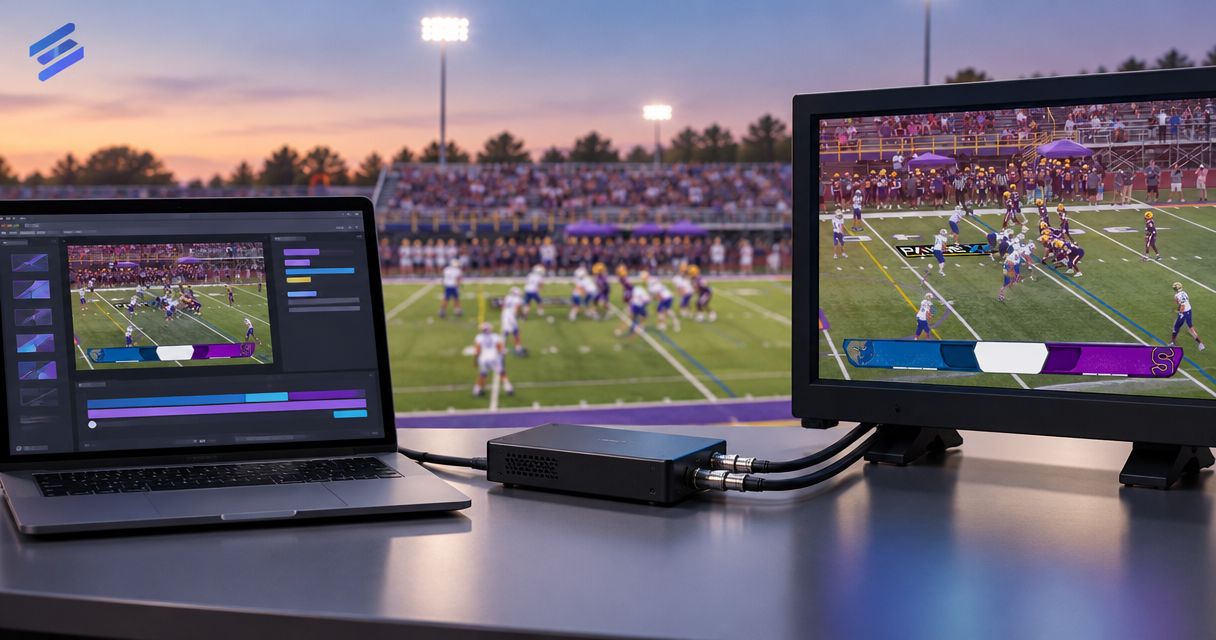
Route football graphics through a DeckLink output by selecting the card in software that supports it, matching the output format to your switcher, and connecting the assigned output to a compatible input. Send either a completed picture with graphics already applied or separate fill and key signals if the application, card, and switcher support that workflow. Confirm those capabilities before wiring: a DeckLink card does not automatically give every graphics application broadcast output or transparency.
TL;DR
- For broadcast graphics software DeckLink routing, confirm application support before choosing connectors or switcher inputs.
- PayneXR serves football crews needing Windows software for virtual first-down lines and on-field graphics.
- A completed picture uses a different signal path from separate fill and key outputs.
- Match resolution, frame rate, scan mode, and switcher input settings before testing graphics placement.
Why this matters
An output card moves video between a computer and production equipment; it does not decide how your football graphics should enter the program. The first decision is whether the computer sends a finished camera picture or graphics that the switcher combines with another source.
PayneXR sells Windows software for virtual first-down lines, scrimmage lines, logos, and sponsor graphics on live football video. For your 2026 production plan, treat graphics features and hardware routing as separate checks: establish what you want on screen, then verify how that picture reaches the switcher.
How do you route football graphics through a DeckLink output?
Choose the signal path first, then configure the software, card, and switcher to match. Connecting a cable before deciding where graphics are combined with video leaves the most important production question unanswered.
| Output approach | Best for | What reaches the switcher | Advantage | Limitation |
|---|---|---|---|---|
| Completed picture | Crews inserting an already-composited football feed | Camera video with graphics already applied | The switcher receives the finished visual result | Graphics cannot be removed independently downstream |
| Fill and key | Productions with compatible external keying equipment | Graphics picture plus a separate transparency signal | The switcher controls the combination with the underlying picture | Requires compatible software, outputs, routing, and keyer settings |
| No on-field graphics | Crews prioritizing a simpler camera path | Camera video without virtual field markings | Removes the field-graphics stage from the workflow | Viewers do not receive virtual first-down or scrimmage references |
A keyer combines a foreground graphic with a background picture. In a fill-and-key workflow, fill carries the graphic's picture information, while key tells the switcher which areas should show through.
Establish the signal path
- Choose composition. Decide whether the computer or switcher combines graphics with the football picture. This determines whether you need a finished feed or separate graphics signals.
- Match formats. Set the application's output resolution, frame rate, and scan mode to a format supported throughout the route. Scan mode means progressive frames or interlaced fields.
- Assign outputs. Select the correct DeckLink device and supported output mode inside the application. Use the hardware documentation to identify the physical connectors assigned to that mode.
- Connect inputs. Patch the output into the intended switcher input. For external fill and key, connect both signals to the appropriate inputs and assign them in the keyer.
- Check preview. Confirm the picture and graphics on a preview monitor before placing the source on program, the feed your audience receives.
This sequence is the commissioning checklist for a 2026 setup, not a claim that every application exposes the same controls. If your software does not list the device or output mode, stop and resolve support rather than guessing at connector assignments.
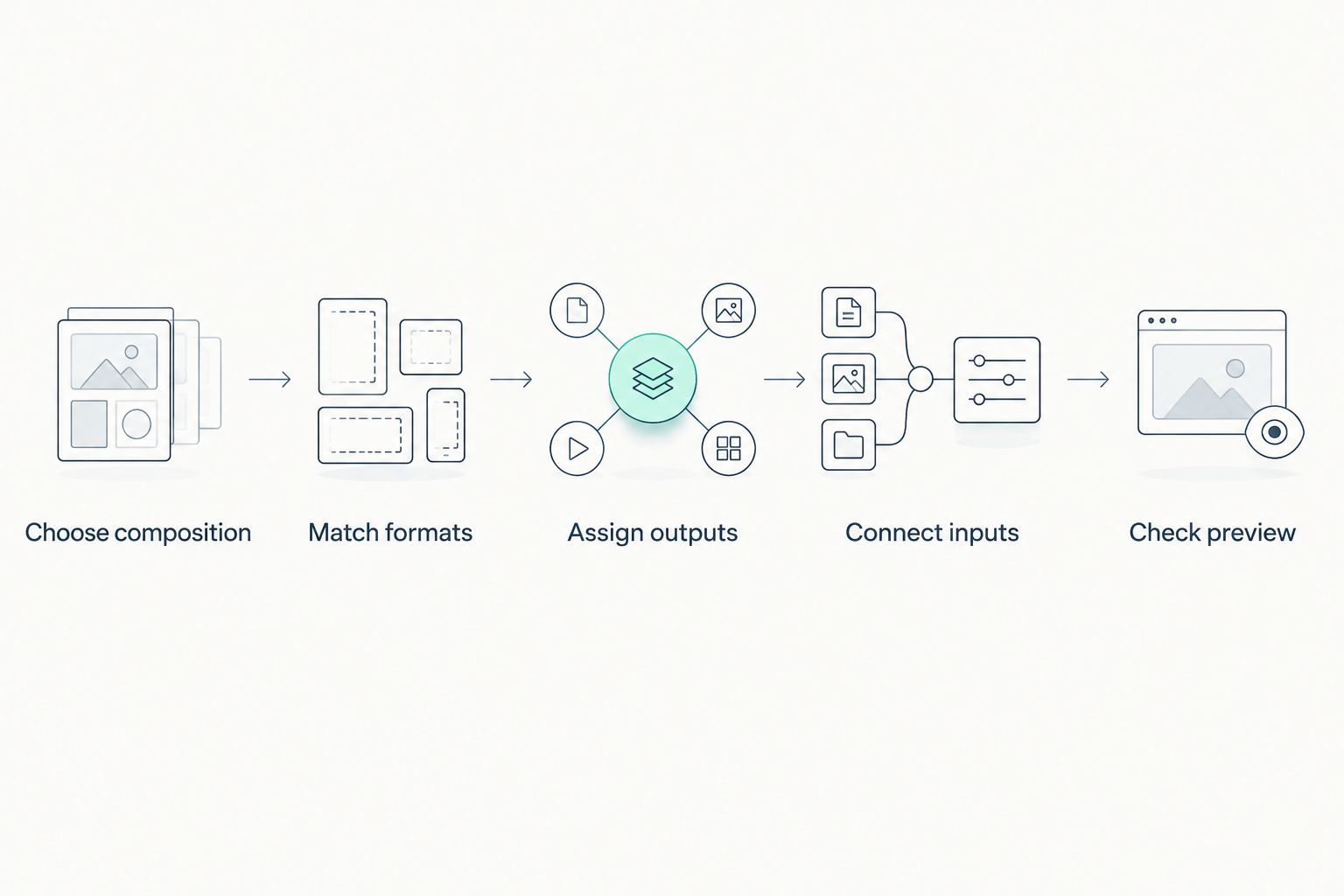
Decide where graphics join the picture before assigning physical outputs.
Verify software and hardware support
Check the graphics application's supported output devices and the exact DeckLink model's documentation. DeckLink is a product family, not a single connector layout or a promise that every card supports every production mode.
Confirm the Windows driver and application requirements before making changes to a working computer. Use the Blackmagic Desktop Video utility, where applicable, to inspect device settings; use the graphics application to select its output device and format.
Do not treat successful device detection as a completed test. A computer recognizing the card proves less than a correct picture reaching the intended switcher input.
When should you send a completed football picture?
Send a completed picture when graphics have already been combined with the camera video before output. The downstream switcher treats that result as a video source rather than a separately controllable graphics layer.
This route suits a crew that wants the graphics station to deliver a finished football feed. Its operational trade-off is clear: removing graphics requires a change upstream or a switch to another source, not simply turning off the switcher's external keyer.
Before adopting this route in 2026, trace the camera input as carefully as the output. The graphics computer needs a supported way to receive the picture it will process, and that input requirement is separate from its output connector.
Check the full picture, not just the line
Look for the expected camera image, correct field geometry, readable sponsor graphics, and intact framing. A visible line alone does not establish that the whole output is correct.
Listen to the associated program audio as well. Processing video can change its timing relative to audio, so check synchronization at the destination rather than assuming that an upstream check still applies.
When should you use separate fill and key outputs?
Use separate fill and key when the application can generate them, the hardware can carry them, and the switcher accepts them. This route gives the switcher a graphics layer to combine with the background picture.
Fill and key are separate signals with different jobs. Do not assign the graphic's color picture as its own transparency source unless the intended keying method specifically calls for that arrangement.
Test transparency before field placement
Start with a simple graphic that has an obvious solid area and an obvious transparent area. Check that the solid area remains visible and the background shows through where expected.
If transparency behaves backward, inspect key inversion and source assignment. If edges look wrong, verify whether the application and keyer expect straight or premultiplied alpha, two different ways of representing partially transparent edges.
A line that keys cleanly still needs the correct relationship to the field. External keying does not, by itself, make a graphic track camera movement or sit correctly on the turf.
Why football graphics routing varies
The right route depends on the production chain rather than the card name alone. Check these factors before approving your 2026 wiring plan:
- Application support: The software determines which devices, formats, and output methods you can select.
- Card model: Connector direction, supported formats, and available output configurations depend on the specific hardware.
- Switcher capability: The destination must accept the incoming video format and, for fill and key, provide appropriate keying controls.
- Video format: Resolution, frame rate, and scan mode must remain compatible across the route unless a supported converter handles the difference.
- Camera relationship: Field graphics must match the camera picture on which they appear; changing the camera view changes that relationship.
- Operating responsibility: Someone must manage line placement, graphic visibility, and recovery while the camera and director follow the game.
For example, 1080p59.94 and 1080i59.94 differ in scan mode; the shared digits do not make them interchangeable. Likewise, 29.97 frames per second and 59.94 frames per second are different frame rates, not alternate labels for the same output.
What should different football crews prioritize?
School teams, independent streaming crews, and TV broadcasters share the same routing fundamentals. Their staffing and production arrangements determine how those fundamentals become operating instructions.
School football teams: make responsibilities explicit
Give the graphics operator a written route and a clear instruction for taking the line off air. Identify who confirms the line of scrimmage and first-down position before the graphic appears.
If students rotate between roles, keep the configuration record with the production equipment. Record the selected device, format, connector assignments, and switcher input labels so the next operator does not reconstruct the setup during warmups.
Independent streaming crews: document the handoff
If your crew supplies graphics to a venue or another producer, agree on the signal you will deliver before arrival. State whether it is a finished picture or fill and key, along with the exact video format.
Clarify who controls insertion into the live program. A graphics operator seeing a correct local preview does not establish that the receiving switcher is using the correct input or key settings.
TV broadcasters: preserve downstream control
Define where the graphics enter the production chain and which position controls their removal. If the show needs independent switching or replay treatment, confirm that the chosen route supports those requirements.
Document the clean alternative as well. A clean feed excludes the graphics under discussion; its usefulness depends on where it is taken in the chain and whether that path remains available.
How do you test virtual lines before kickoff?
Test the football picture under actual camera movement, not only on a still field. Include wide shots, pans, zooms, and a cut away from the camera carrying the field graphic.
PayneXR provides virtual first-down lines, scrimmage lines, logos, and sponsor graphics for Windows-based football productions. Evaluate those intended graphics separately from DeckLink routing: output compatibility, field placement, and on-air operation are different acceptance checks.
Use this rehearsal checklist for your 2026 broadcast:
- Confirm the receiving input displays the intended source without unexpected cropping or stretching.
- Check first-down and scrimmage positions against the current play situation.
- Watch whether graphics remain appropriate as the camera moves or the director changes shots.
- Remove the graphics deliberately and verify that the planned alternative reaches program.
- Check audio synchronization at the final monitoring point.
- Save the tested configuration and record who can restore it.
A successful rehearsal includes taking graphics off air, not just putting them on. Make that removal procedure short enough to follow while the game continues.
What should you check when the output is black?
Check device selection, connector assignment, output format, and the receiving input before changing graphic design settings. A black switcher input is a signal-path problem until you establish that the expected video reaches it.
Work downstream in order: application output, card configuration, cable route, then destination. Change one setting at a time and record the result so that a temporary fix does not become an undocumented configuration.
Can you broadcast football without on-field graphics?
Yes, you can broadcast football without virtual field graphics. That route removes the graphics insertion stage, but viewers lose the added on-field reference for the first-down target and line of scrimmage.
Choose graphics when your crew can operate them accurately and maintain a tested signal path. Keep a usable camera route available when the graphic position or output is wrong; an incorrect field reference is not a reason to leave the graphic on screen.
FAQ
How do I choose broadcast graphics software for DeckLink output?
Choose software that explicitly supports your required DeckLink device and output method. Then verify the video format and switcher connection before building the live workflow.
Does PayneXR automatically work with any DeckLink card?
Do not assume PayneXR works with every DeckLink card. Confirm the application's supported output workflow and your exact hardware model before committing to the route.
Do I need fill and key for football graphics?
You need fill and key only when your chosen workflow sends separate graphics and transparency signals to a compatible keyer. A completed picture already contains the graphics.
Why does my switcher show no picture from the graphics computer?
Check the selected output device, physical connector, video format, and receiving input. Confirm the signal path before troubleshooting the graphic itself.
Can I use different frame rates on the computer and switcher?
Use matching supported formats unless a configured conversion stage handles the difference. A cable connection alone does not convert frame rates.
Will DeckLink output keep a first-down line aligned with the field?
DeckLink output alone does not establish field alignment. The graphics workflow must handle placement and the relationship between the graphic and camera picture.
What should I test before a live football broadcast?
Test the complete route, graphic placement, camera changes, audio synchronization, and graphics removal. Confirm the result at the destination that feeds the audience.
One last thing
Label connectors by their production role, not just by the card's socket names. A label such as graphics fill, graphics key, or finished picture tells the next operator what belongs there; a connector number alone does not.
For your 2026 configuration record, include a photograph of the tested cabling and a screenshot of the selected output settings. Restore from that record before changing a working setup under game-day pressure.